
Multi-Factor Authentication (MFA) is a vital security control that enhances account protection by adding an extra layer of verification beyond passwords. Its primary goal is to reduce the risks of password-only authentication, which is susceptible to threats such as phishing attacks, credential theft, and weak or reused passwords.
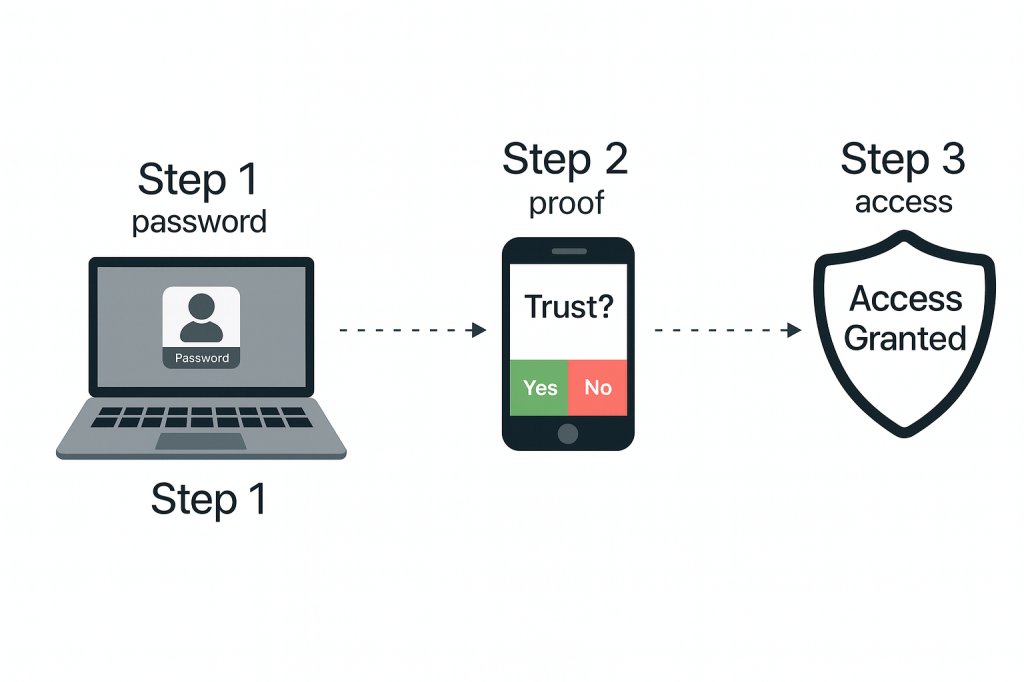
Enabling multi-factor authentication (MFA) in an enterprise environment is a security best practice, as it significantly strengthens account protection, reduces the risk of unauthorized access, and helps meet regulatory and compliance requirements. MFA also improves access control and safeguards the organization’s critical data from both internal and external threats.
To begin, I will simulate the creation of a support ticket requesting the activation of Multi-Factor Authentication (MFA).
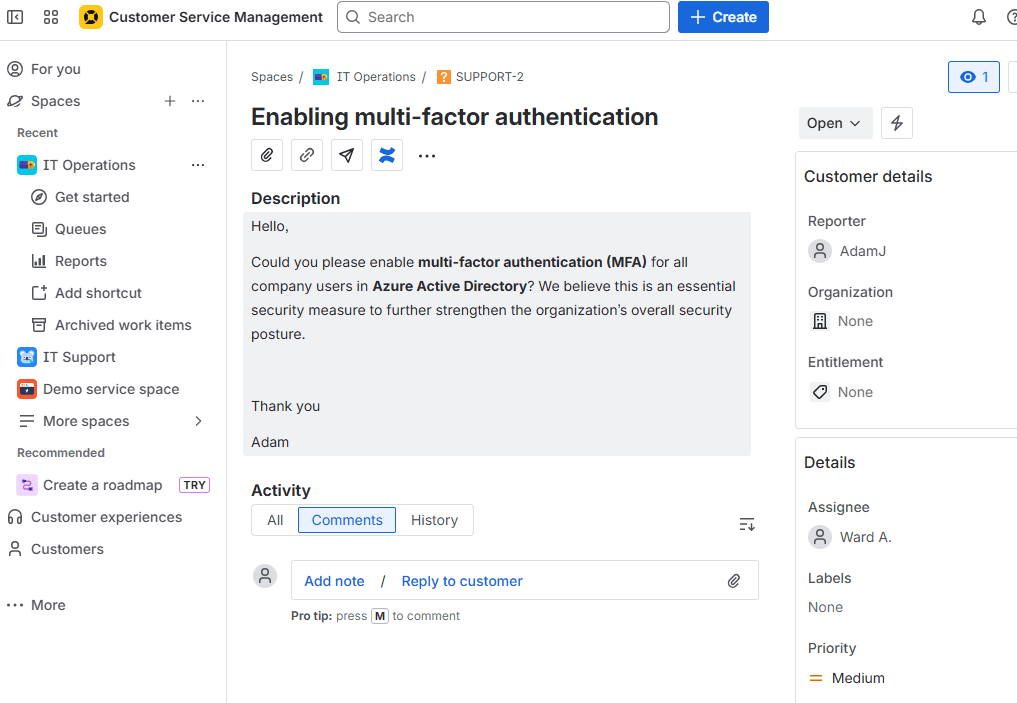
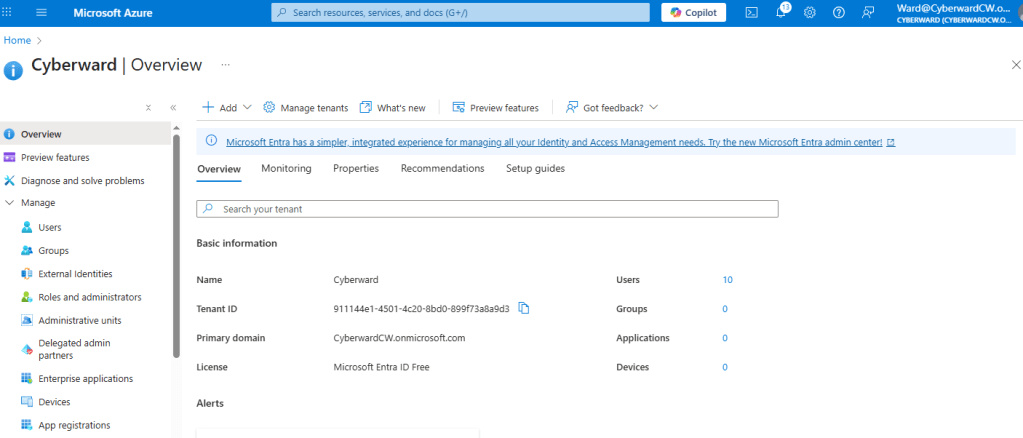
To complete this task, I follow these steps:
- First, I access the Azure portal at https://portal.azure.com.
- Next, I navigate to the Users section and select “MFA per user.”
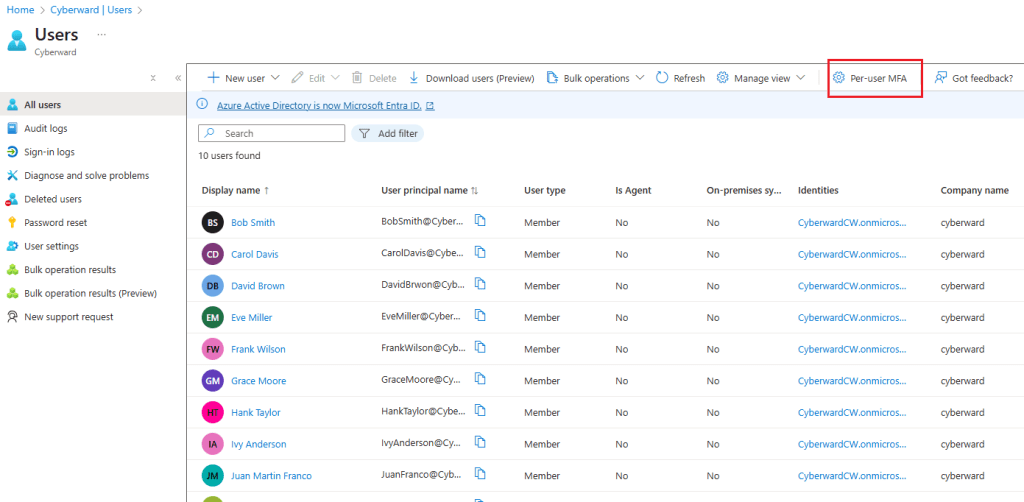
3. After clicking this option, the Multi-Factor Authentication management interface is displayed.
4.I then select the users for whom MFA needs to be enabled. Since the ticket requests MFA for all users, I select all accounts and click Enable.
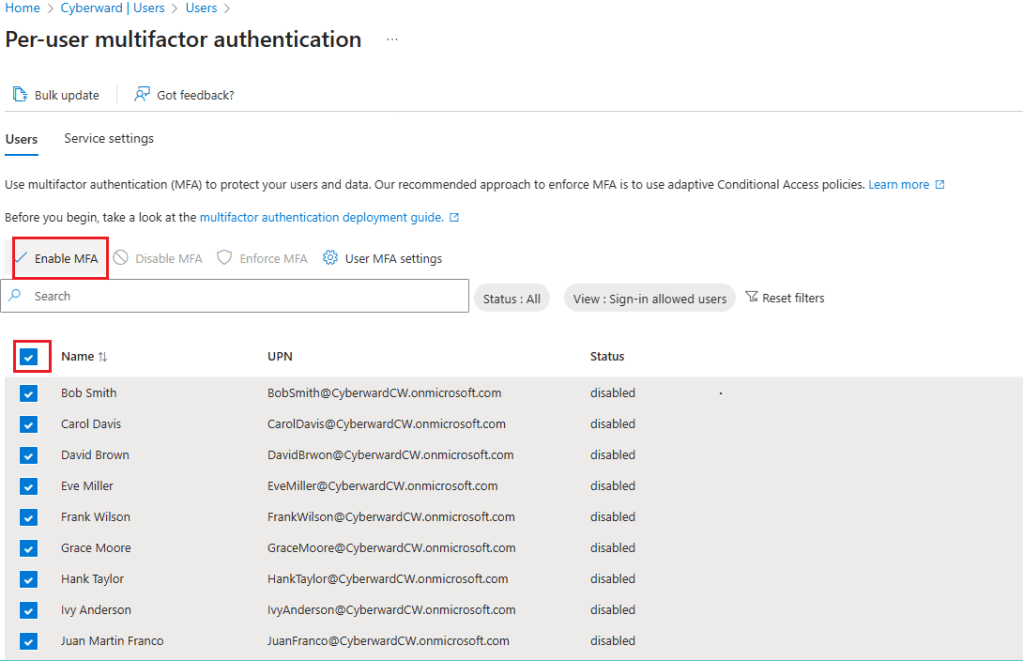
5. After clicking Enable, a confirmation dialog box appears.
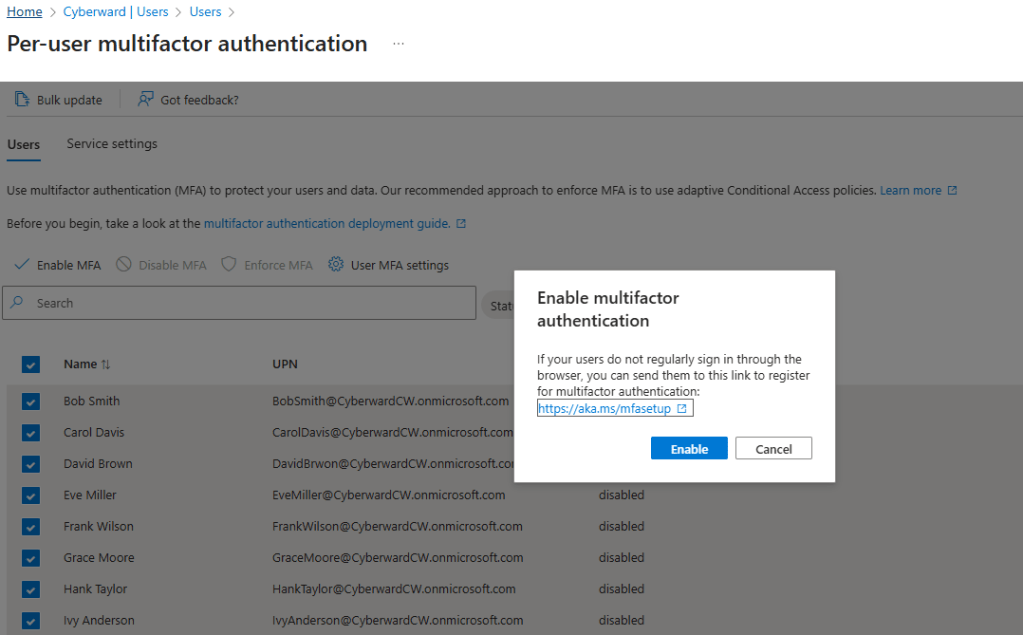
6. Once confirmed, a notification banner is displayed indicating that multi-factor authentication has been successfully enabled for the selected users.
7. To verify the change, I confirm that the status shows “Enabled” under the Multi-Factor Auth Status column.
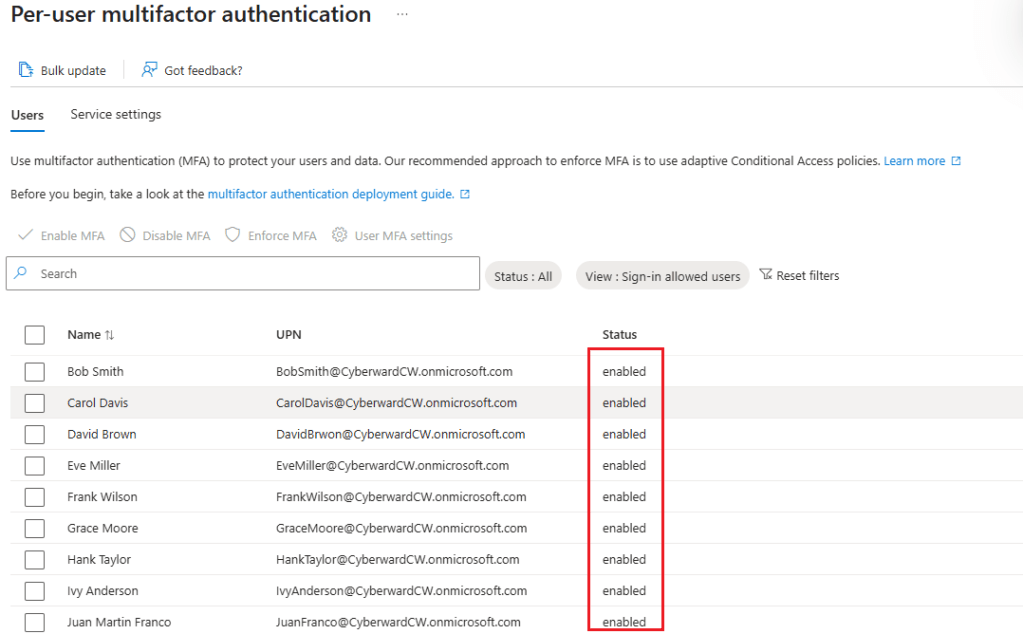
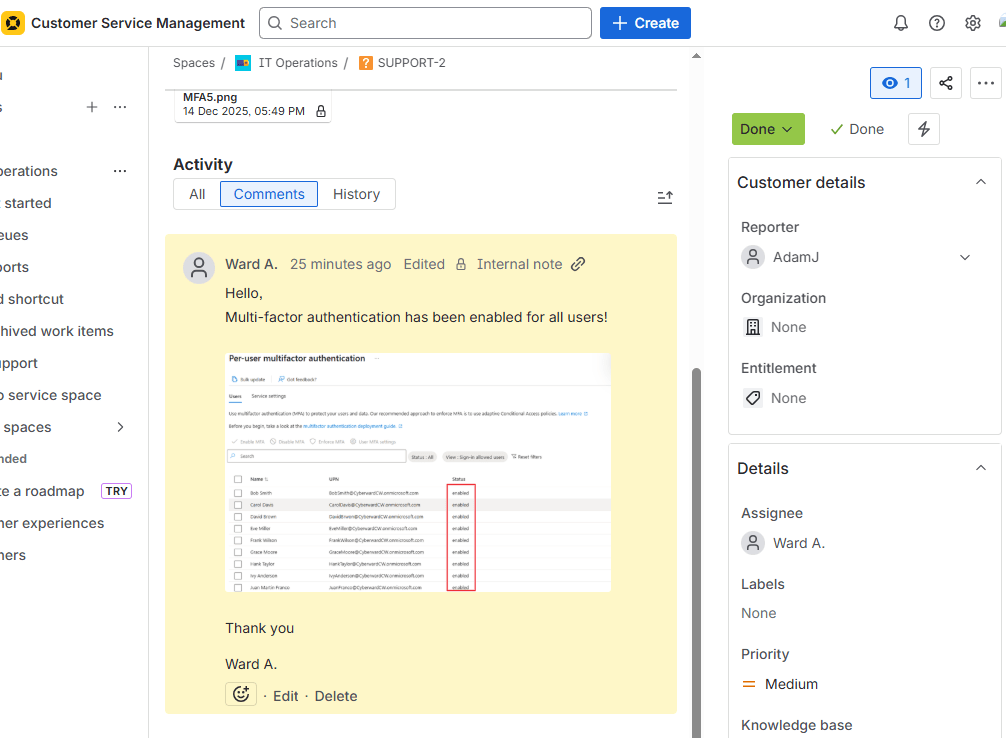
Finally, I update the support ticket to inform the requester Adam that MFA has been successfully enabled. Supporting evidence is also attached to the ticket to document the completed action.





 CYBERWARD
Leave a comment