Designed and implemented a Windows-based IT infrastructure in a virtualized lab environment, integrating on-premises Active Directory with Azure Active Directory to simulate a hybrid enterprise setup. This project demonstrates hands-on experience in configuring identity management, user access control, and system administration across both local and cloud environments.
The environment was built to replicate real-world IT operations, focusing on reliability, security, and efficient system management. Through this project, I developed practical skills in deploying, managing, and troubleshooting enterprise-style infrastructure, supporting users, and maintaining system performance
Project Overview
This homelab was built using VirtualBox to simulate a small enterprise network. The environment includes multiple servers and client machines configured to support identity management, Group Policy, software deployment, and system monitoring scenarios.
Server Infrastructure
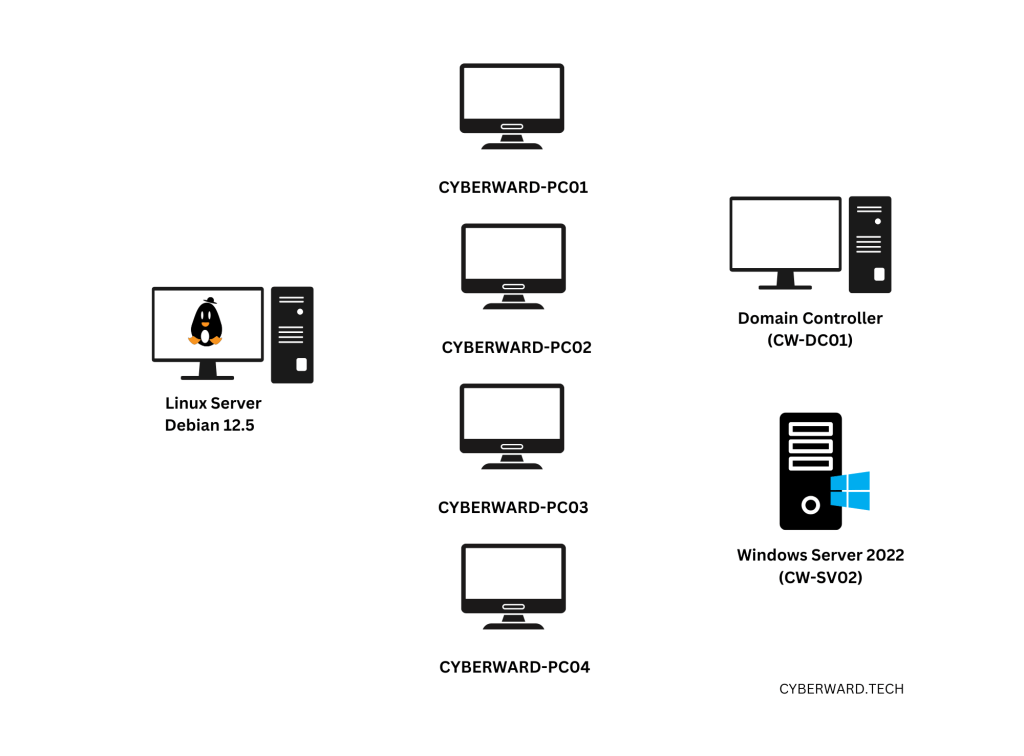
The environment consists of three servers:
- Domain Controller (Windows Server 2022):
Configured as the primary Domain Controller responsible for Active Directory, user authentication, authorization, and domain services, named (CW-CD01) - Member Server (Windows Server 2022):
Used to host additional services such as file storage, applications, and other network resources required within the domain, named (CW-SV02). - Monitoring Server (Debian 12.5):
Deployed to monitor system performance, network activity, and the availability of servers and client devices across the environment.
Client Machines
The lab includes four client workstations that simulate end-user devices:
- Each client is joined to the Active Directory domain
- Used to test user authentication, Group Policy, access control, and troubleshooting scenarios
Naming Convention
A standardized naming convention was implemented to mirror enterprise IT practices:
- Prefix: CYBERWARD
- Client Identifier: PC
- Unique Number: 01–04
Client Hostnames:
- CYBERWARD-PC01
- CYBERWARD-PC02
- CYBERWARD-PC03
- CYBERWARD-PC04
Organizational Units (OUs) for Departments
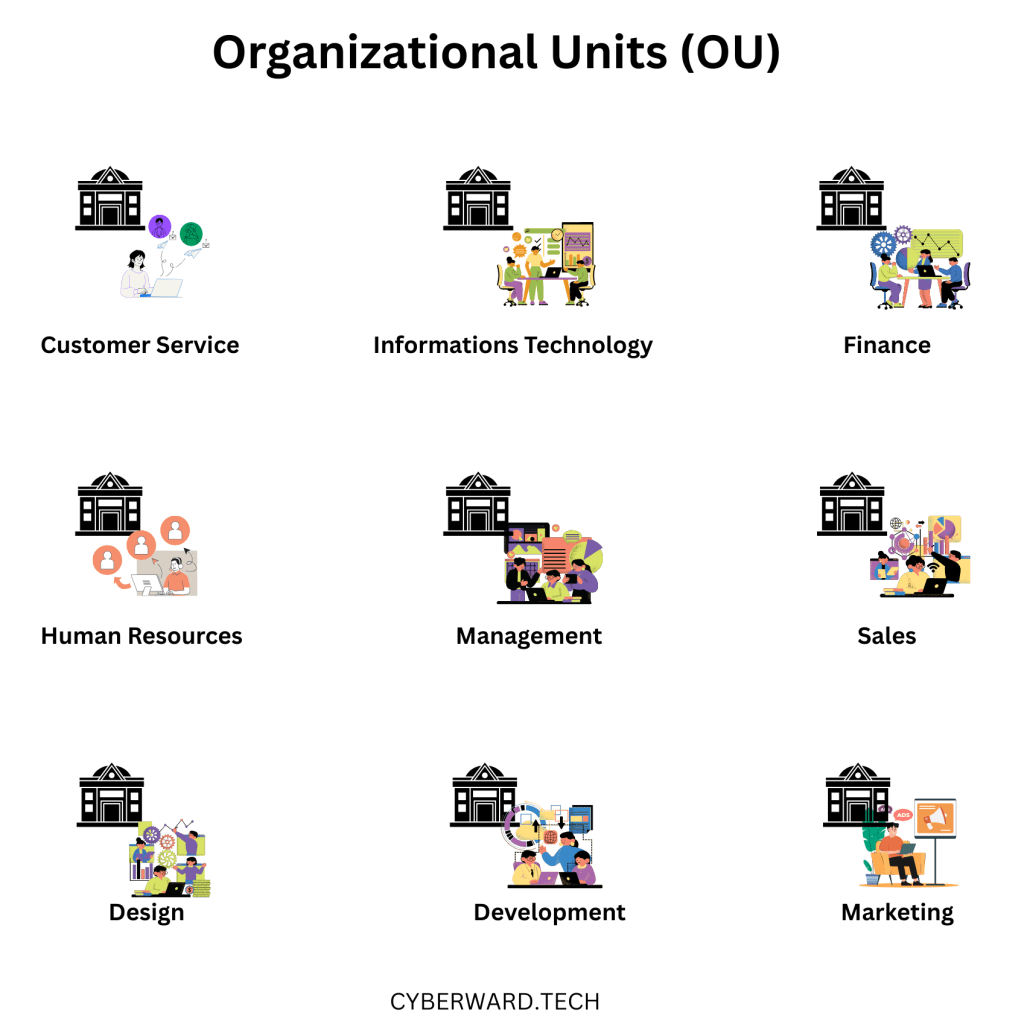
To maintain a structured and manageable Active Directory environment, Organizational Units (OUs) were created for each department. This design enables efficient management of users, computers, and policies, and supports delegated administration and targeted Group Policy application.
Departmental OU Structure
The following OUs were implemented to reflect a realistic organizational hierarchy:
- IT: Includes IT Support, System Administrators, and Network Engineers.
- Finance: Includes Finance Managers and Finance Analysts.
- Sales: Includes Sales Representatives.
- Human Resources (HR): Includes HR Managers and HR personnel.
- Marketing: Includes Marketing Specialists and Content Writers.
- Development: Includes Software Developers and DevOps Engineers.
- Customer Service: Includes Customer Service Representatives.
- Design: Includes Graphic Designers.
- Administration: Includes Office Managers and administrative staff.
This OU structure supports clear separation of departments, simplified user and computer management, and effective application of security policies across the domain.
Project Series:
- Installing Active Directory Domain Services
- Dynamic Host Configuration Protocol (DHCP) server configuration setup
- WDS
- Homelab Setup: setting up Virtual Environment | Installing Machines
- Join all client machines to the domain & Create Organizational Units (OUs)
- Users Creation on-premises & Azure AD
- User Creation, Security Groups & Shared Resource Configuration
- Configuring Azure AD Connect Cloud Sync
- Group Policy Management and Implementation
- Password Users Password Reset on Premises & AzureReset
- Multi-factor Authentication
- Microsoft 365 Integration and Management
- Deploying Software Using Group Policy
- Software Deployment Using PDQ
- Remote Access and Troubleshooting
- VPN Configuration
- Monitoring and Visualization
- Task Automation with PowerShell
- Project Conclusion

 CYBERWARD
Leave a comment