
In this serie of the project, I will demonstrates the configuration of Azure AD Connect Cloud Sync to synchronize on-premises Active Directory users with Azure Active Directory (Microsoft Entra ID). The goal was to simulate a hybrid identity environment commonly used in enterprise organizations, allowing users to authenticate and access cloud services using their on-premises credentials.
Objectives
- Configure Azure AD Connect Cloud Sync in a lab environment
- Synchronize on-premises Active Directory users to Azure AD
- Validate user provisioning and attribute synchronization
- Troubleshoot common synchronization issues
- Gain hands-on experience with hybrid identity management
Steps to Install Azure AD Connect Cloud Sync Agent
Prerequisites
Before installation, ensure:
- Windows Server (2022 in this lab)
- Server is domain-joined
- Internet access (HTTPS outbound)
- Local admin rights on the server
- Global Administrator or Hybrid Identity Administrator role in Azure AD (Entra ID)
- On-prem Active Directory is healthy and reachable
Step 1: Sign in to Azure Portal
Go to https://entra.microsoft.com
- Sign in with a Global Administrator or Hybrid Identity Administrator account
Step 2: Navigate to Cloud Sync
- In Microsoft Entra ID:
- Select Identity
- Select Hybrid management
- Select Cloud sync
- Click New configuration (or select an existing one)
Step 3: Download the Cloud Sync Agent
- Under Agent, click Download agent
- Download AzureADConnectProvisioningAgentSetup.exe
- Copy the installer to your domain-joined server
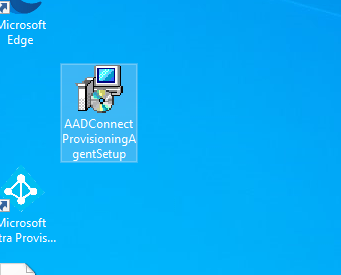
Step 4: Install the Agent on the Server
- Log in to the server as a Domain Administrator
- Run AzureADConnectProvisioningAgentSetup.exe
- Accept the license terms
- Choose Install
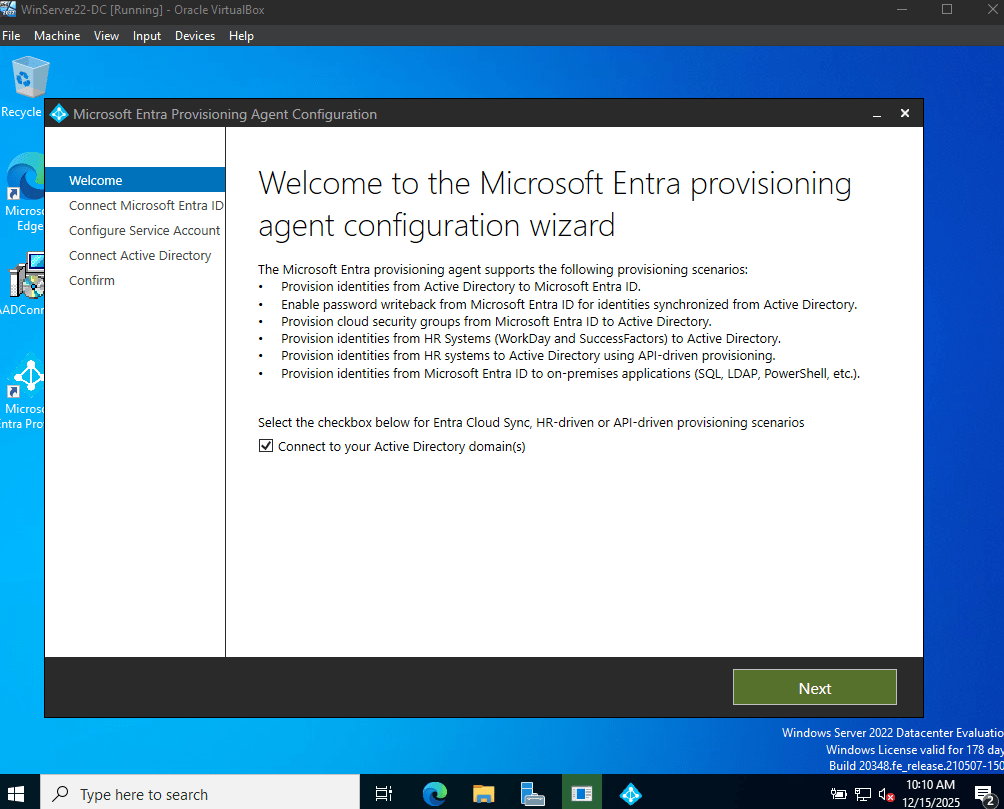
add Azure account to authenticate
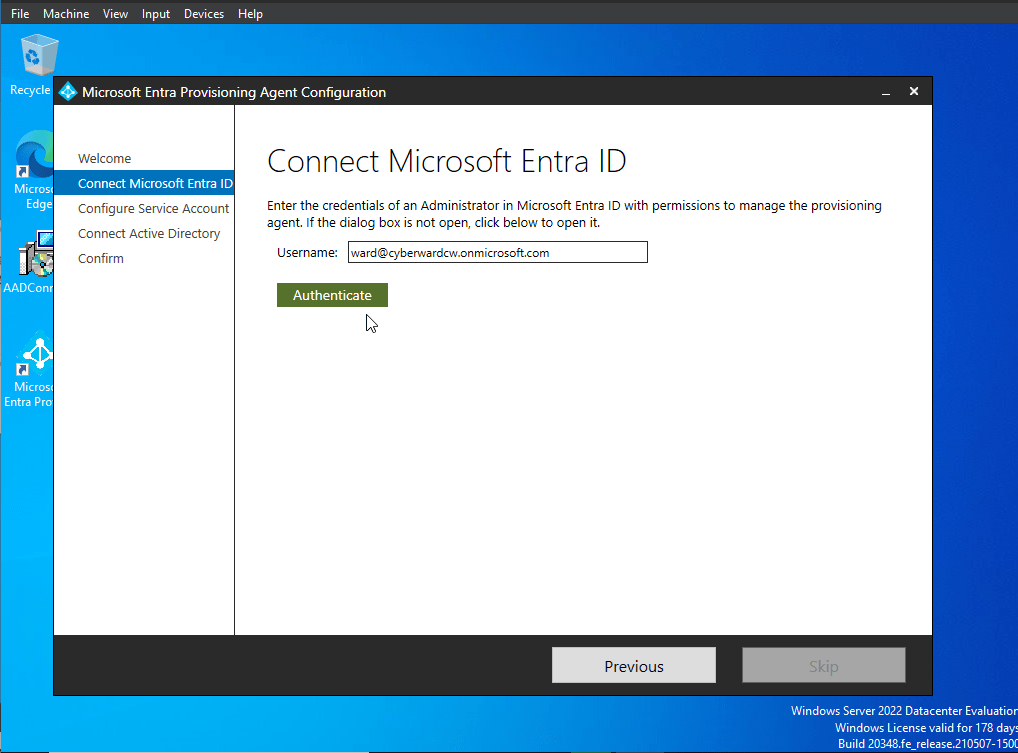
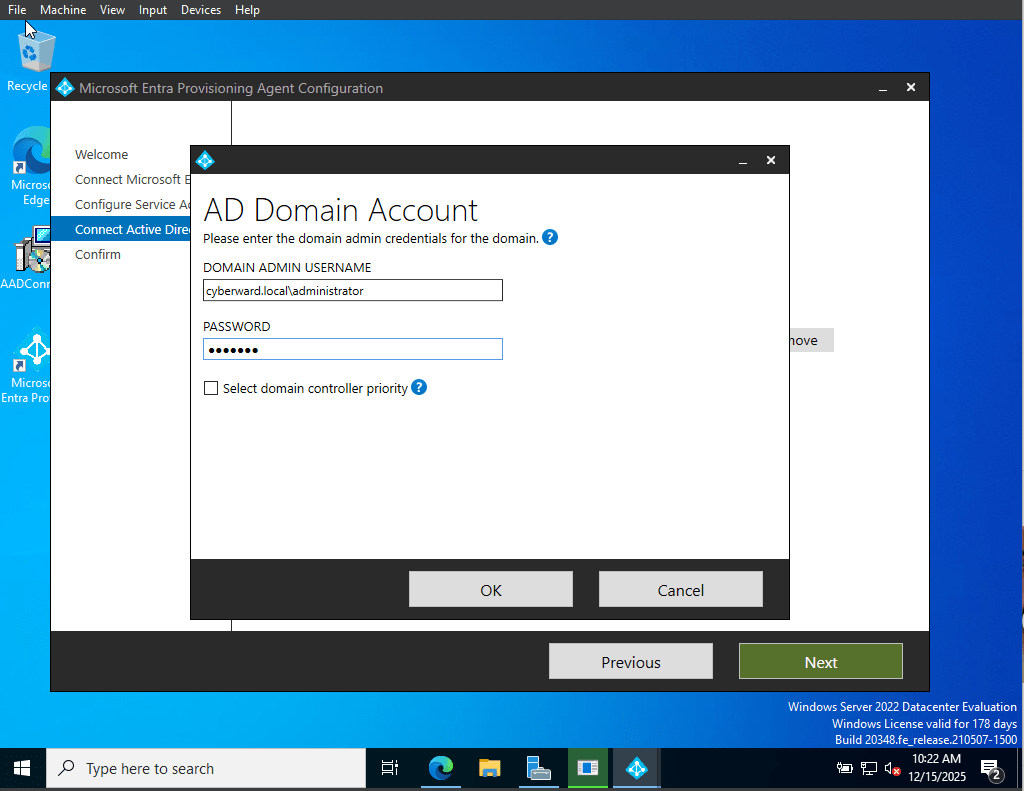
add the admin from Active directory & password
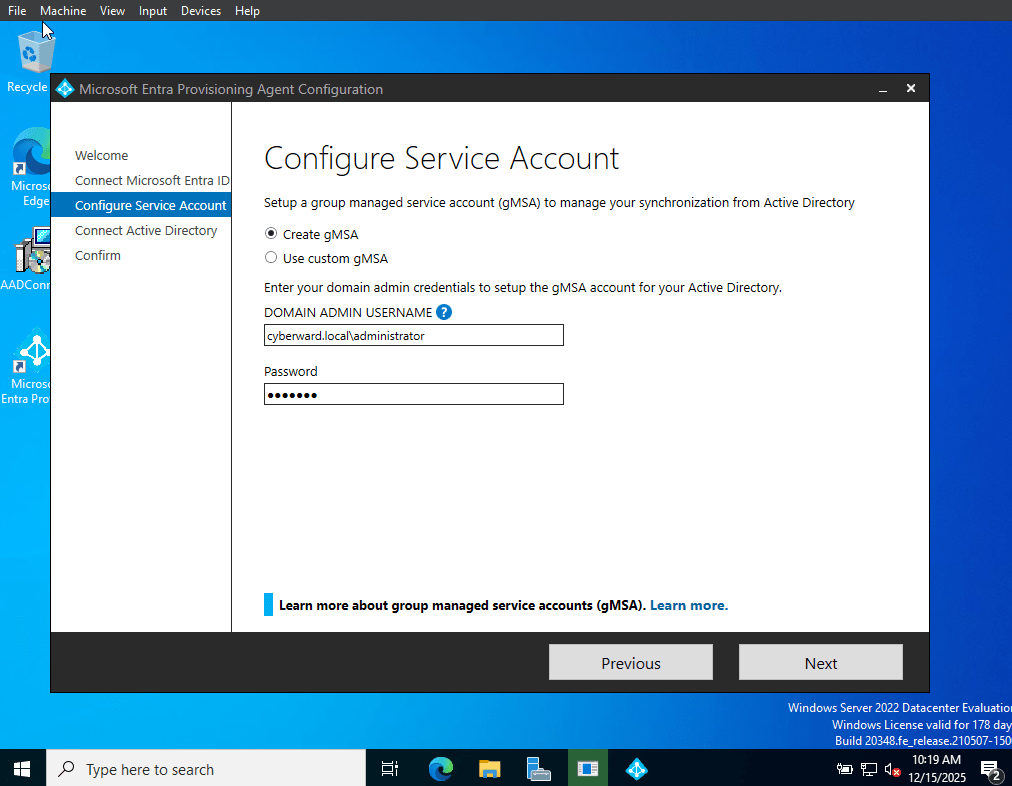
add Active Directory Domain you want to connect
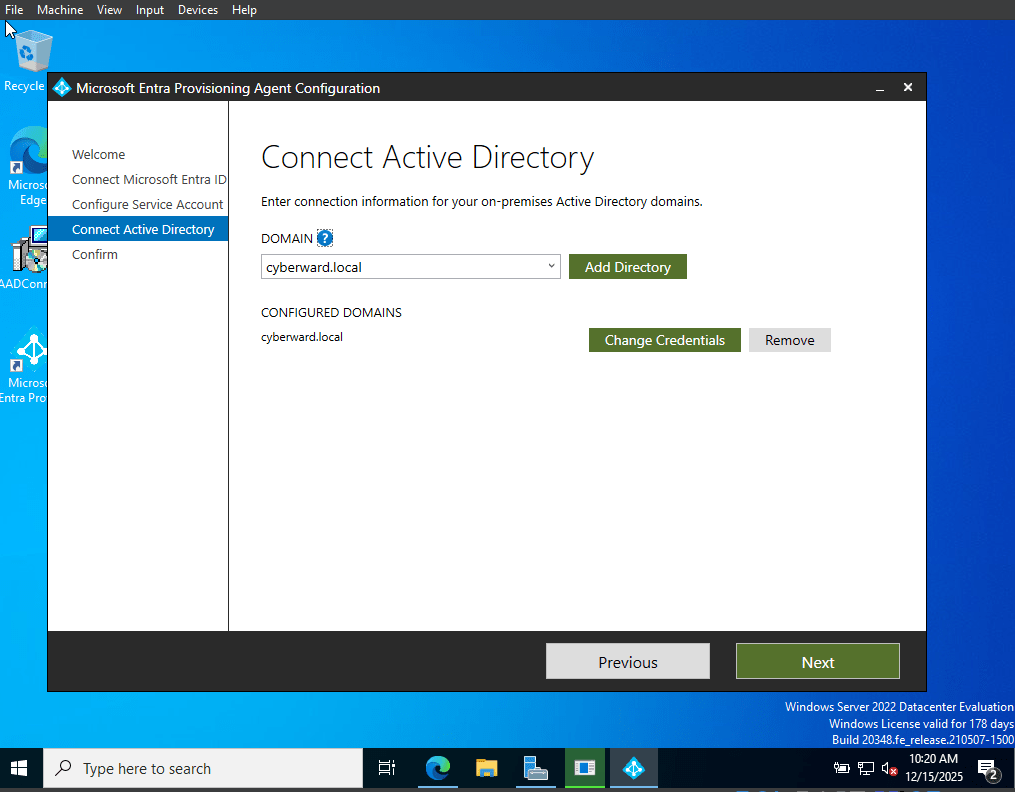
add domain account credentials
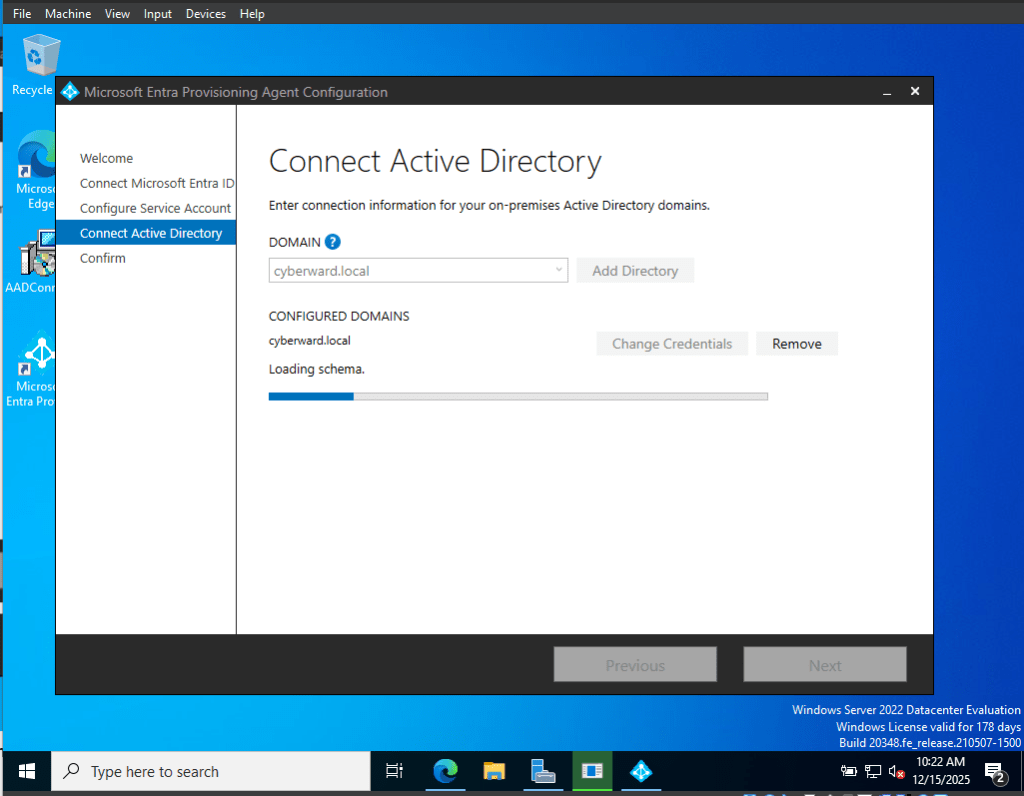
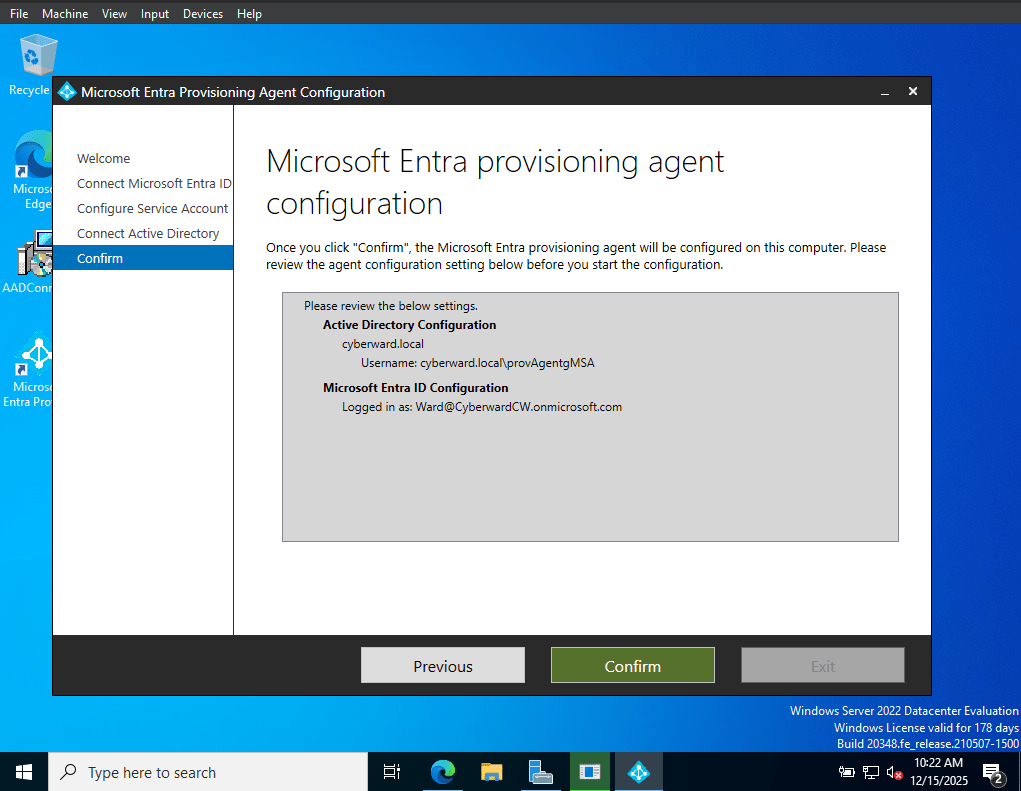
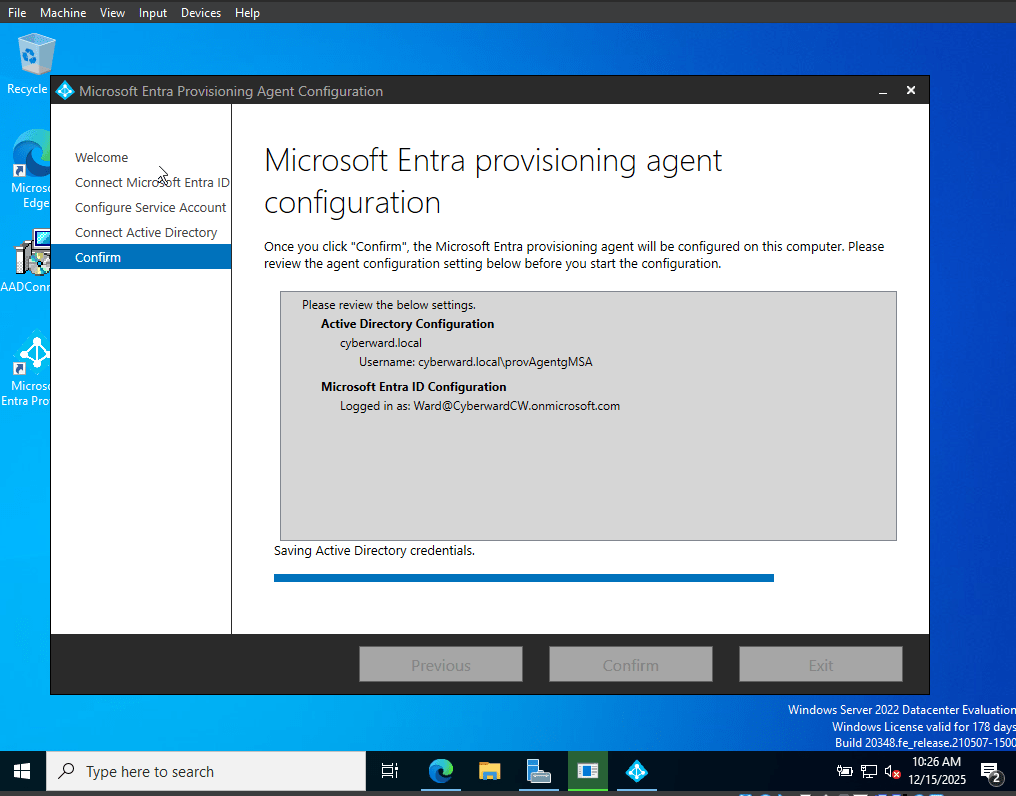
Installation complete
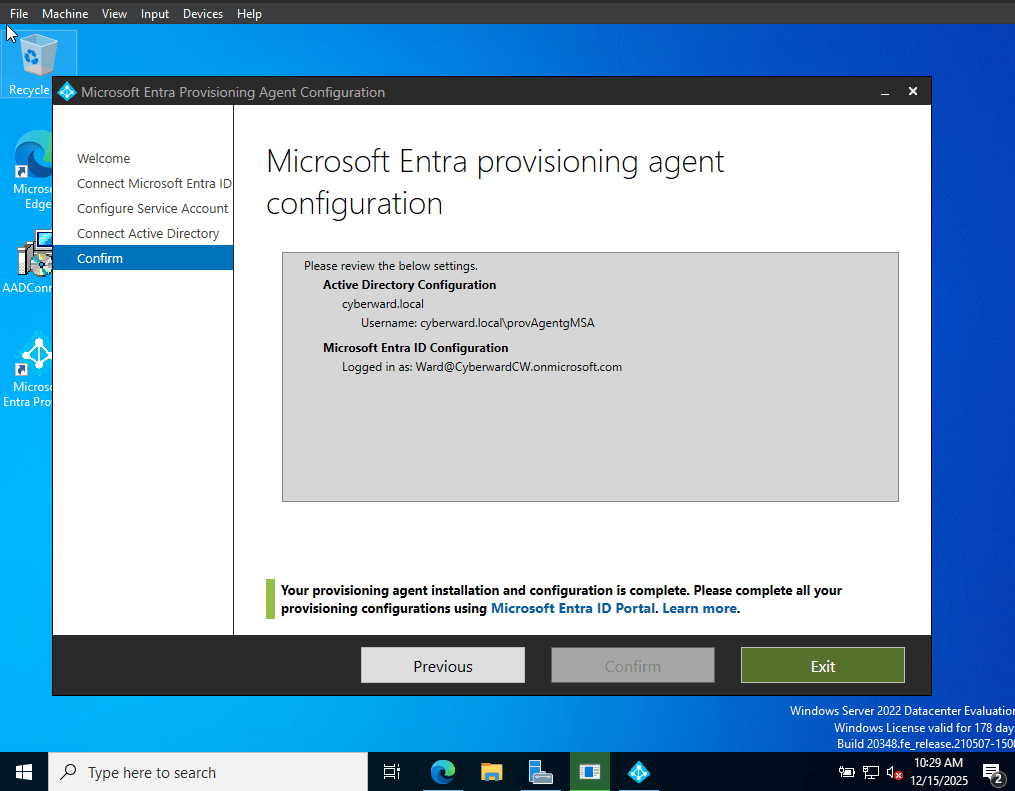
When prompted, sign in with an Azure AD admin account
Step 5: Register the Agent
- During installation, the agent automatically registers with Azure AD
- Ensure the registration completes successfully
- Installation will create required services automatically
Step 6: Configure Synchronization
- Return to Entra Admin Center → Cloud sync
- Choose new configuration > AD to Microsoft Entra ID sync
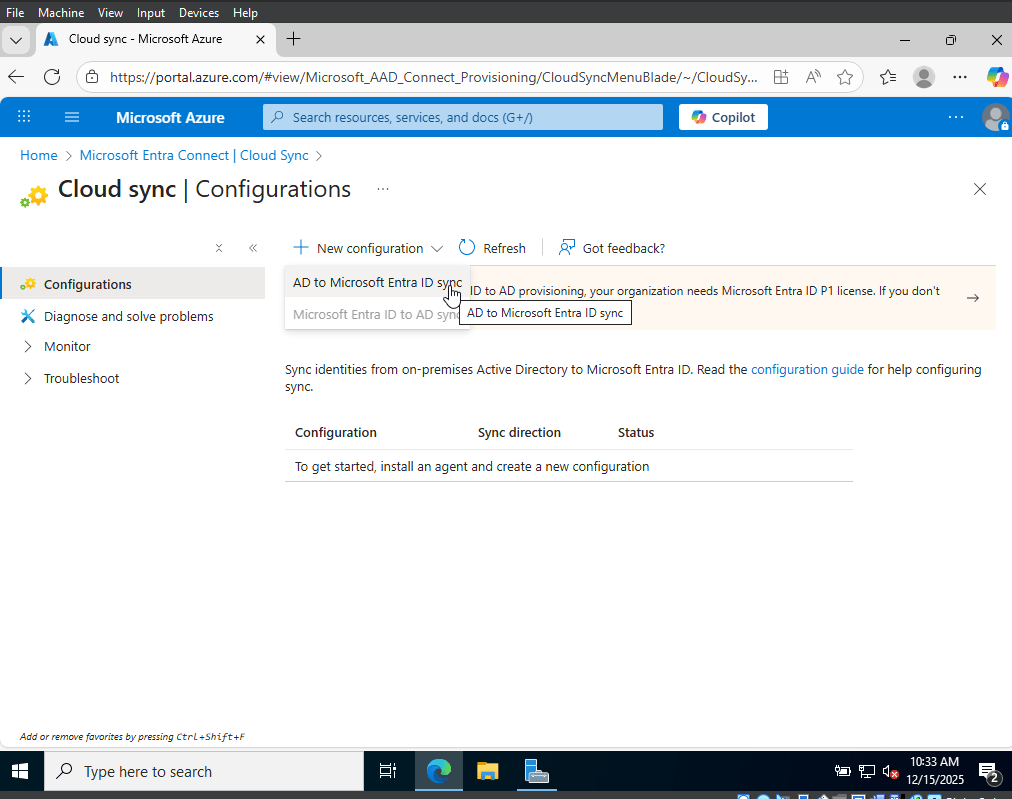
3. The active directory domain will be listed as active agent, click create
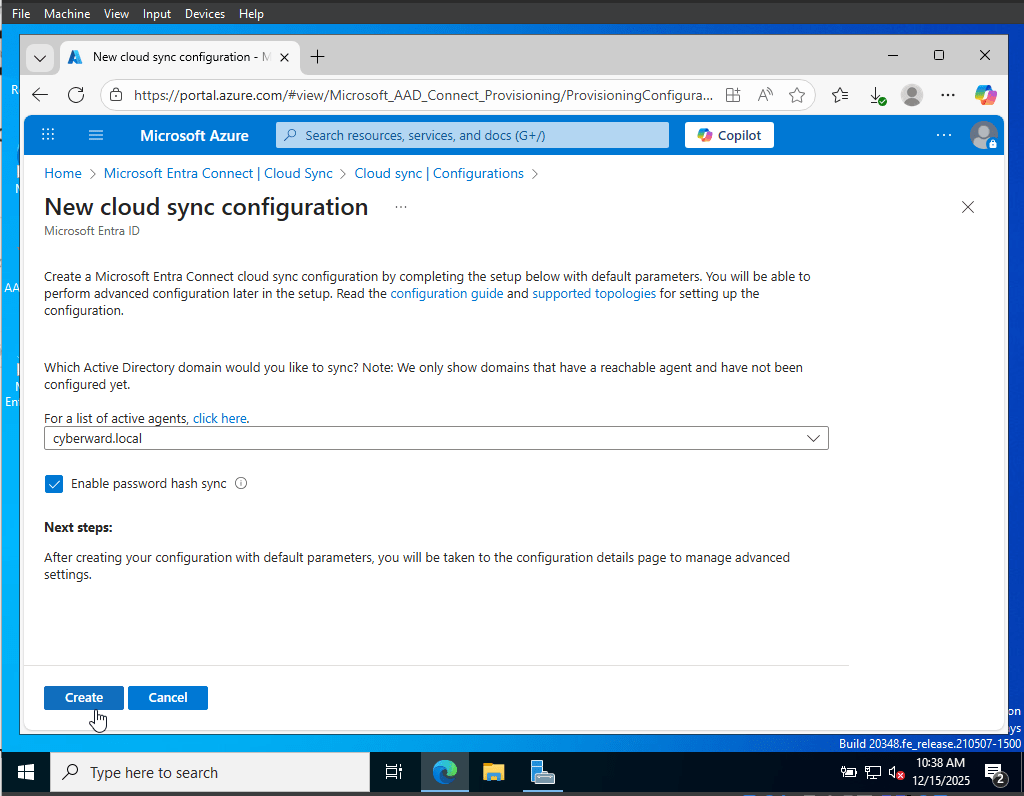
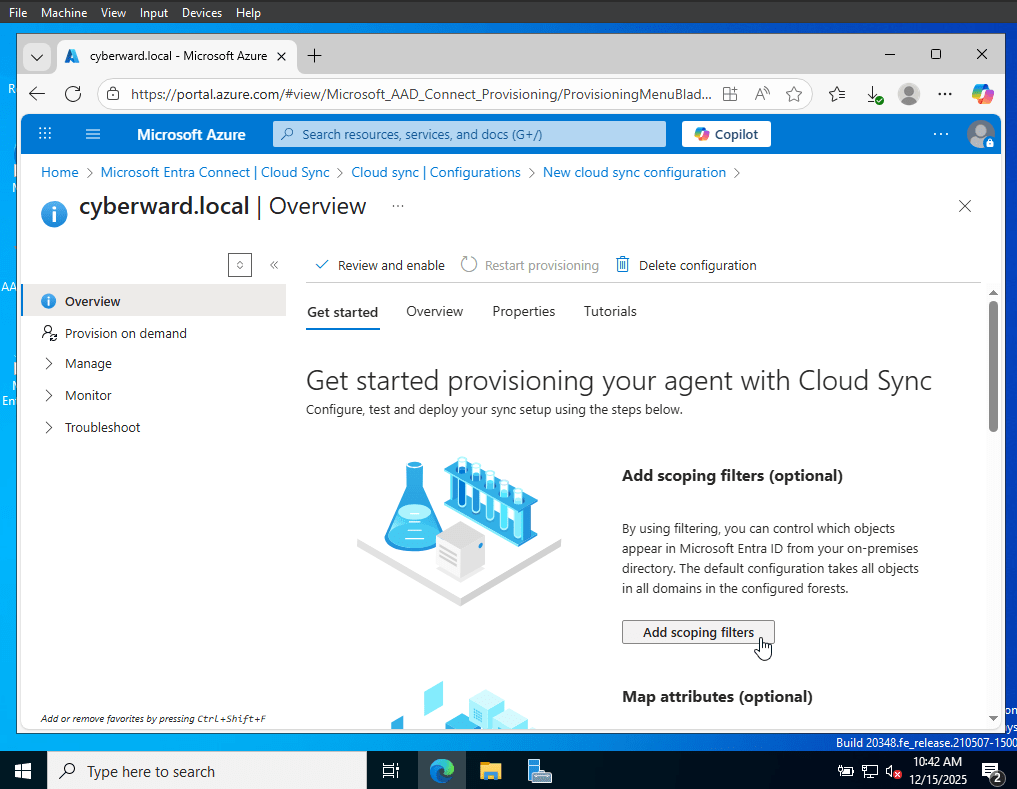
4. Select your Cloud Sync configuration
5. Choose:
- Organizational Units (OU filtering)
- Sync scope
- Password Hash Sync (if required)
6. Save and Enable synchronization
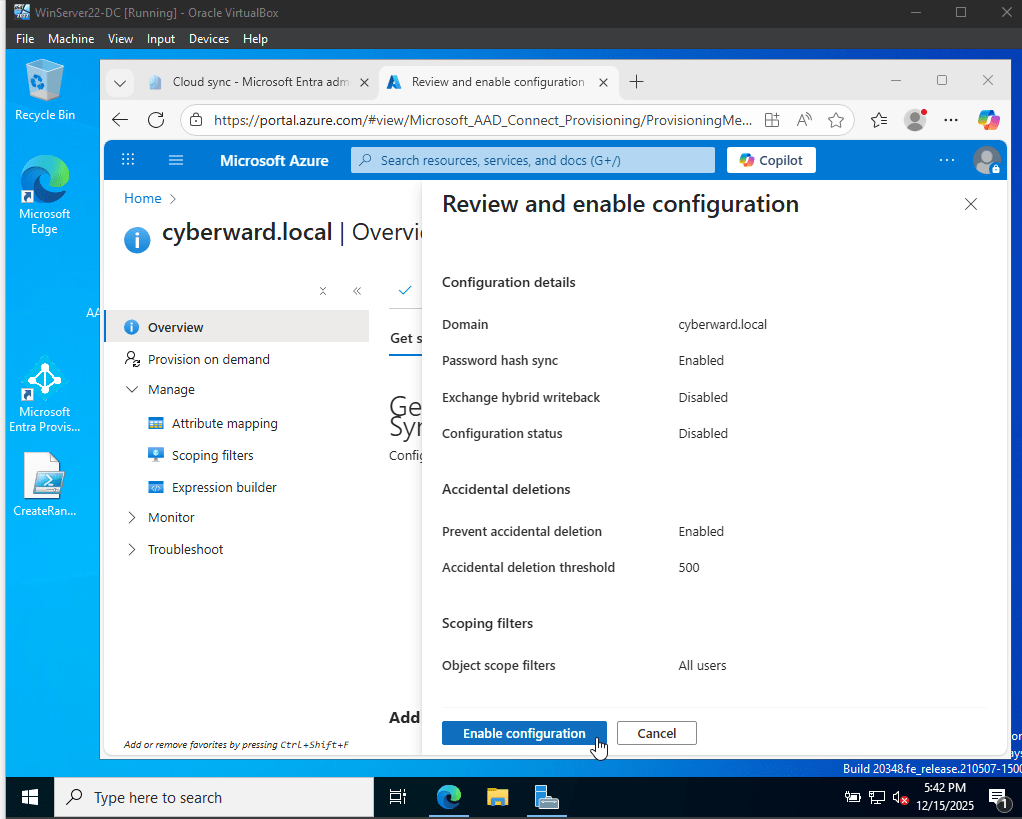
Step 7: Validate Synchronization
- Wait a few minutes for initial sync
- Check Users in Azure AD for synced accounts
- Review logs for errors if users do not appear
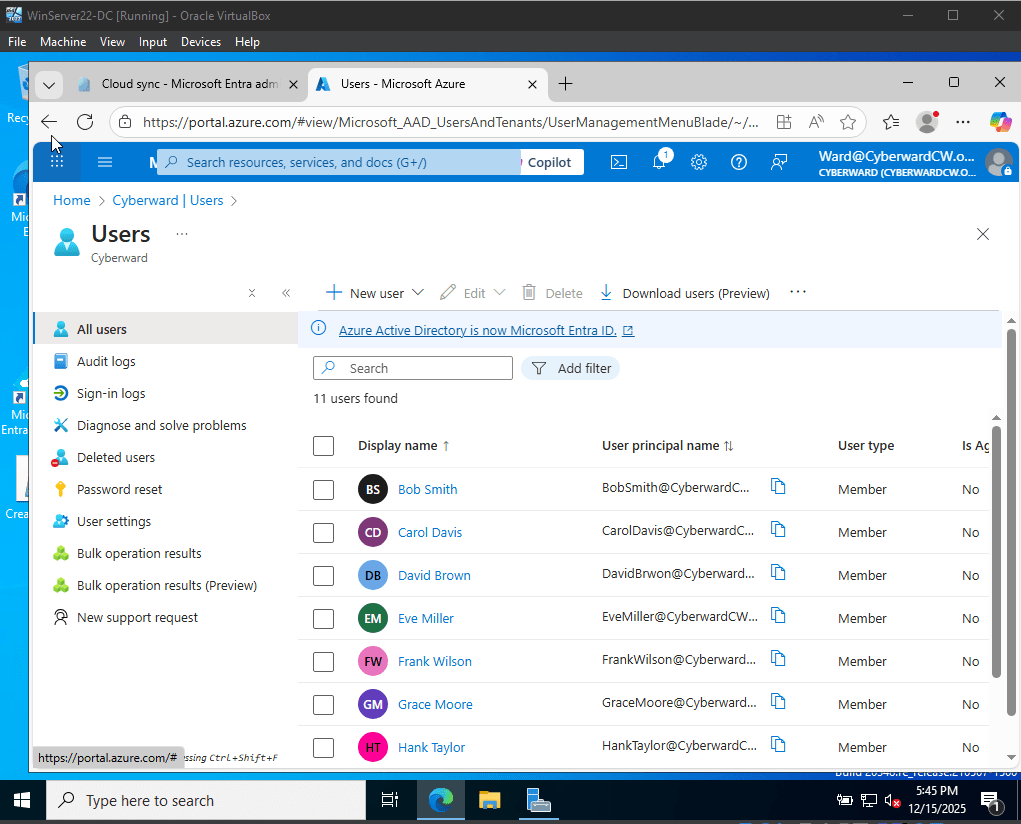
Step 6: Verify Agent Status
- Return to Entra Admin Center → Cloud sync
- Confirm the agent status shows:
- Active
- Healthy
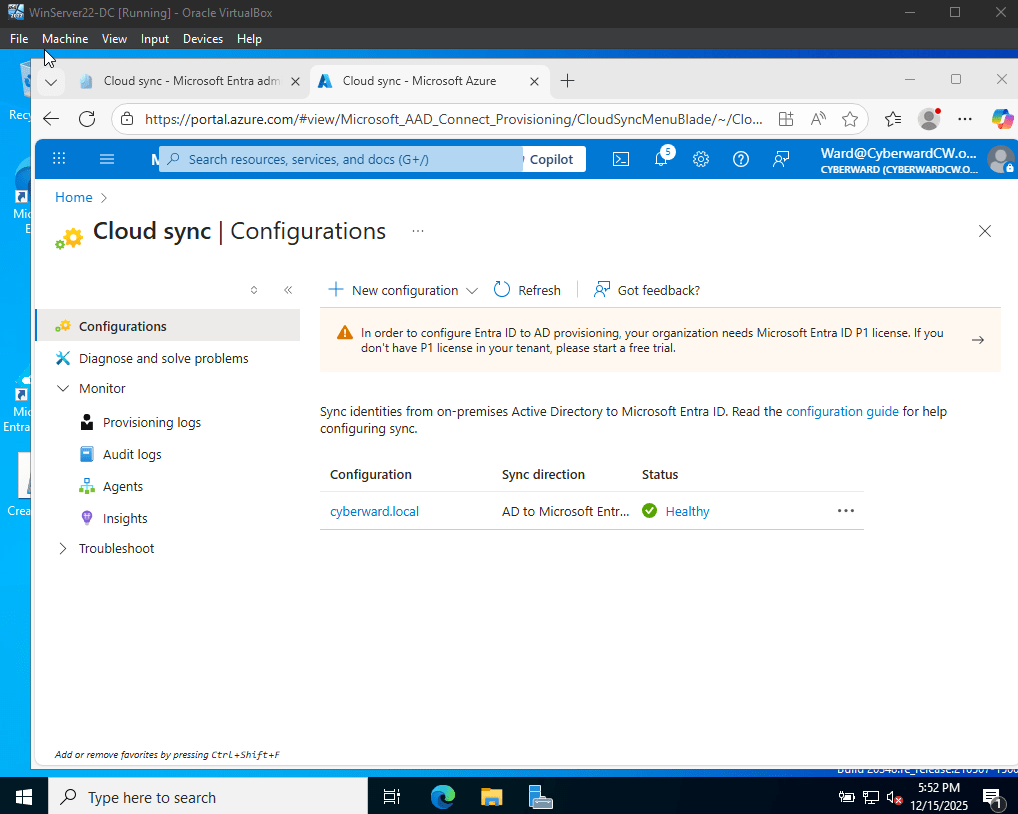
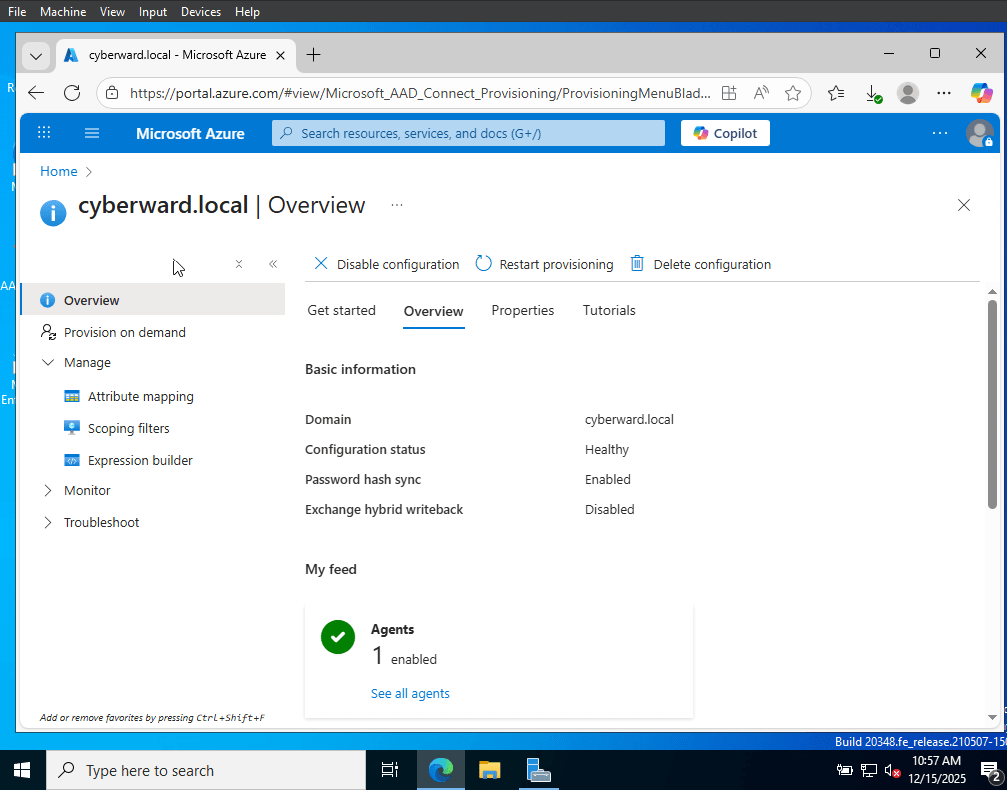
The Azure AD Connect Cloud Sync configuration was successfully completed, resulting in reliable synchronization between the on-premises Active Directory environment and Azure AD (Microsoft Entra ID). User accounts were correctly provisioned in Azure AD with the expected attributes, and synchronization operated as designed based on configured OU filtering and identity settings. Validation confirmed that users were visible and manageable in the Azure and Microsoft 365 portals, demonstrating a functional hybrid identity environment. This project confirms practical experience with identity synchronization, user provisioning, and troubleshooting in a hybrid Active Directory setup.






 CYBERWARD
Leave a comment