
Password Reset
To continue the homelab, I will now practice another essential skill: resetting user passwords. To simulate a real-world support scenario, I will create a new ticket from the same requester.
Once the ticket is submitted, I sign in as IT Support and review the assigned ticket to begin working on the request.
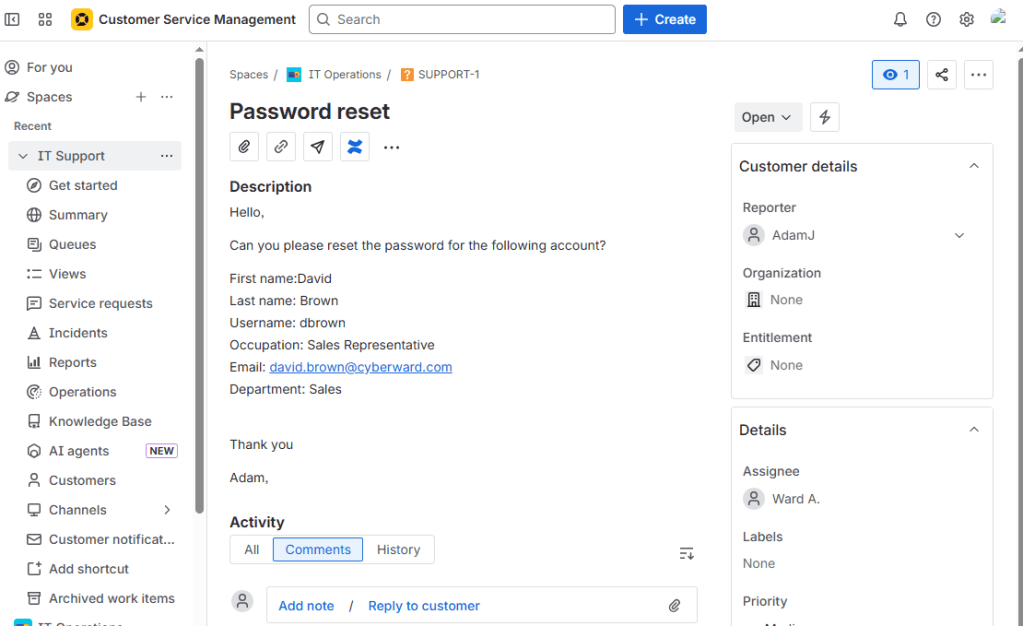
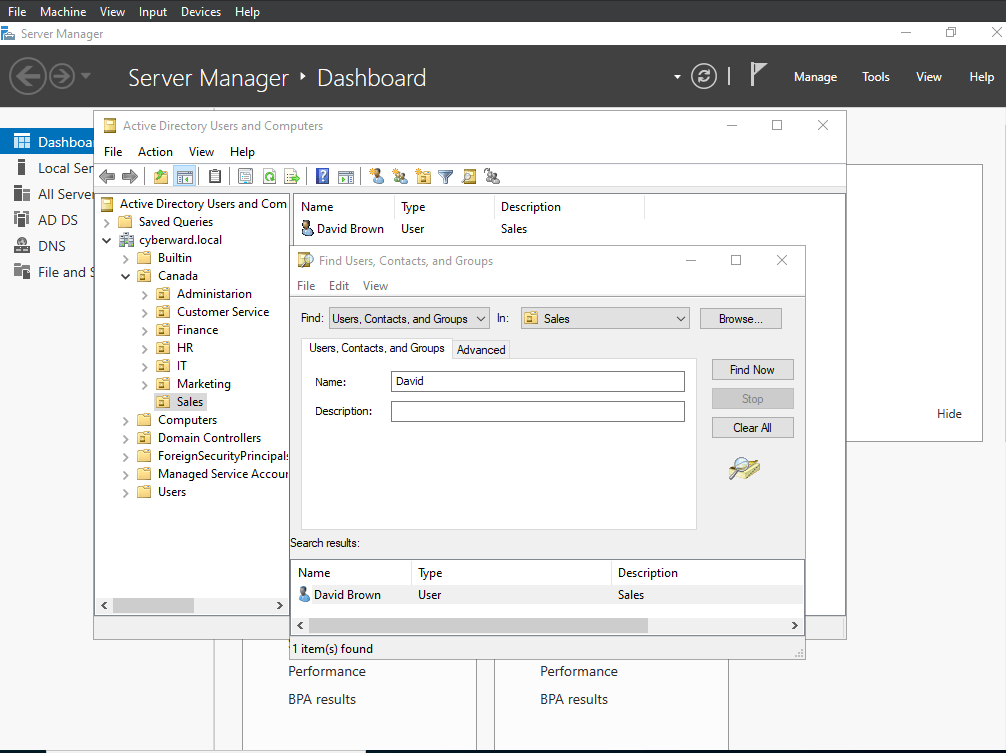
To perform the password reset, I open Active Directory Users and Computers (ADUC) or the Active Directory Administrative Center (ADAC) and locate the target user account.
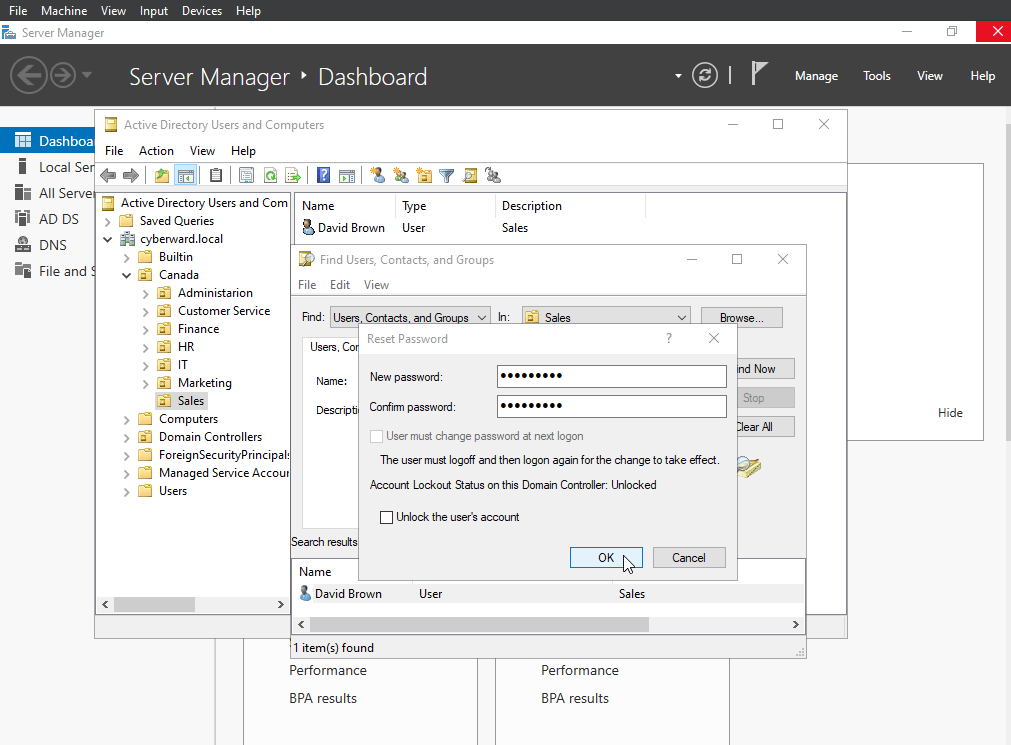
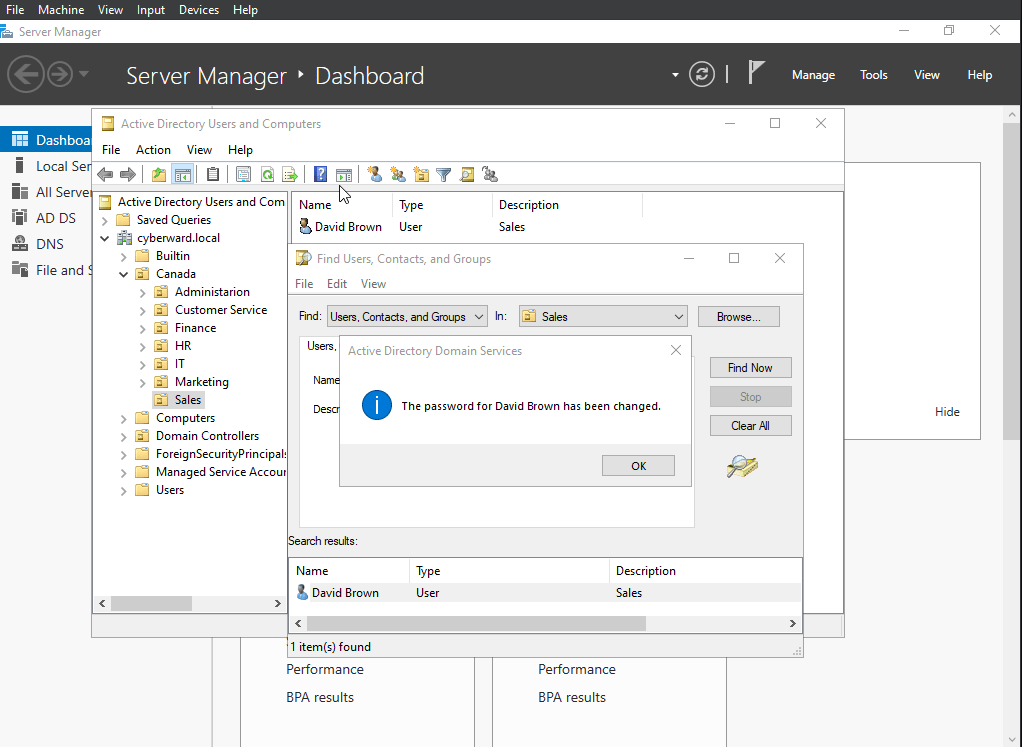
Reset Password Using Active Directory Users and Computers (ADUC)
In this case, the user can be found either by browsing the organizational units (OUs) (marked as 1, which returns users from the Sales department) or by using the search function (marked as 2), which is especially useful in environments with a large number of users.
Reset Password Using Active Directory Administrative Center (ADAC)
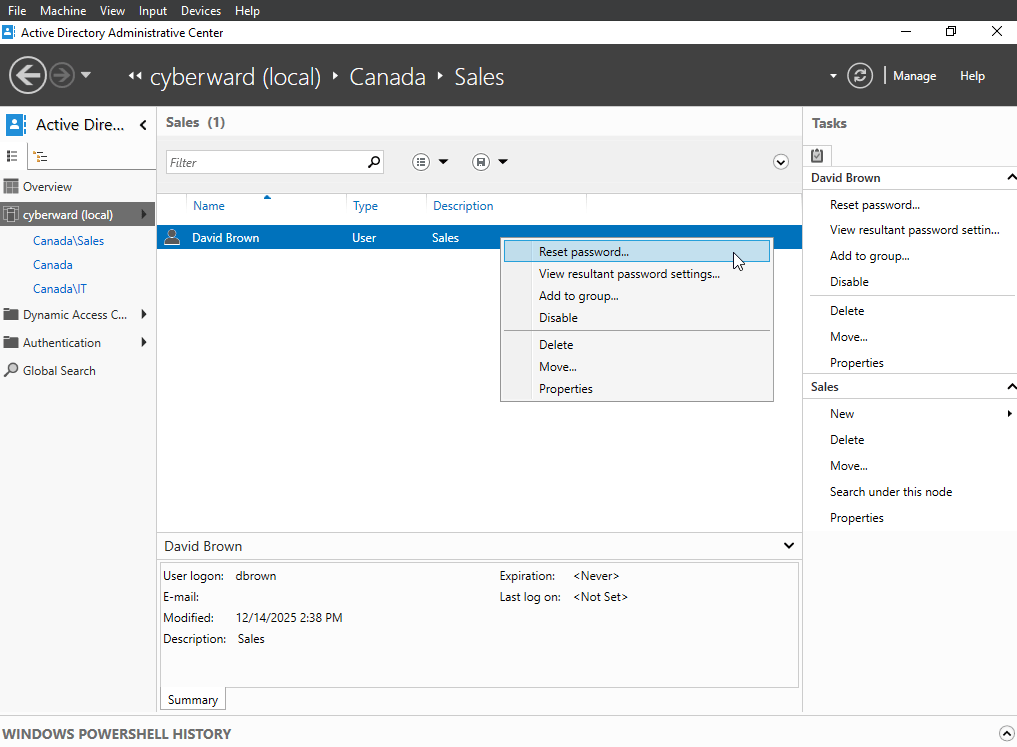
Resetting a password in Active Directory Administrative Center (ADAC) is just as straightforward and offers a more user-friendly interface. Once ADAC is open, you can easily locate the option that allows you to reset a user’s password directly from the user account view.
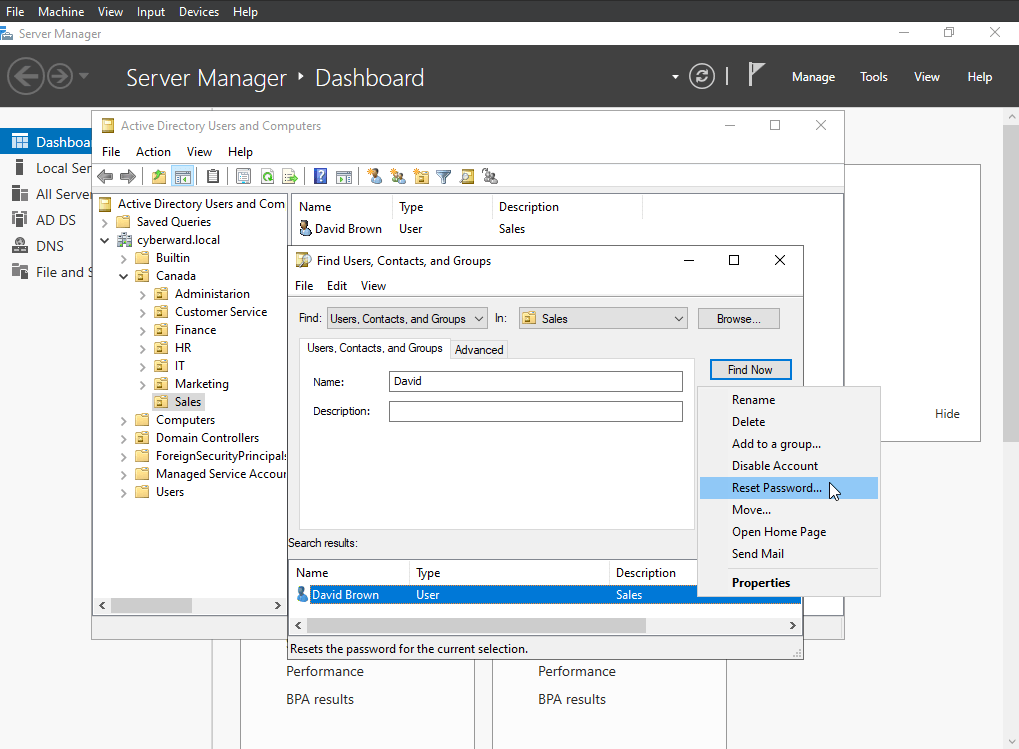
Now, once I have located the user, I can choose to right click on it and select ‘Reset password’ (1) or simply use the right sidebar (2) which also has this option:
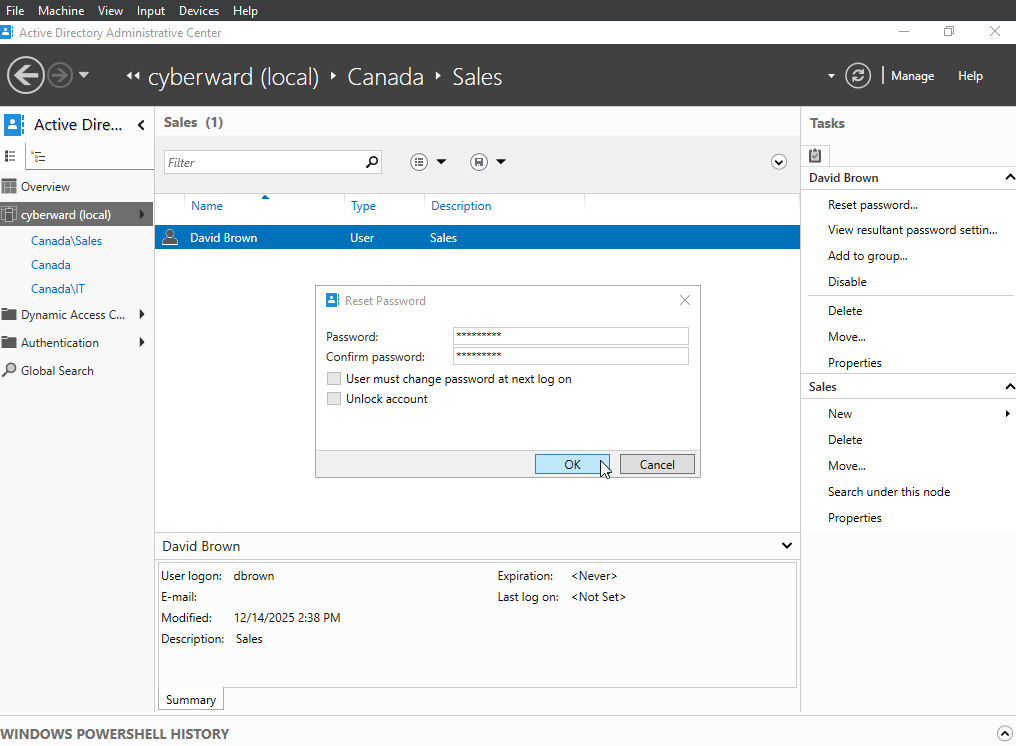
Done! Once this is completed, the user must log in with the temporary password and then will be prompted to update it.
Reset password on Azure Active Directory
To reset a password in Azure Active Directory, I go to the users section, and search for the account ;
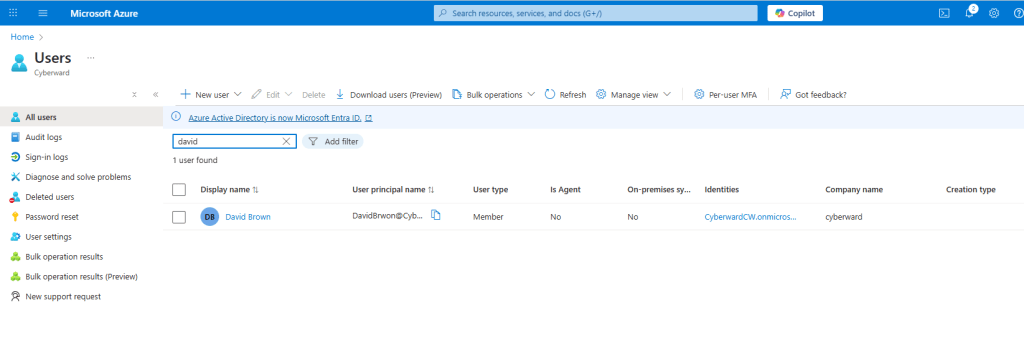
Then, I select the user to reset the password.
In this case, as the ticket indicated, the user is “David Brown”
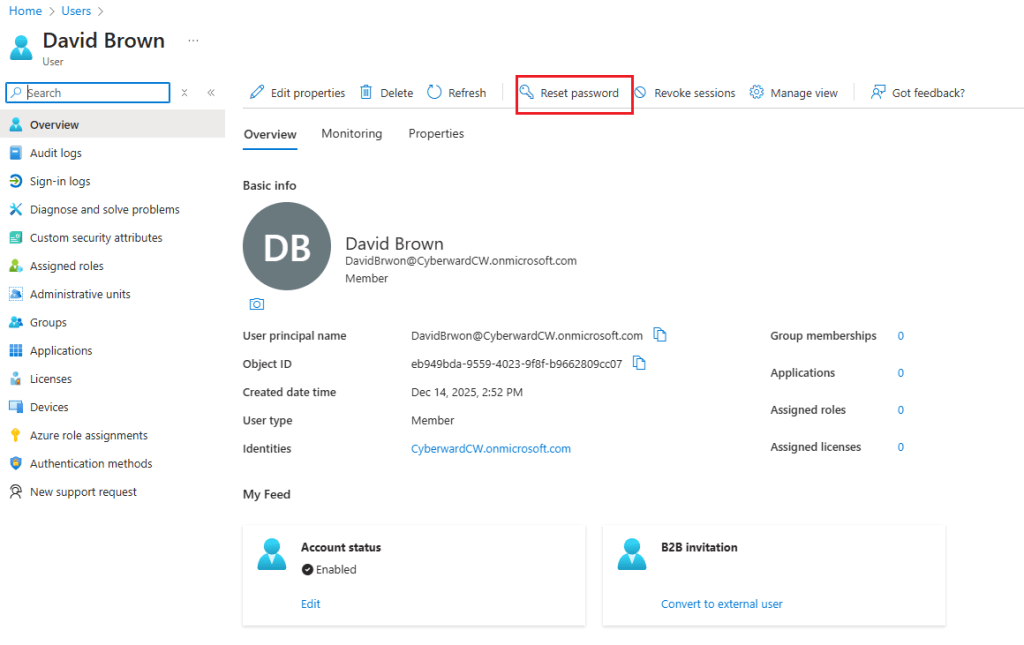
Once in the user’s profile, all you need to do is click on “Reset password” at the top and a sidebar will open:
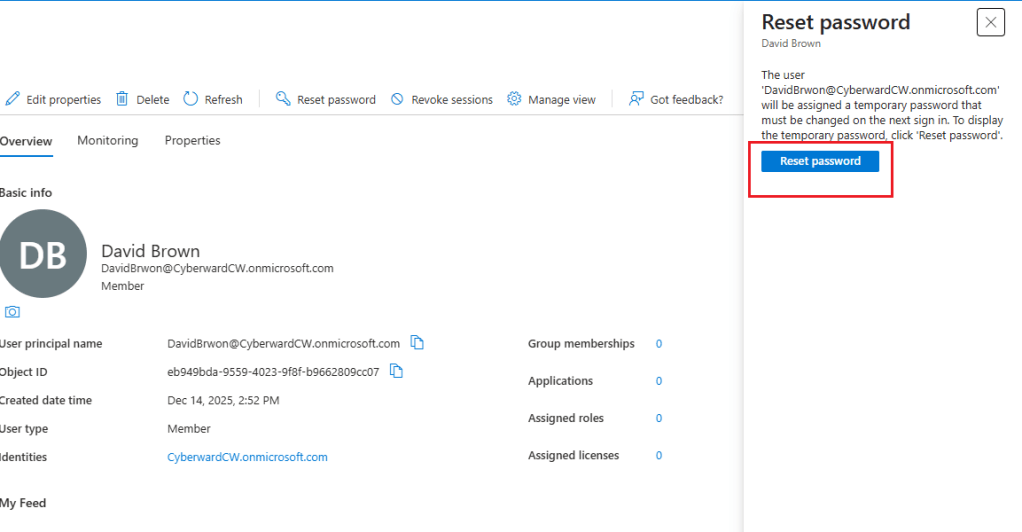
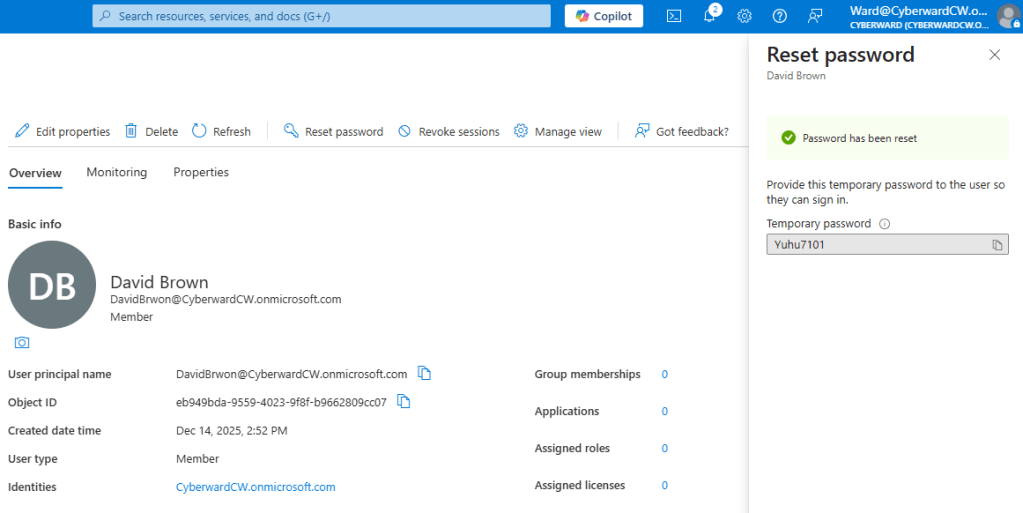
Once the button is pressed, the user’s password will be reset and a temporary password will be automatically generated, which must be given to the user so that he change it later.
In this case, the temporary password is “Yuhu7101”.


 CYBERWARD
Leave a comment