
User Accounts and Domain Access
Although this lab includes only four virtual machines to simulate end-user workstations, I created 20 individual user accounts in Active Directory. This approach avoids the added complexity and resource overhead of deploying 20 separate virtual machines, while still allowing full testing and management of all user accounts.
Each user account can authenticate to the domain and log in to any of the four client machines, effectively simulating a real enterprise environment where users can access shared workstations while maintaining individual domain identities and permissions.
User List – cyberward.com
| John Martin Username: JohnM Occupation: IT Support Email: john.martin@cyberward.com Phone: (416) 555-1813 Department: IT Location: Toronto, ON | Tina Phillips Username: tphillips Occupation: Office Manager Email: tina.phillips@cyberward.com Phone: (403) 555-4580 Department: Administration Location: Calgary, AB |
| Bob Smith Username: bsmith Occupation: System Administrator Email: bob.smith@cyberward.com Phone: (604) 555-4562 Department: IT Location: Vancouver, BC | Sam Turner Username: sturner Occupation: DevOps Engineer Email: sam.turner@cyberward.com Phone: (250) 555-4579 Department: IT Location: Victoria, BC |
| Carol Davis Username: cdavis Occupation: Finance Manager Email: carol.davis@cyberward.com Phone: (647) 555-4563 Department: Finance Location: Toronto, ON | Rachel Adams Username: radams Occupation: Finance Analyst Email: rachel.adams@cyberward.com Phone: (647) 555-4578 Department: Finance Location: Toronto, ON |
| David Brown Username: dbrown Occupation: Sales Representative Email: david.brown@cyberward.com Phone: (905) 555-4564 Department: Sales Location: Mississauga, ON | Quinn Scott Username: qscott Occupation: Sales Representative Email: quinn.scott@cyberward.com Phone: (416) 555-4577 Department: Sales Location: Toronto, ON |
| Frank Wilson Username: fwilson Occupation: IT Support Email: frank.wilson@cyberward.com Phone: (416) 555-4566 Department: IT Location: Toronto, ON | Nate Jackson Username: njackson Occupation: Database Administrator Email: nate.jackson@cyberward.com Phone: (519) 555-4574 Department: IT Location: London, ON |
| Hank Taylor Username: htaylor Occupation: Software Developer Email: hank.taylor@cyberward.com Phone: (604) 555-4568 Department: Development Location: Vancouver, BC | Mona Martin Username: mmartin Occupation: Content Writer Email: mona.martin@cyberward.com Phone: (613) 555-4573 Department: Marketing Location: Ottawa, ON |
| Ivy Anderson Username: ianderson Occupation: Product Manager Email: ivy.anderson@cyberward.com Phone: (778) 555-4569 Department: Product Location: Burnaby, BC | Leo Harris Username: lharris Occupation: Network Engineer Email: leo.harris@cyberward.com Phone: (647) 555-4572 Department: IT Location: Toronto, ON |
| Jack Thomas Username: jthomas Occupation: System Administrator Email: jack.thomas@cyberward.com Phone: (604) 555-4570 Department: IT Location: Vancouver, BC | Kathy White Username: kwhite Occupation: Customer Service Representative Email: kathy.white@cyberward.com Phone: (204) 555-4571 Department: Customer Service Location: Winnipeg, MB |
| Grace Moore Username: gmoore Occupation: Marketing Specialist Email: grace.moore@cyberward.com Phone: (613) 555-4567 Department: Marketing Location: Ottawa, ON | Eve Miller Username: emiller Occupation: HR Manager Email: eve.miller@cyberward.com Phone: (403) 555-4565 Department: HR Location: Calgary, AB |
| Paul King Username: pking Occupation: IT Support Email: paul.king@cyberward.com Phone: (905) 555-4576 Department: IT Location: Brampton, ON | Lara Vega Username: lvega Occupation: Graphic Designer Email: lara.vega@cyberward.com Phone: (514) 555-4575 Department: Design Location: Montreal, QC |
Using the predefined user list, I will create 10 user accounts using Active Directory Administrative Center (ADAC) and 10 user accounts using Active Directory Users and Computers (ADUC). This approach allows me to gain hands-on experience with both management tools. Accidental deletion protection will be enabled for all user accounts to follow best practices.
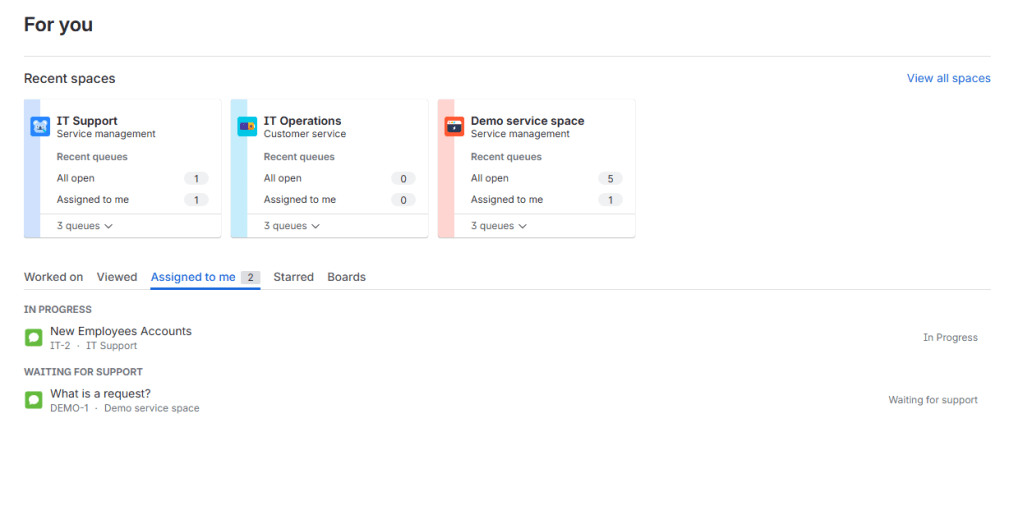
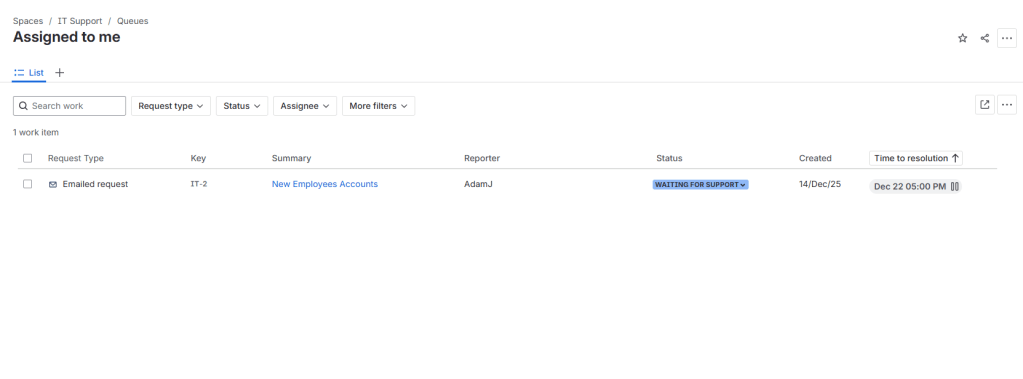
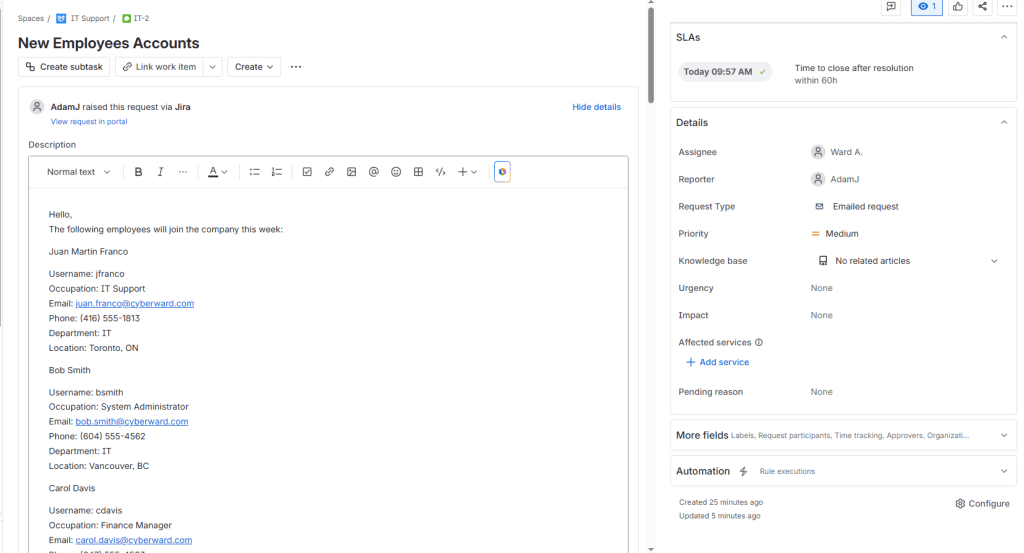
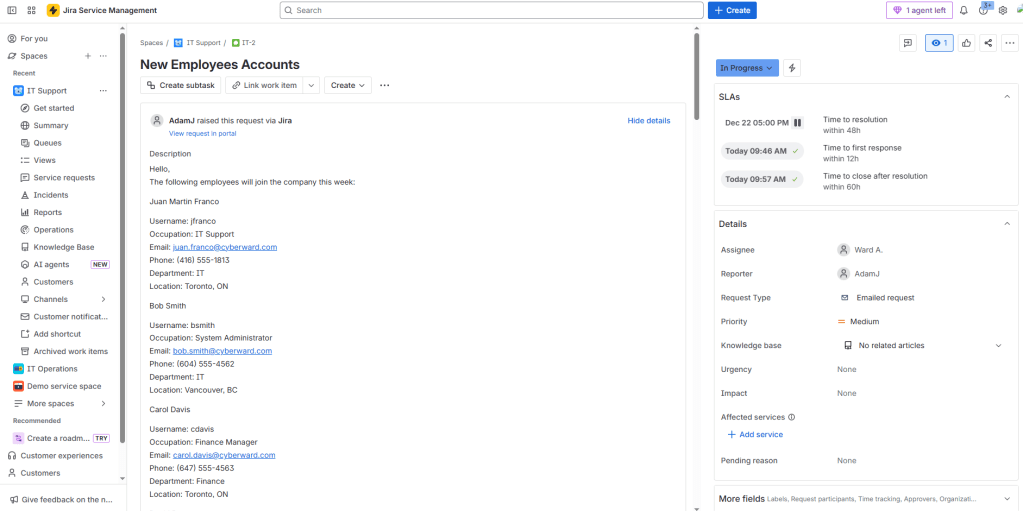
To better simulate a real-world IT environment, I will also create a hypothetical user creation request in Jira Management Service, representing a typical service desk ticket for onboarding new users.
Next, I will create a ticket to simulate a real-world help desk scenario, including receiving the request, working on it-( In-progress), and resolving it through the ticketing system(Resolved).
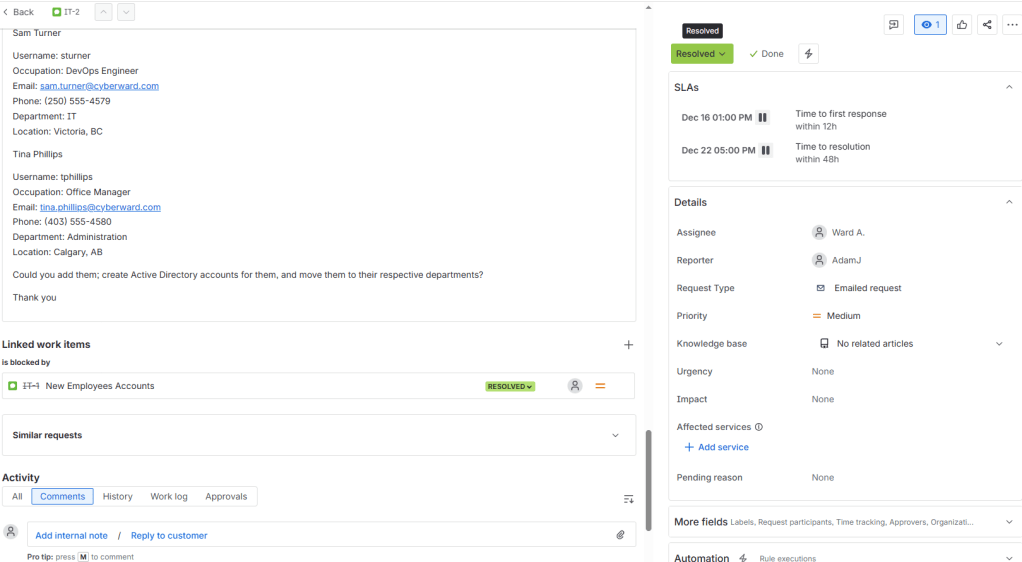
After simulating a ticket submitted by the Manager Adam J (a user created in this Scenario as the IT Manager), assigned it to myself (Ward A.) to indicate that I would be handling the request. I then proceeded with creating the user accounts as outlined in the ticket.
Creating a user in Active Directory
from AD->Tools> ADUC , then we choose the domain and the Department we want to create the user in , for Example, Finance , Right-click->new>user, then add the user names & passwords
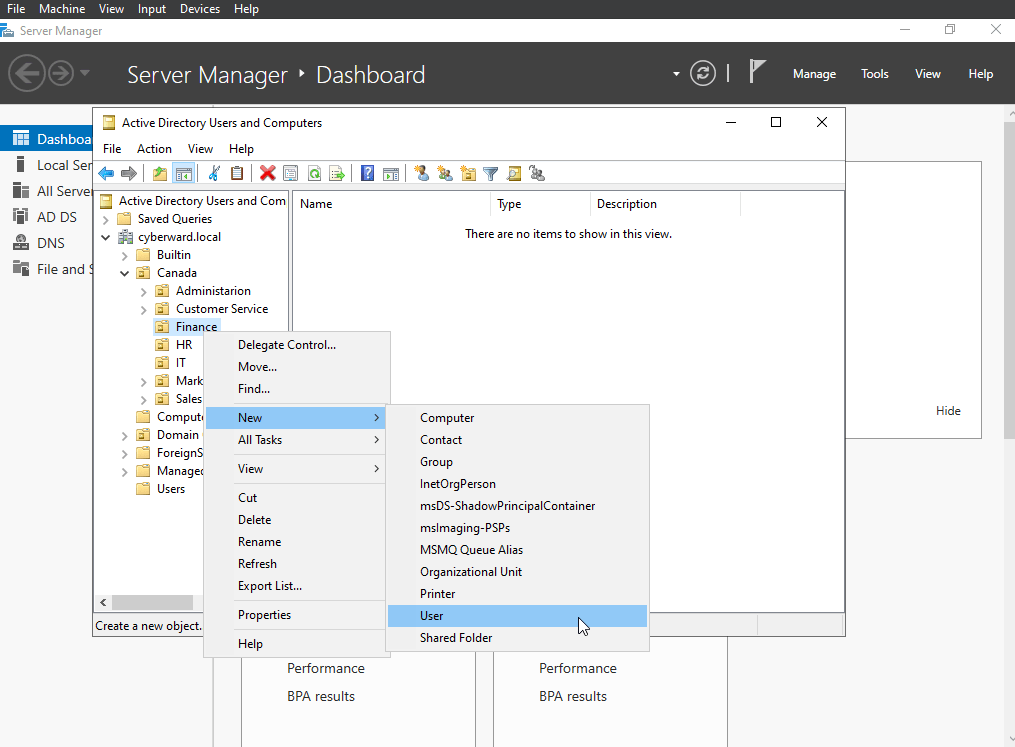
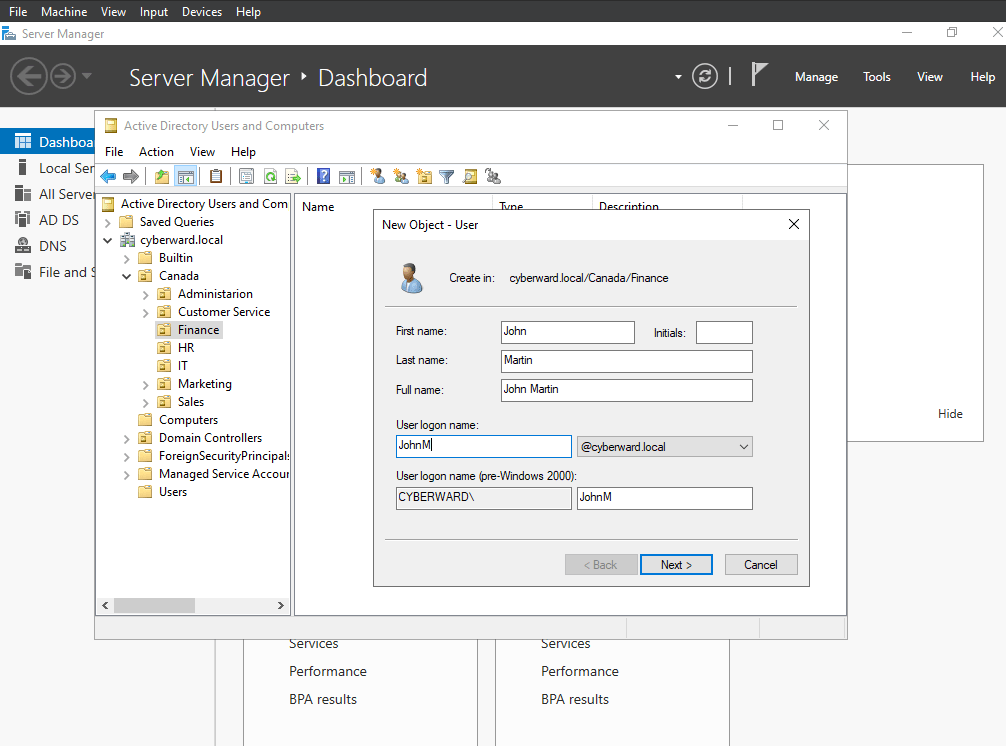
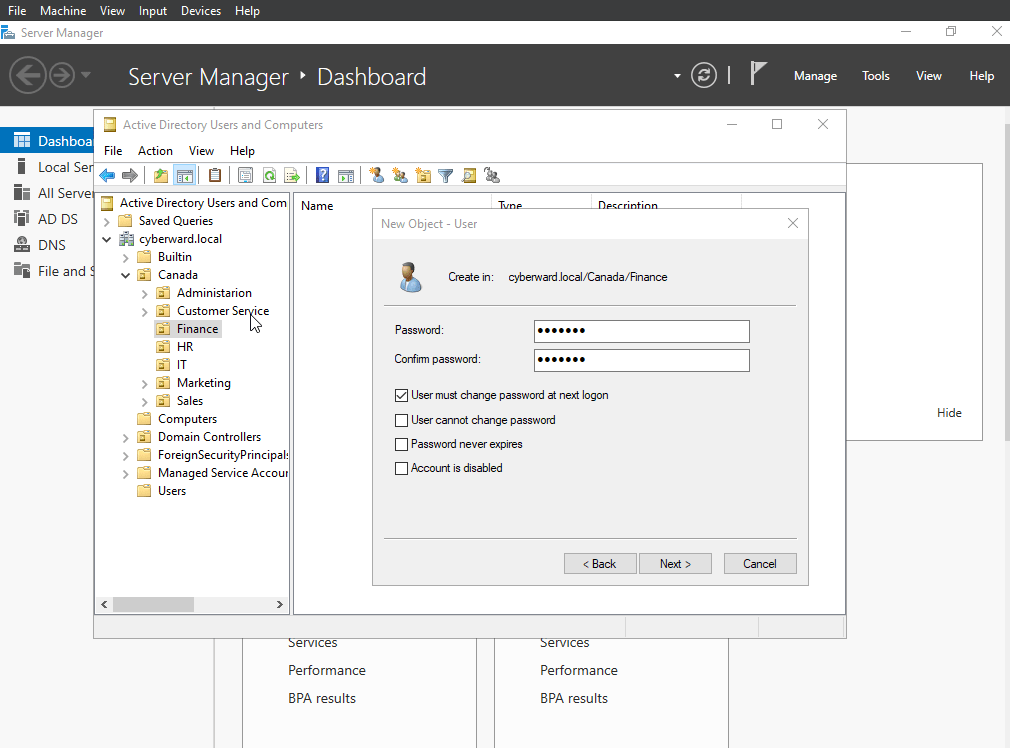
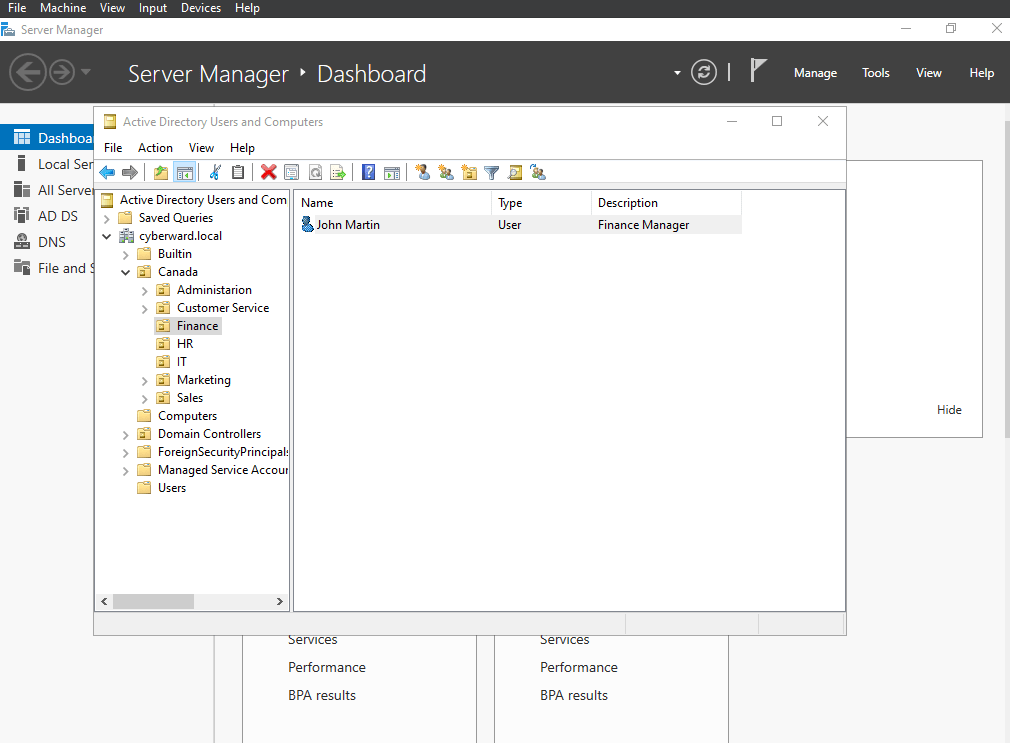
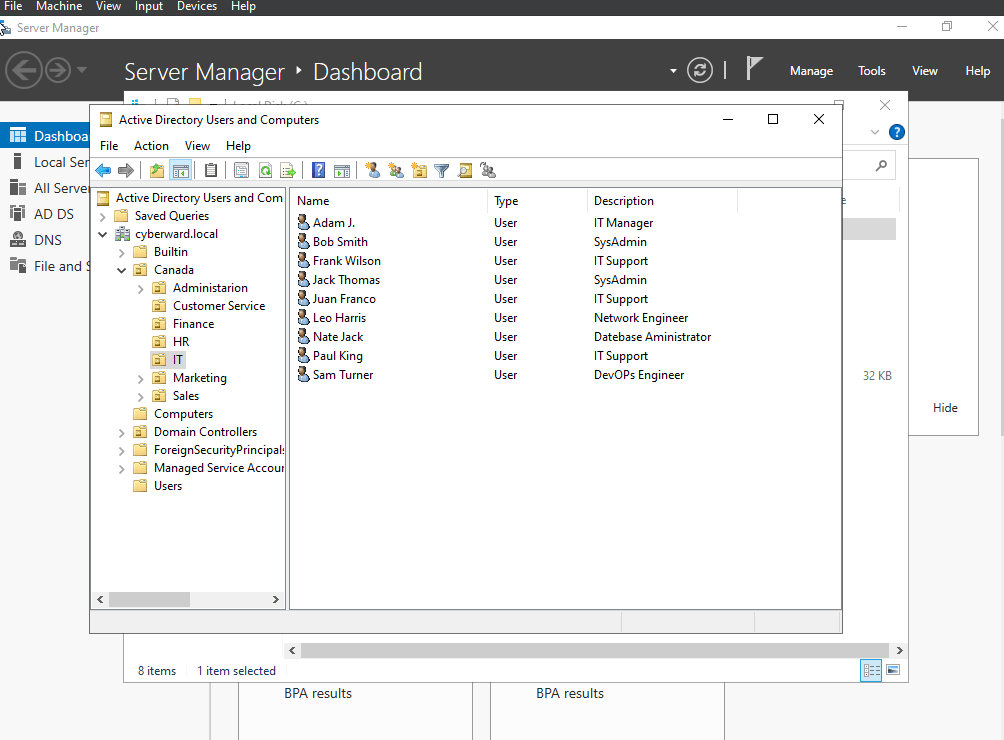
Once the ticket is resolved (with all the users created), I get the following(For IT department):
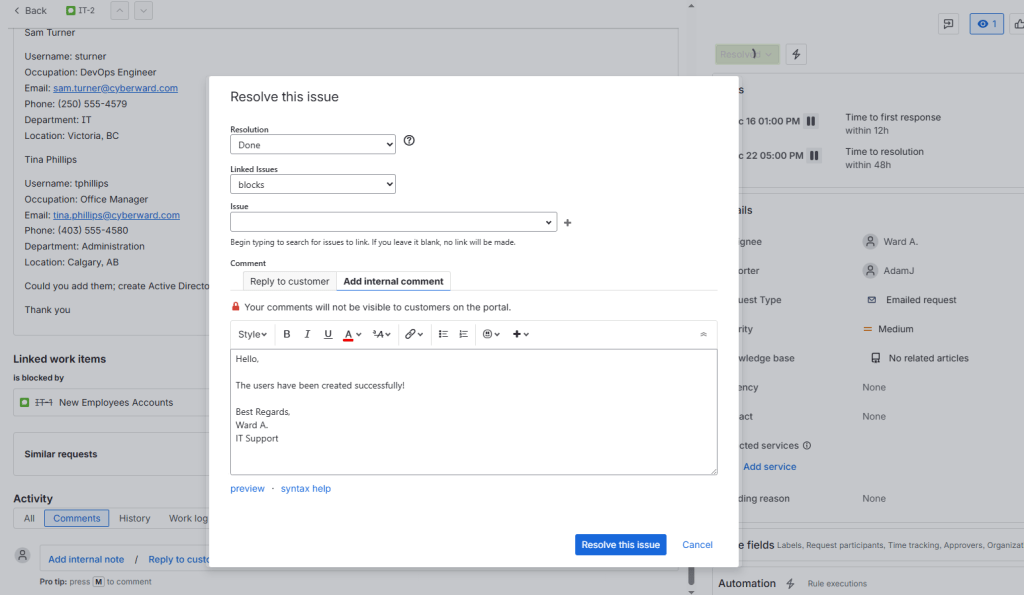
Once all requested user accounts have been created, I mark the ticket as Resolved and leave a confirmation message for the requester, indicating that all users were successfully created.
User creation through Azure Active Directory ( Microsoft Entra ID)
In addition to managing Active Directory on-premises, you can use the cloud version, which is Azure Active Directory, currently known as Microsoft Entra ID.
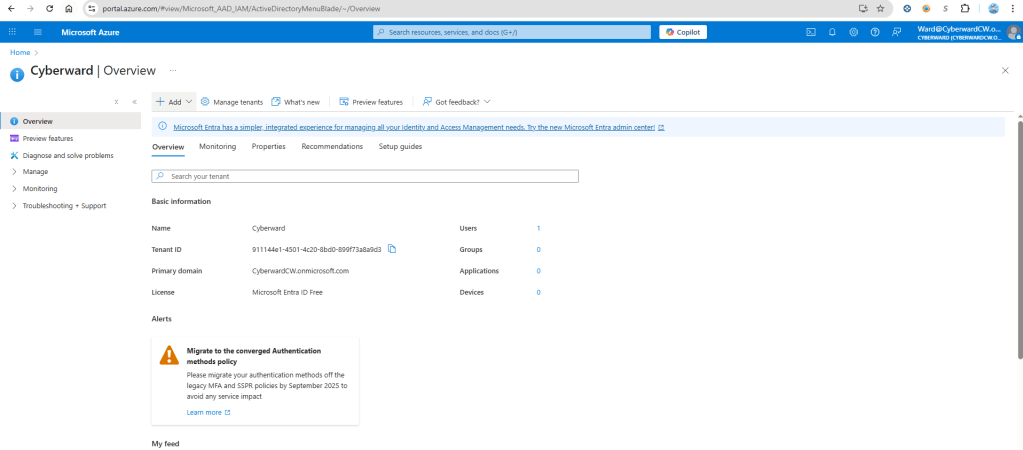
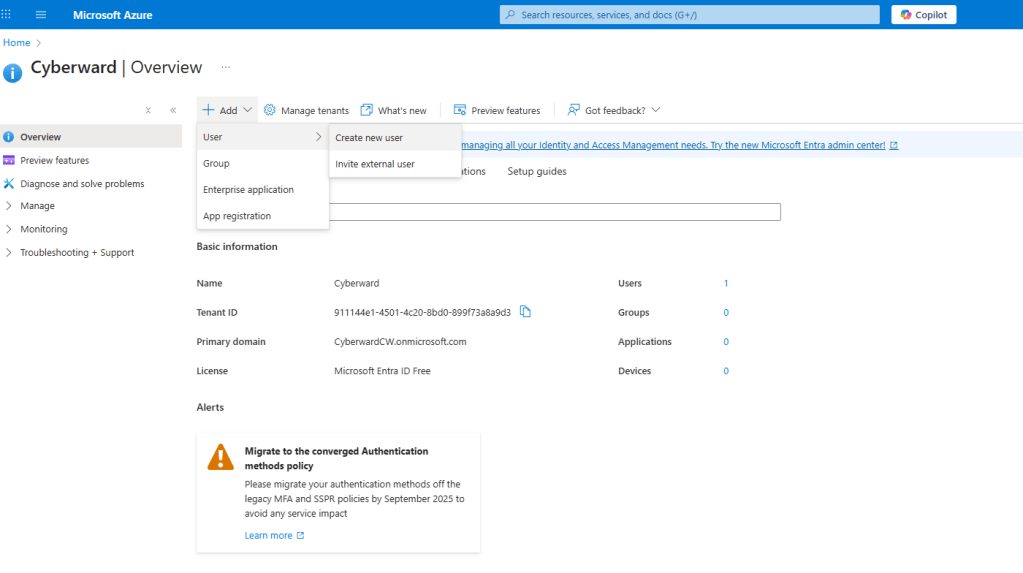
To do this, I must first have my domain created (in this case, I created the domain cyberwardcw.onmicrosoft.com). Note: AD on-perm been synchronized with Azure AD (in this Homelab)
To create users, I go to the Users section and select New User -> Create New User:
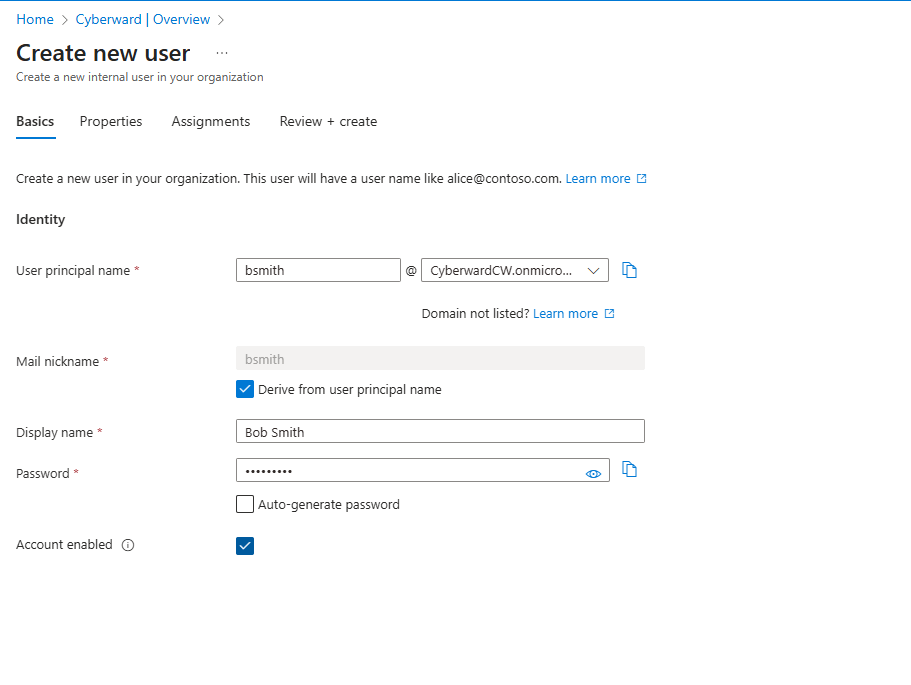
Then, I fill in the desired fields.

Finally, I check that all the fields have been filled in correctly:
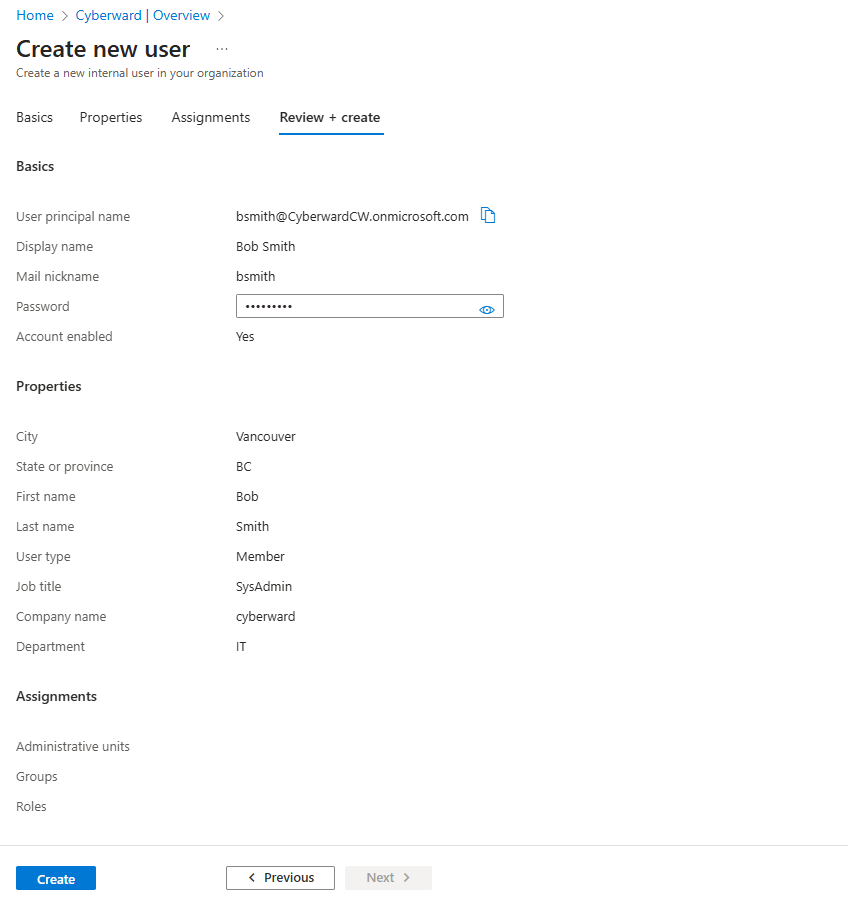
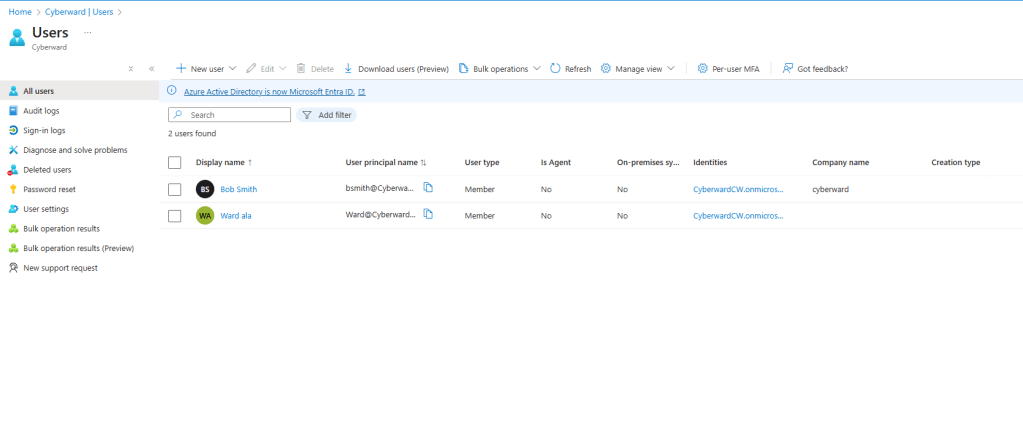
If everything is correct, I press ‘Create’ to finish creating the user:
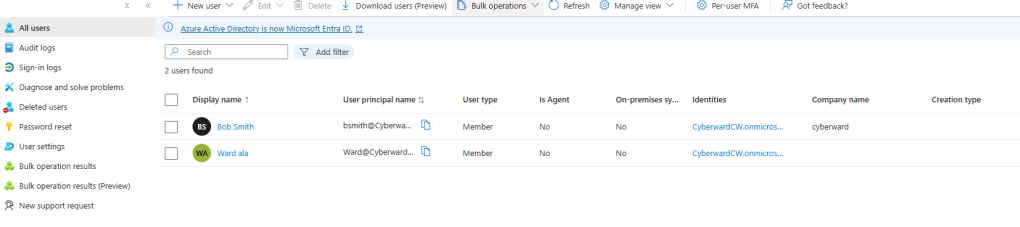
Bulk user creation with Azure Active Directory using a .csv file
To create multiple users at once, Azure Active Directory has a section that allows you to create multiple users based on an uploaded .csv file.
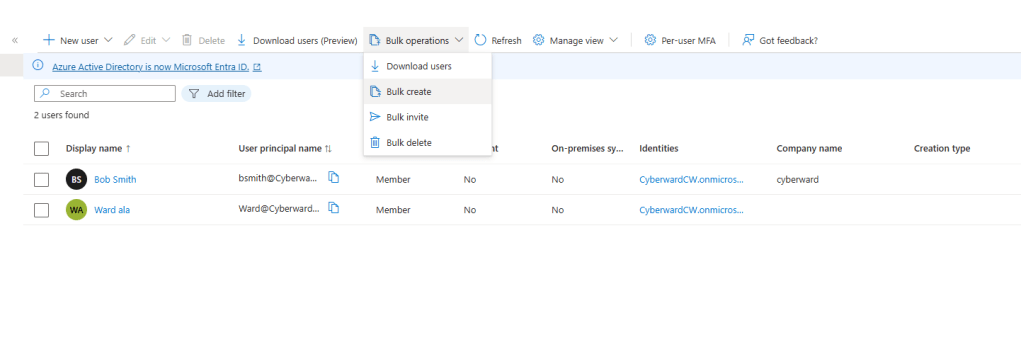
To do this, I go to Bulk operations -> Bulk Creation and download the corresponding .csv.
Next, I am going to sync on-prem active directory to Azure AD configuring cloud sync… to synchronize all the users on-prem to the cloud.

 CYBERWARD
Leave a comment