Introduction
This serie focuses on laying the foundation of the homelab by setting up virtualization and installing the core operating systems. Using VirtualBox as the hypervisor, I walk through installing Windows Server 2022 and Windows 11 as virtual machines, performing initial configuration, and validating that both systems are running correctly.
This series is designed for beginners, career switchers, and anyone preparing for IT support or system administrator roles. By the end of the homelab build, the environment will closely resemble a small enterprise network, complete with Active Directory, DNS, DHCP, file sharing, and basic security policies.
We will cover the following:
- Installing VirtualBox (my hypervisor).
- Downloading Windows Server 2022 and Windows 11 ISO files.
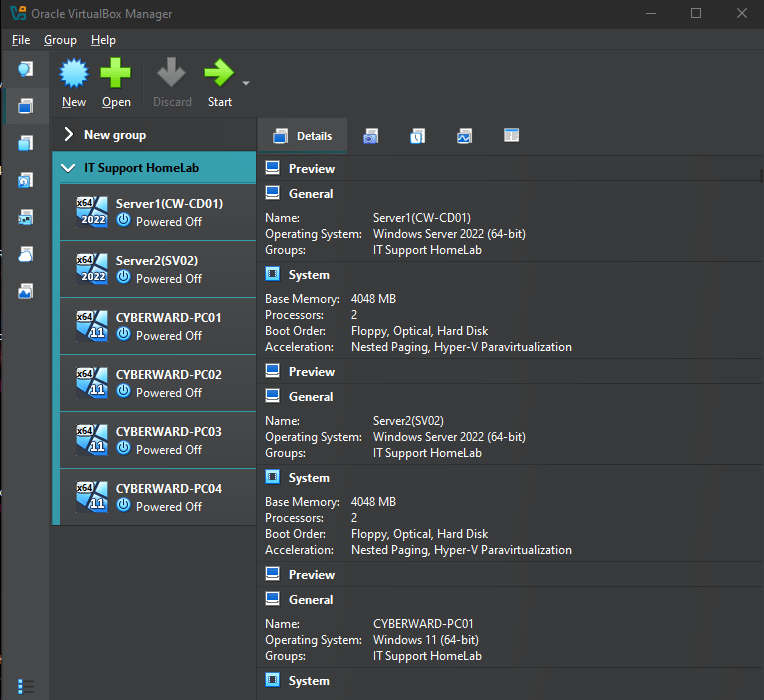
- Creating 2 Windows Servers, and 4 Windows 11 client virtual machines.
- performing basic configuration on each machine.
Beginner’s Corner: Key Concepts Explained
Before diving into the setup, here’s a quick explanation of some important terms for beginners:
- VirtualBox: A free virtualization platform that allows you to run multiple virtual machines (VMs) on a single physical computer—essentially running one operating system inside another.
- ISO: A digital image of an operating system installation disk, used to install Windows or Linux inside a virtual machine.
- Windows Server 2022: A Microsoft operating system designed for IT administrators to manage users, devices, and services in an organizational environment.
- Active Directory (AD): A centralized directory service used to manage users, computers, and permissions across a network (configured in Part 2).
- Homelab: A personal IT practice environment where you can safely experiment and learn enterprise technologies at home.
By the end of this series, my goal is to build a homelab that mimics a small enterprise environment, complete with Active Directory, DNS, DHCP, file sharing, and security policies.
Step 1: Installing VirtualBox
The first step was downloading and installing VirtualBox, which I’ll use as my hypervisor to host virtual machines. VMware is another popular option, but VirtualBox works well and is completely free.
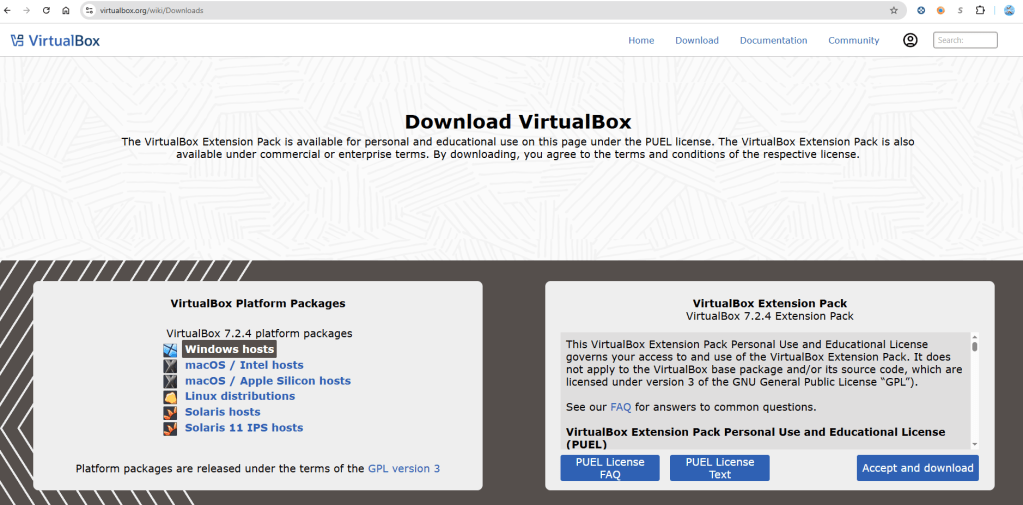
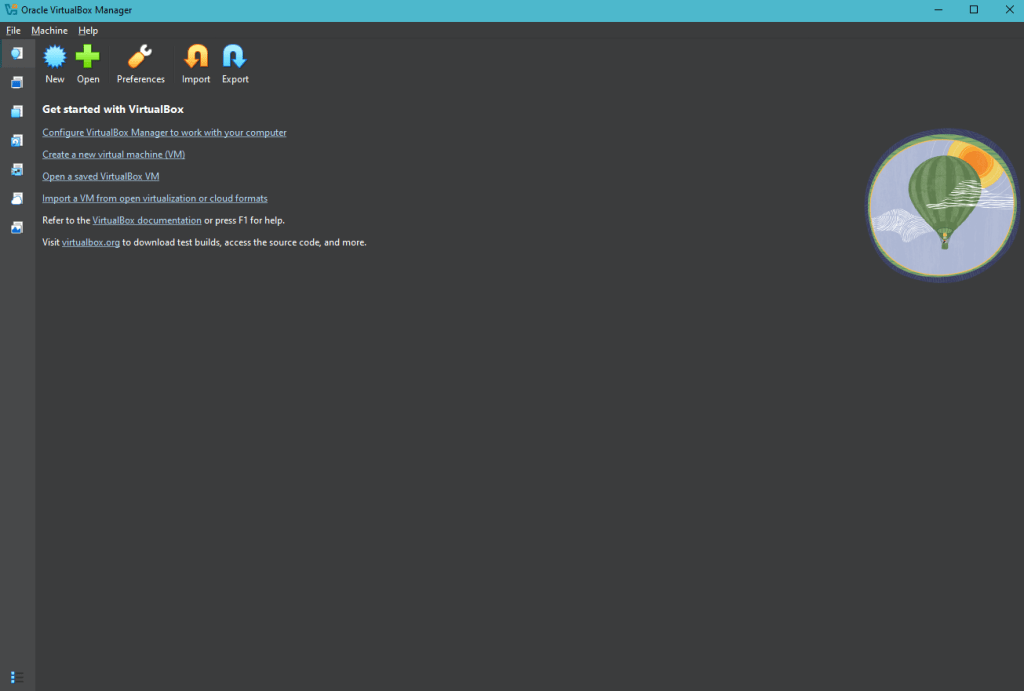
Once the download is complete, VirtualBox Interface will get started:
Step 2: Downloading Windows ISO Files
Next, I downloaded official Microsoft evaluation ISO files for:
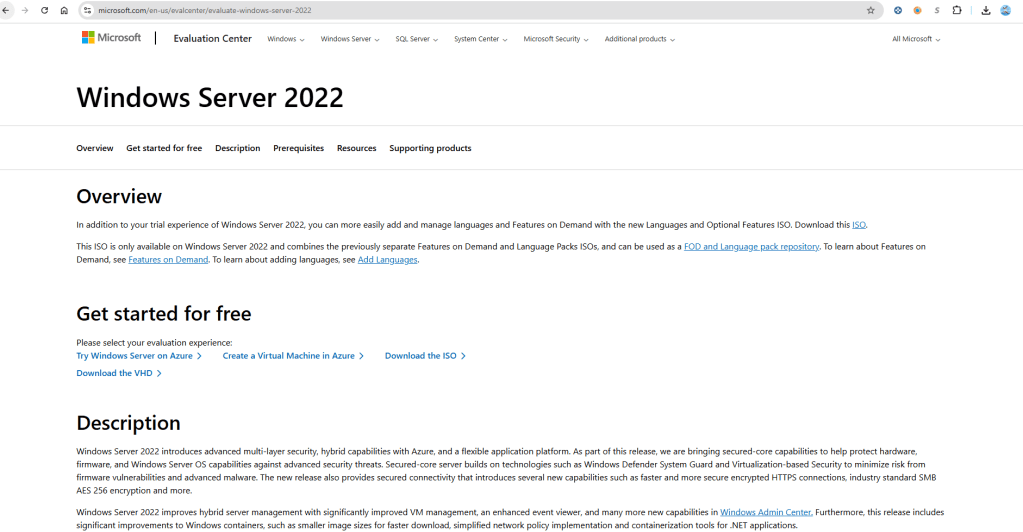
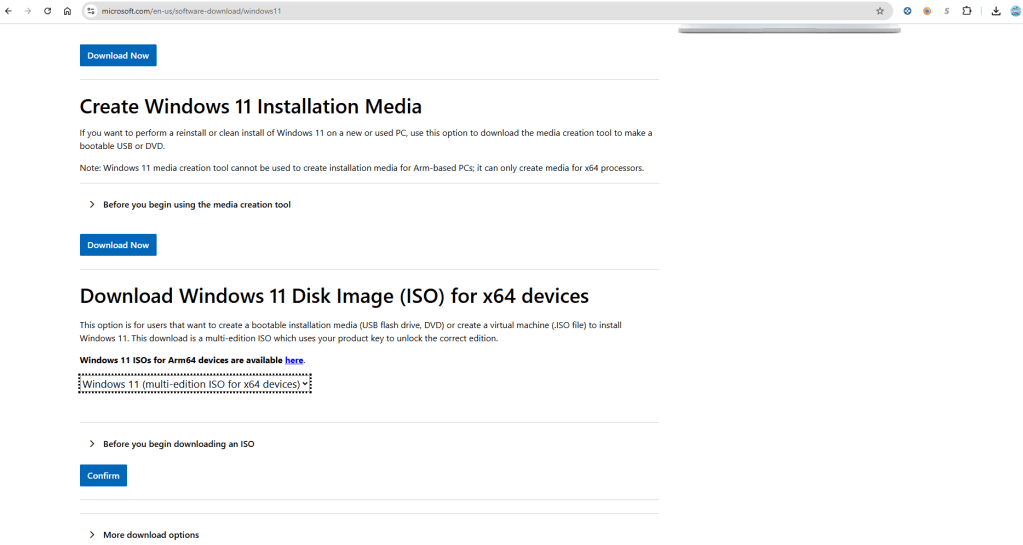
These ISOs will be used to install the operating systems inside virtual machines.
STEP3: Setup Windows 11 VM
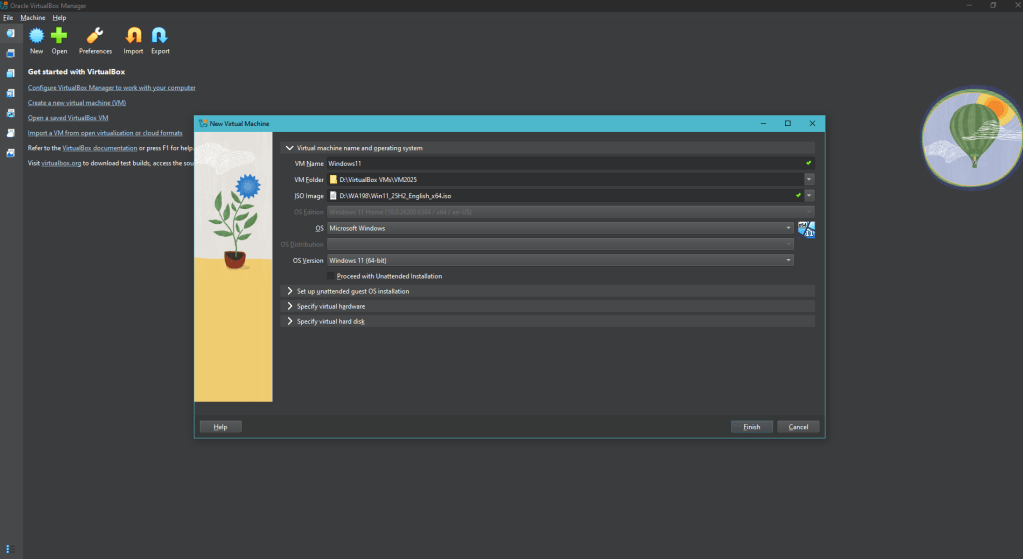
Inside VirtualBox, I created a new VM for Windows 11. I gave it:
- 4 GB RAM
- 80 GB storage
- 2 CPU core
Select Windows 11 as the version, and in the ISO Image section select the image you had previously downloaded.
Do all of this and then select Finish, and repeat the process for the rest of the windows 11 client machines.
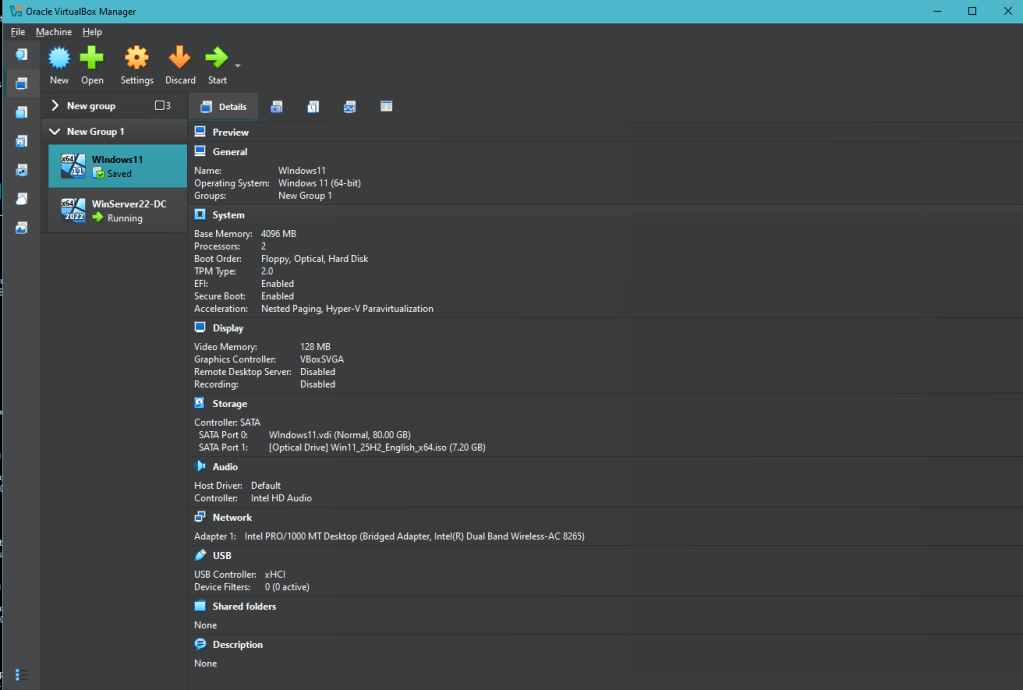
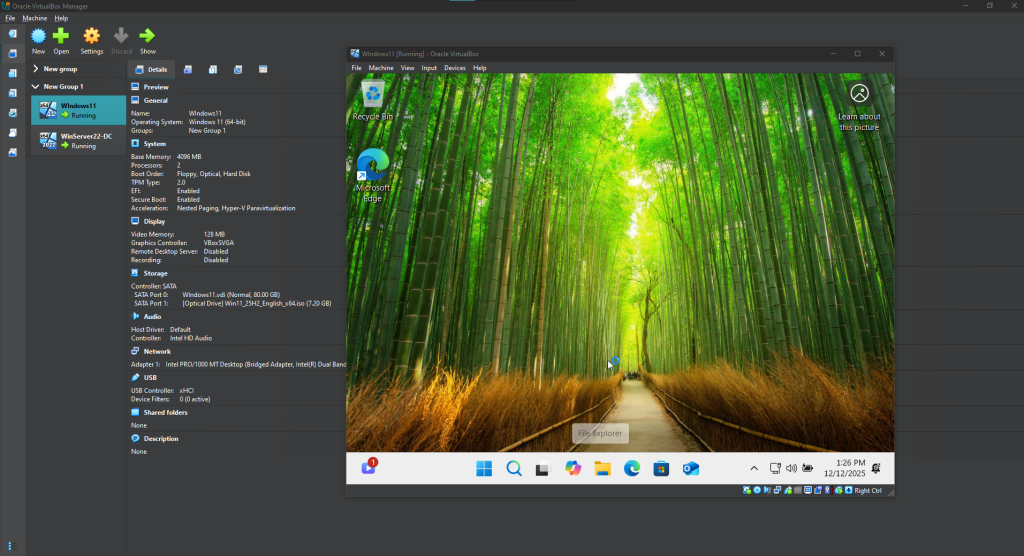
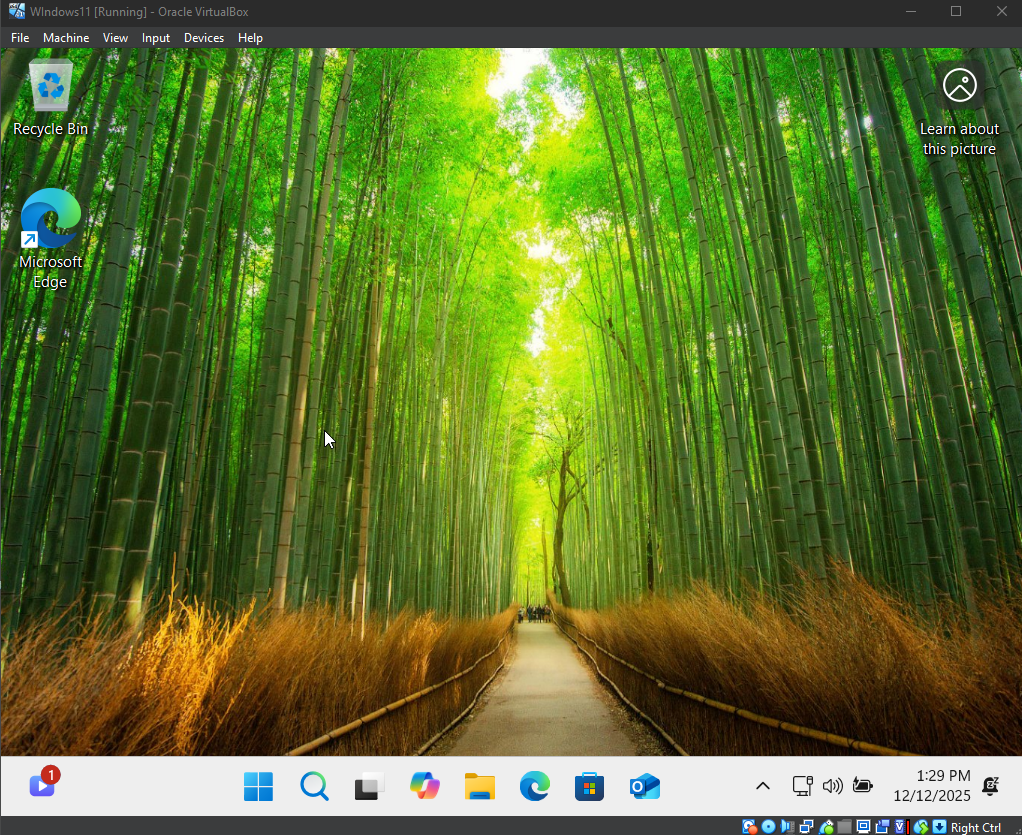
start the VM , and boot up Windows 11 OS
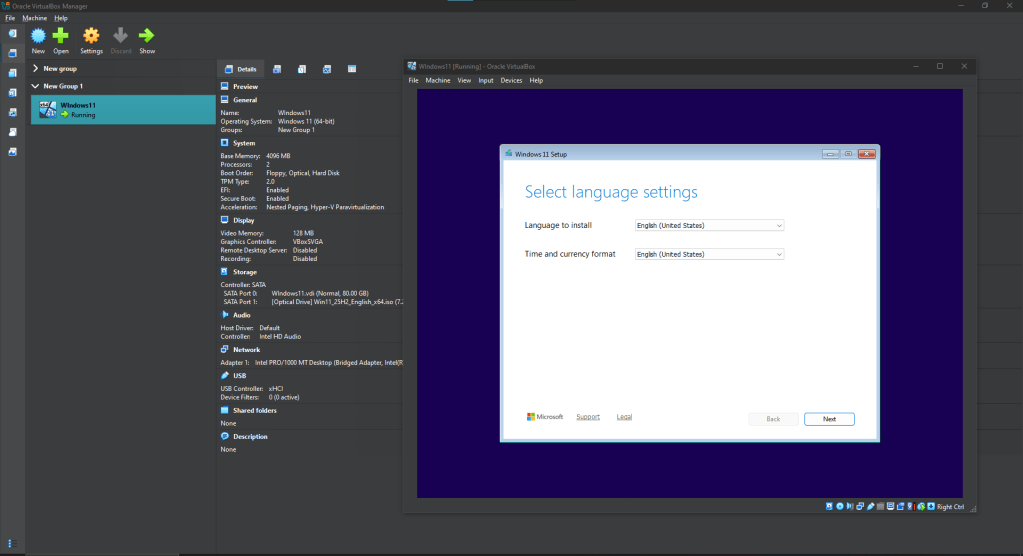
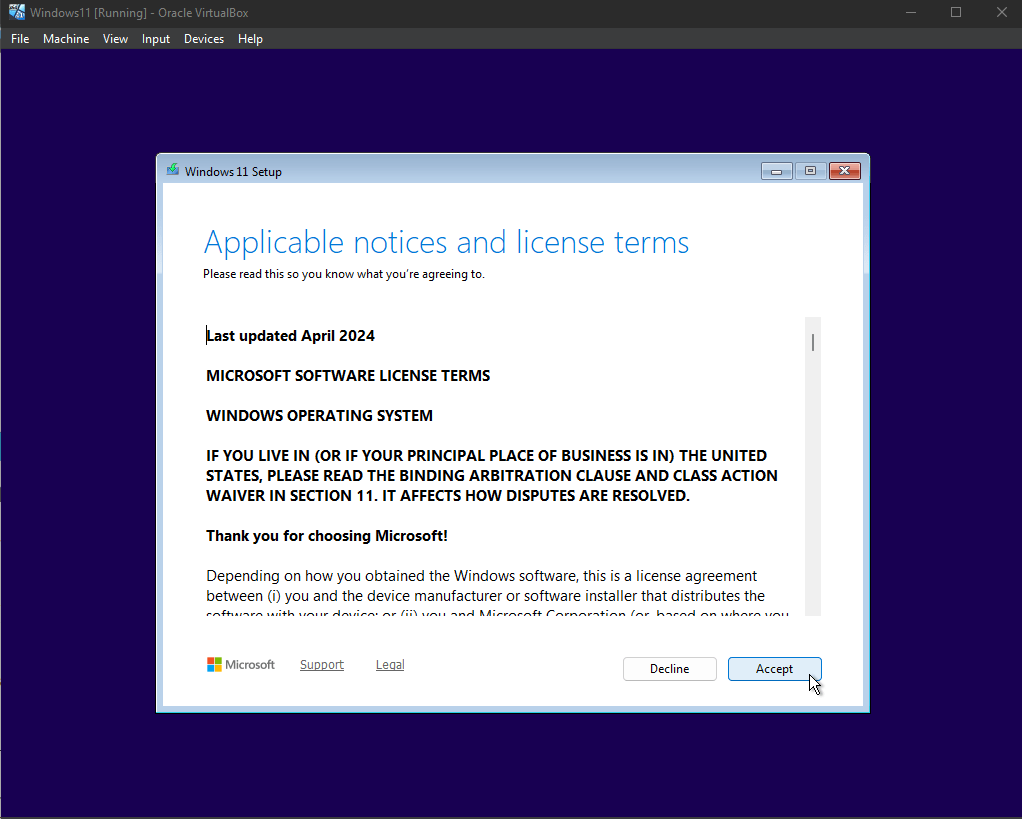
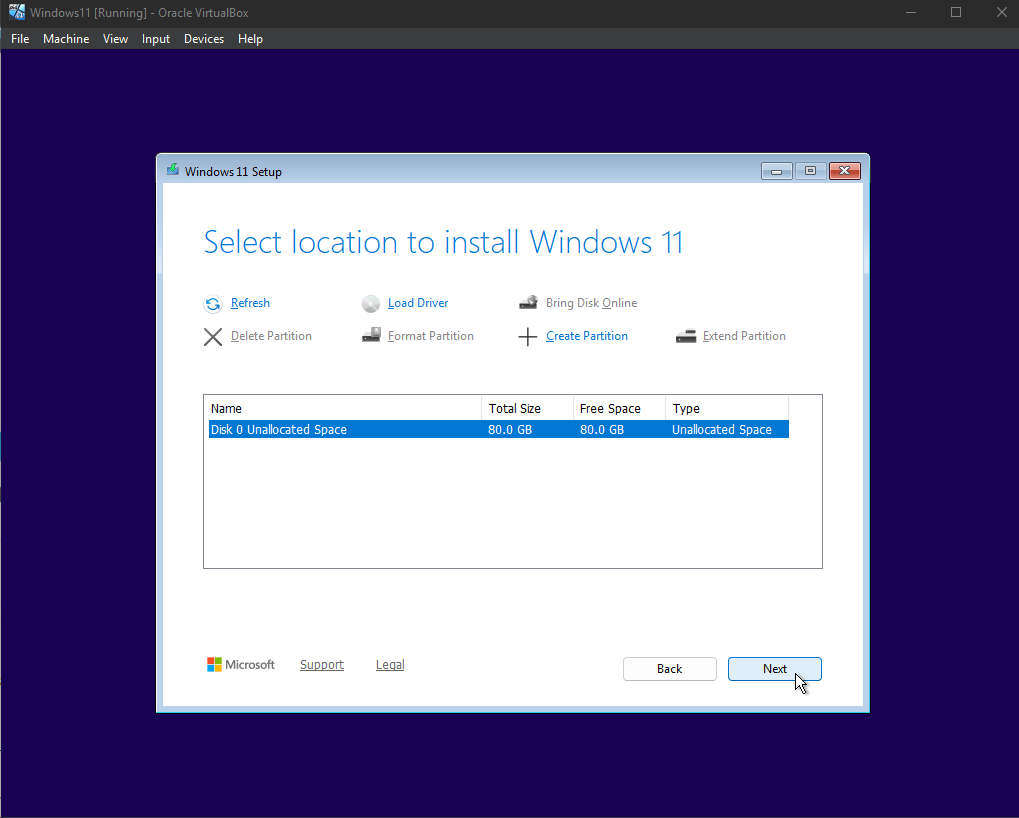
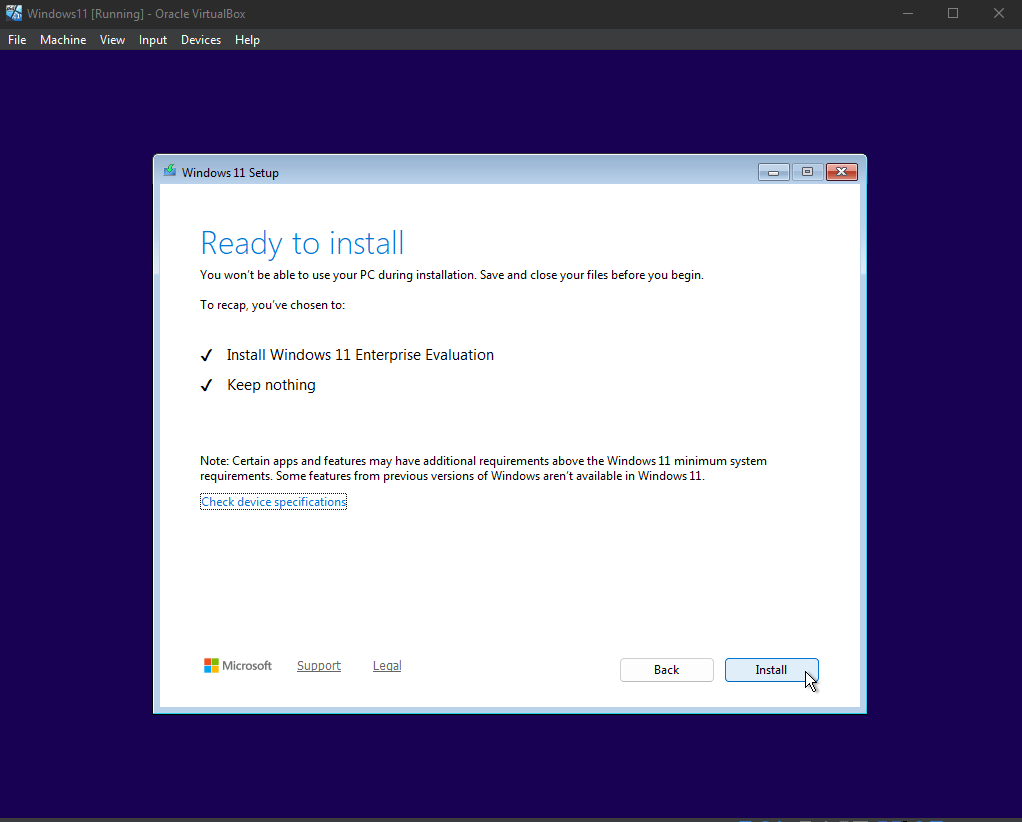
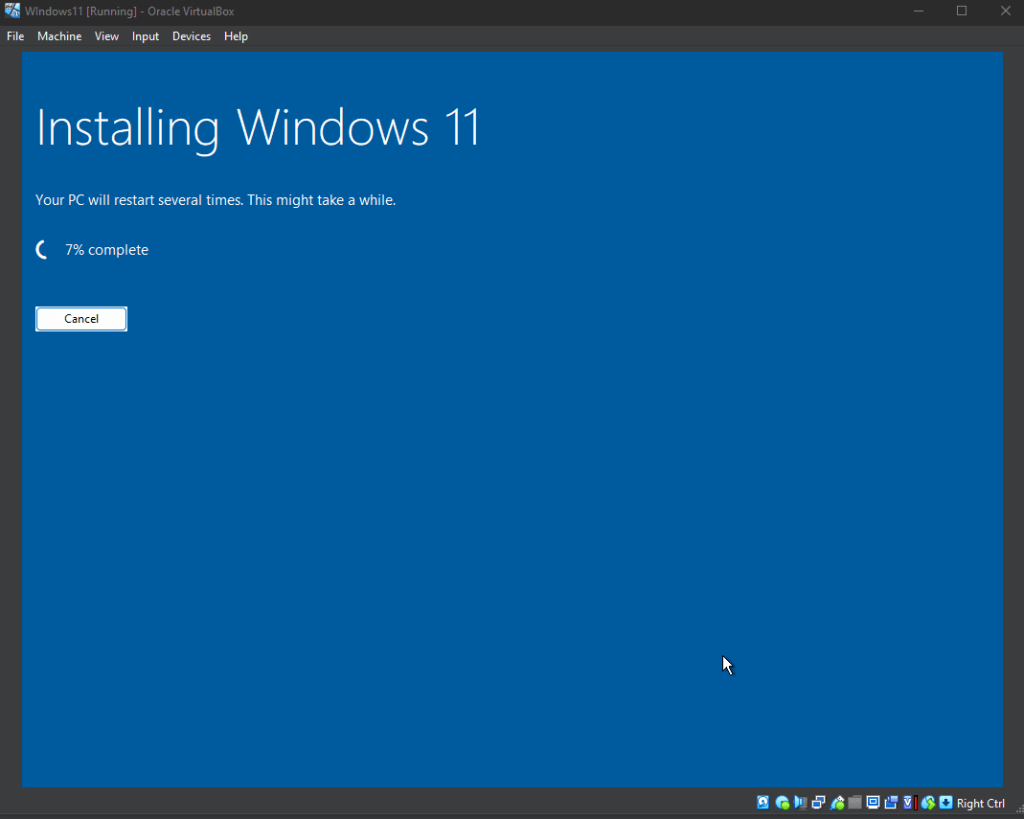
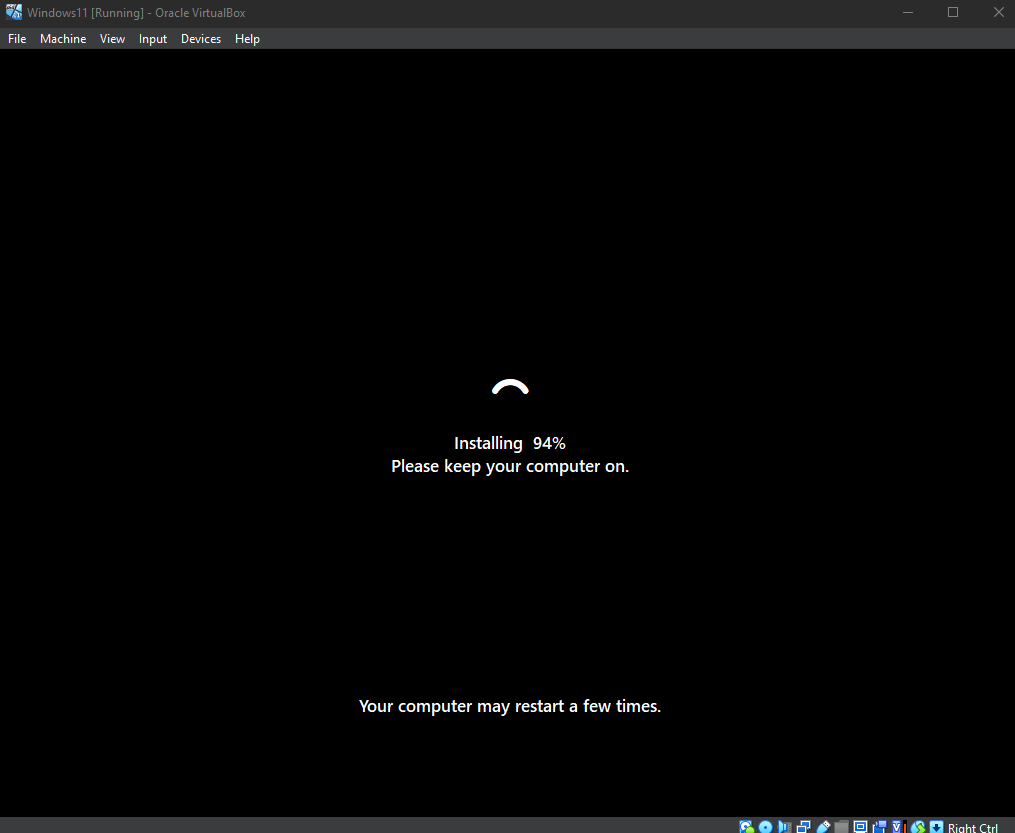
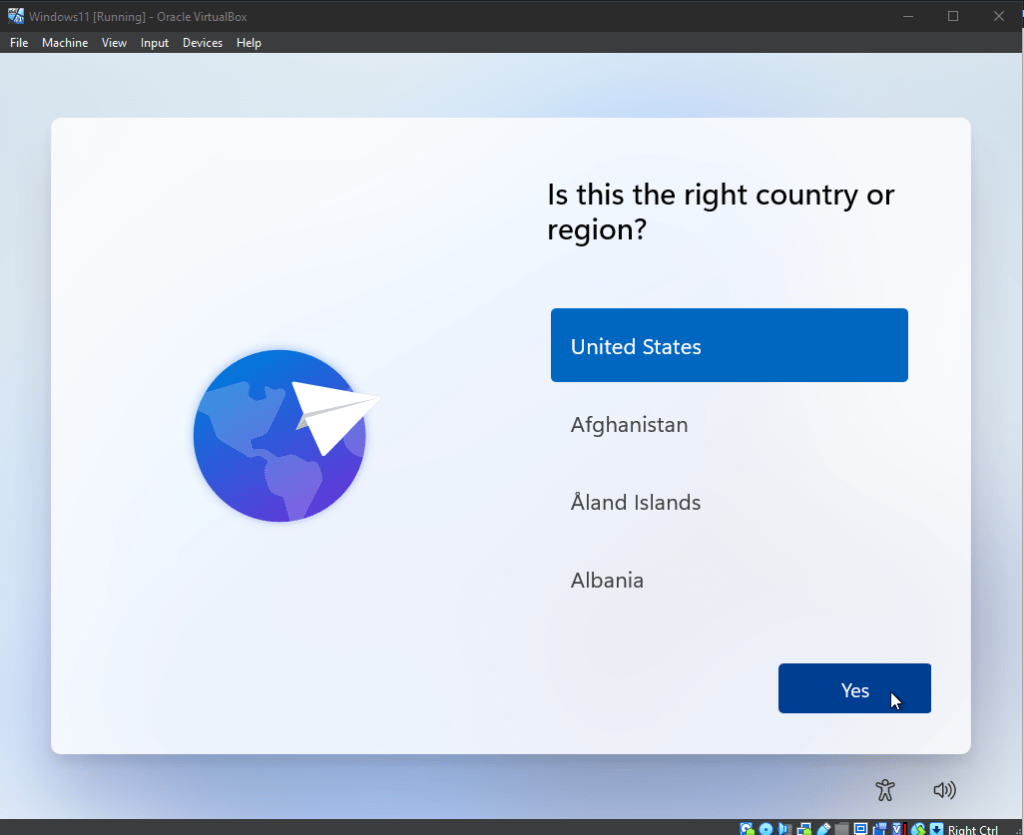
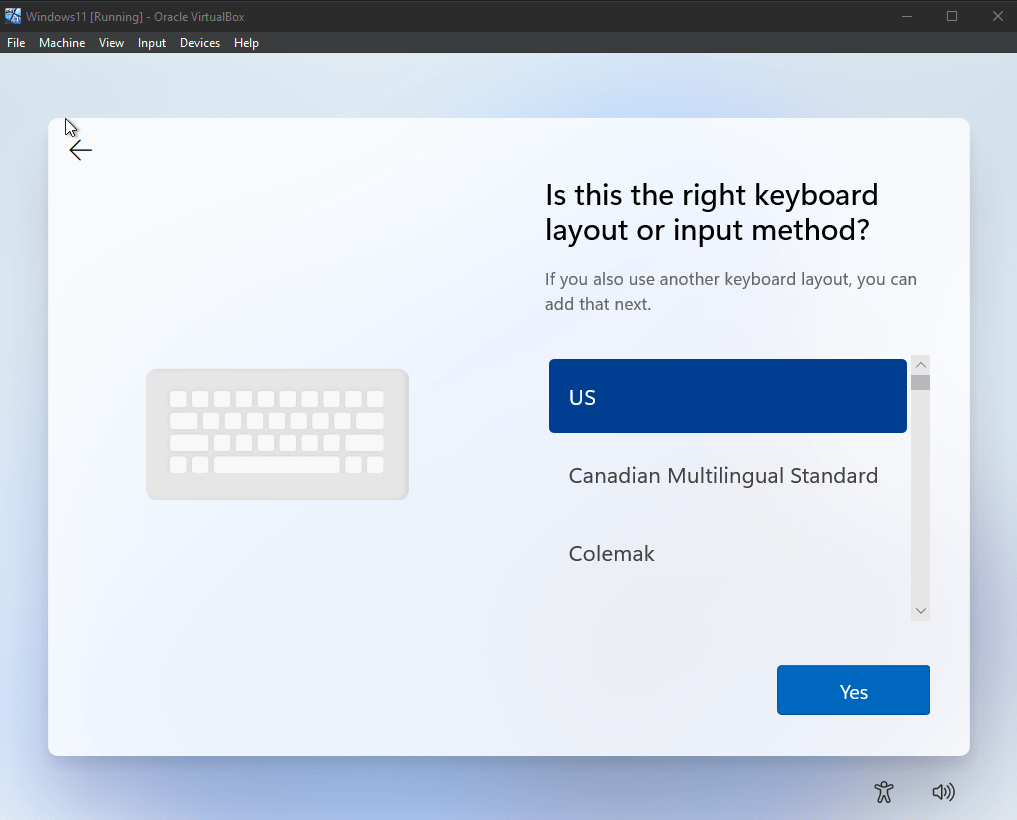
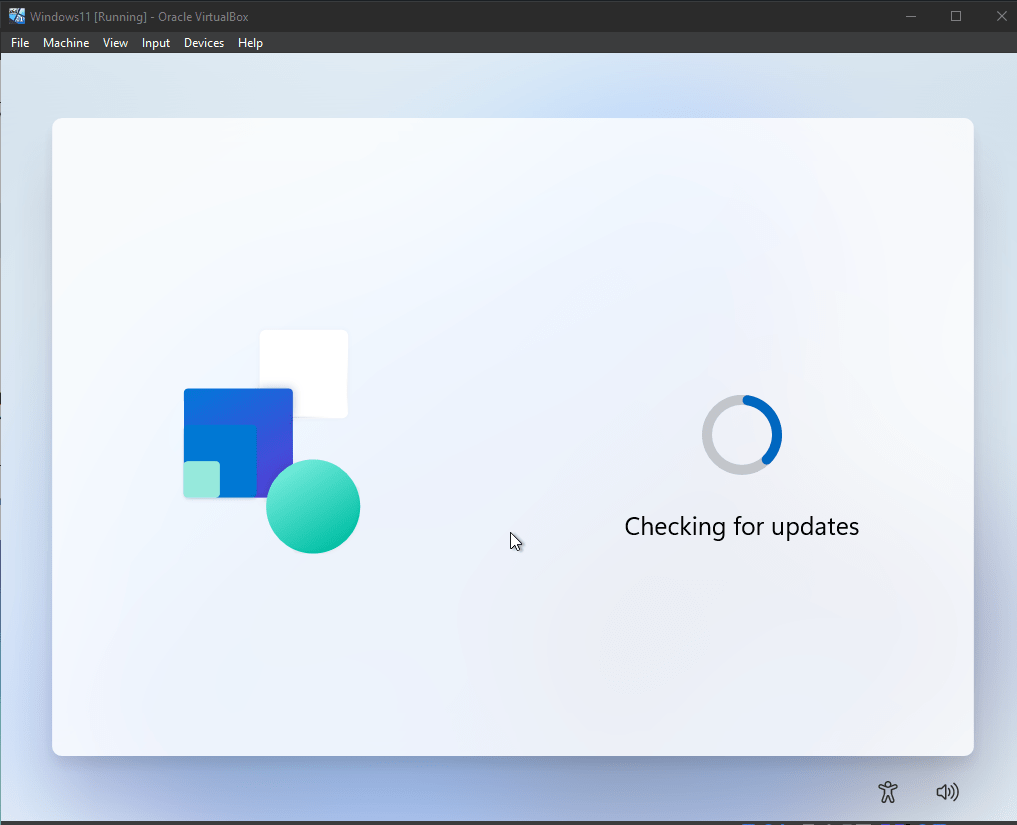
Once installation is done, Windows 11 is ready:
STEP4: Setup Windows Server VM
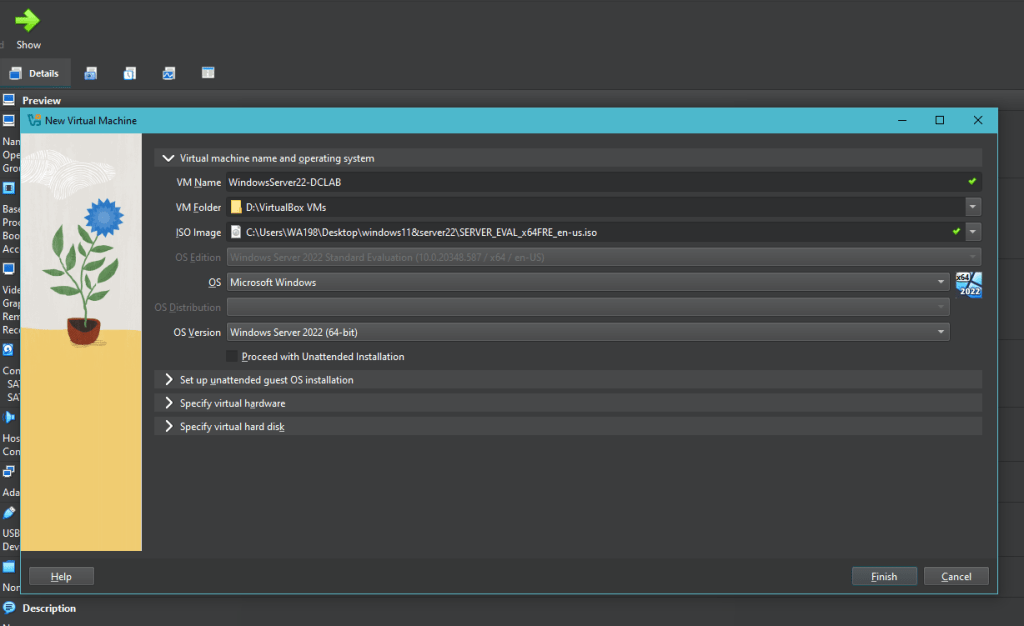
Inside VirtualBox, I created a new VM for Windows Server 2022. I gave it:
- 4 GB RAM
- 50 GB storage
- 2 CPU core
Select Windows Server 2022 as the version, and in the ISO Image section select the image you had previously downloaded.
Do all of this and then select Finish. Repeat the same process for the other server.
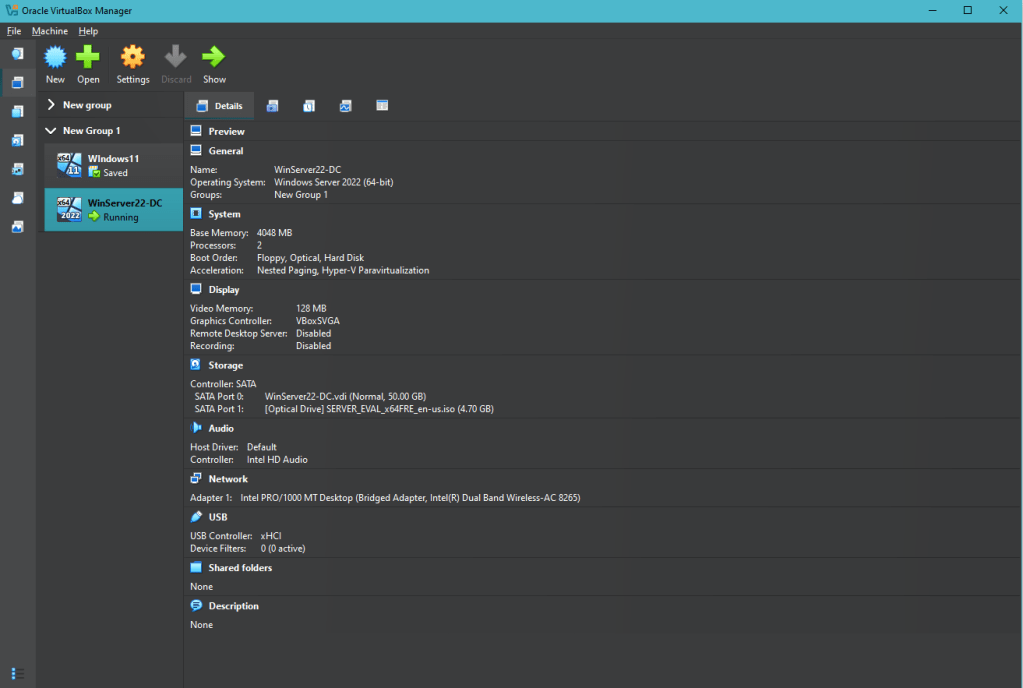
Then select your newly created virtual machine in the sidebar, and select start in the top bar.
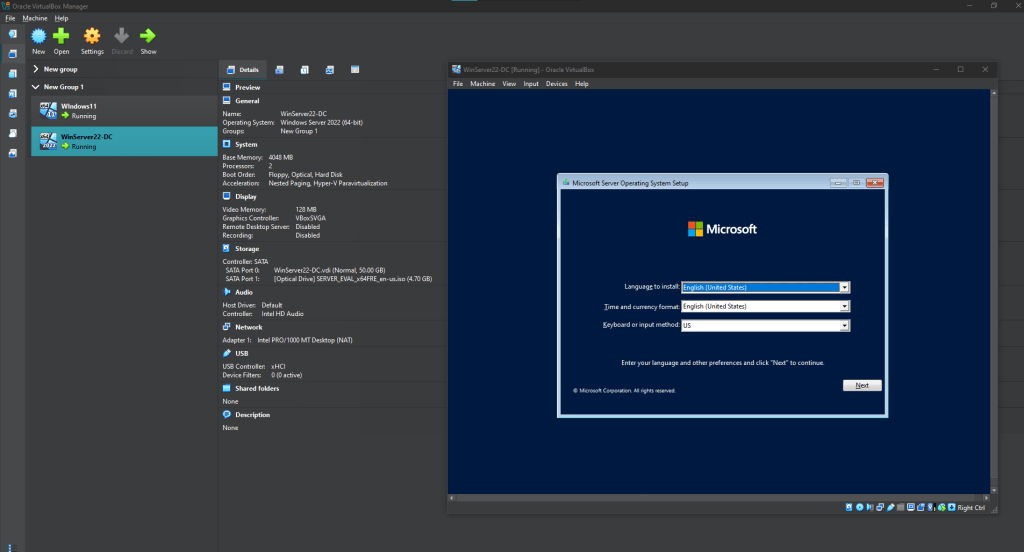
follow the installation steps:

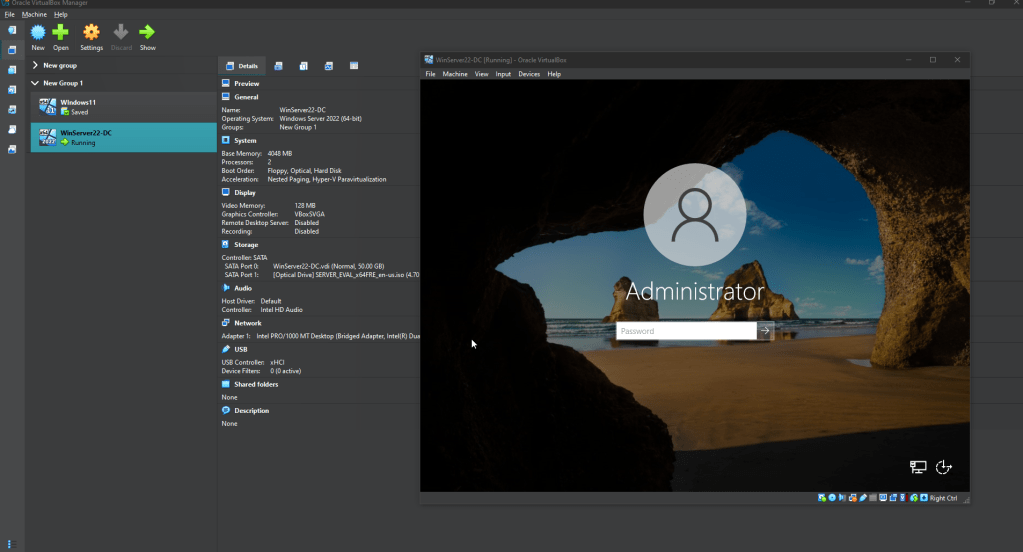
Once installed, I logged in with the Administrator account and using a strong password set up during the installation process:
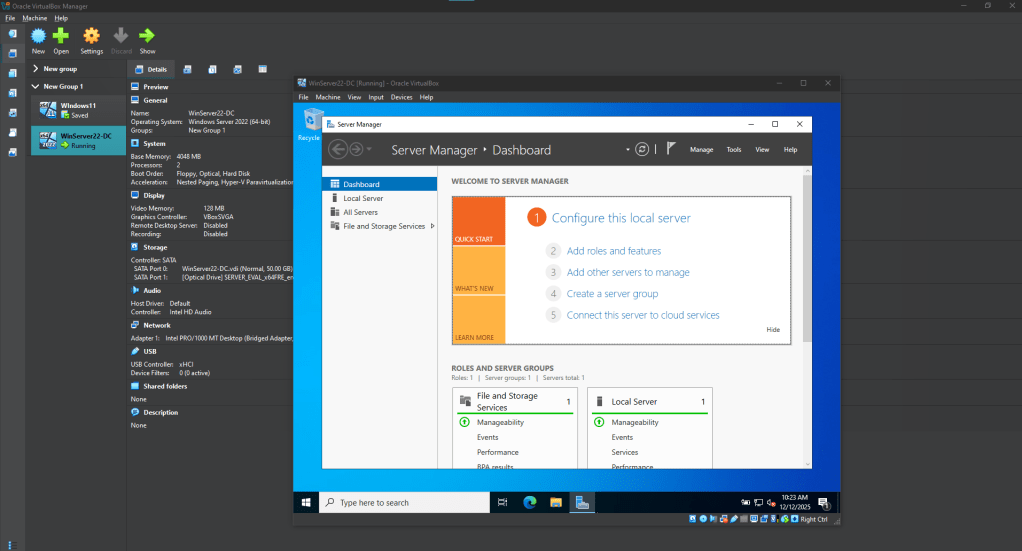
After signing in, I was presented with the Windows Server desktop and Server Manager, confirming that the installation was successful.
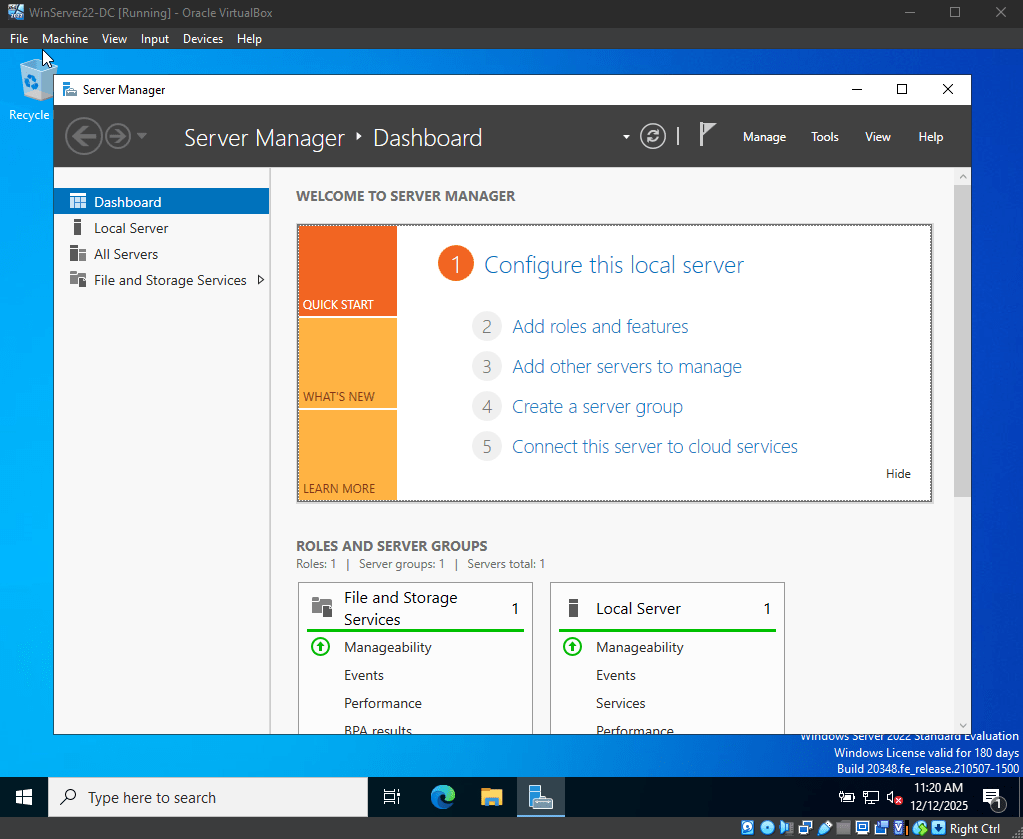
To verify functionality, I tested basic command-line operations such as:
- Running
ipconfig /allto check network configuration - Using
shutdown -ito open the Remote Shutdown Dialog
At this stage, my homelab had a fully functioning: 2 Windows Server 2022 & 4 Windows 11 virtual machines.
What’s Next
With the client machine Windows 11 & Windows Server VMs up and running, I’m now ready to:
- Configure networking between the VMs
- Promote the Windows Server to a Domain Controller
- Set up Active Directory

 CYBERWARD
Leave a comment