
Group Policy Objects (GPOs) are a Windows Server feature that enables administrators to centrally manage and enforce configuration settings for users and computers within an Active Directory domain.
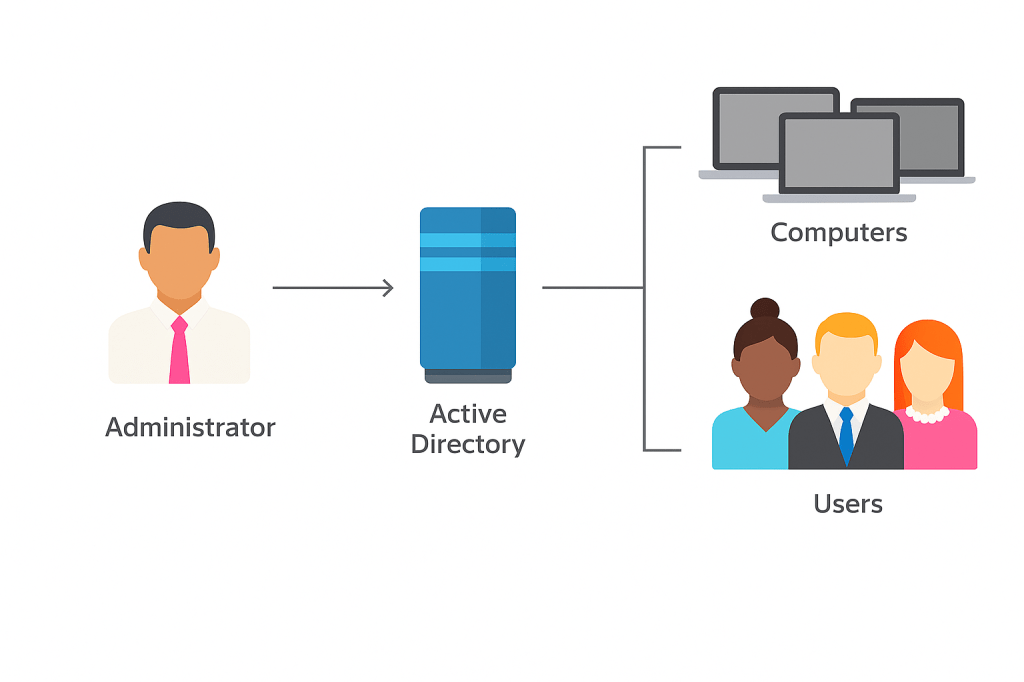
In essence, GPOs are collections of policy settings applied across an Active Directory environment, covering a wide range of controls—from security and system configuration to user interface and environment customization.
Before configuring Group Policy Objects (GPOs), it is important to understand a few fundamental concepts:
GPO Linking:
For a GPO to take effect, it must be linked to an Active Directory container. GPOs can be linked to sites, domains, or Organizational Units (OUs), and the policies will apply to all users and computers within the linked container.
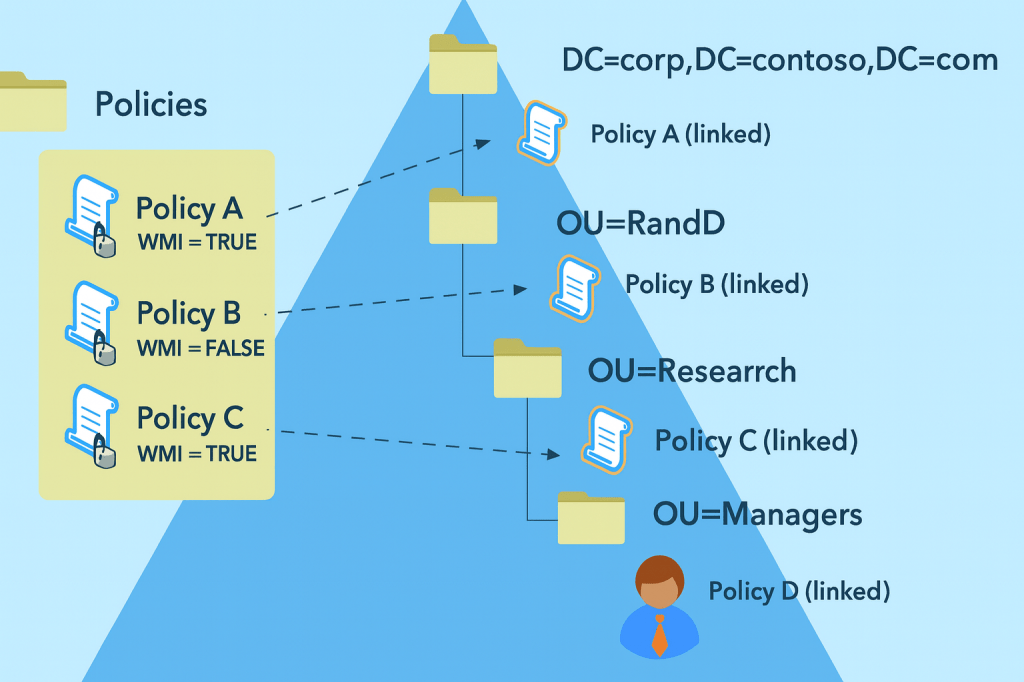
GPO Inheritance and Precedence
GPO inheritance describes how Group Policy settings are passed down and applied through the Active Directory hierarchy. Policies are processed according to the following structure:
Active Directory Hierarchy:
- Local: Policies configured locally on the computer
- Site: Policies linked to an Active Directory site
- Domain: Policies linked at the domain level
- Organizational Units (OUs): Policies linked to specific OUs
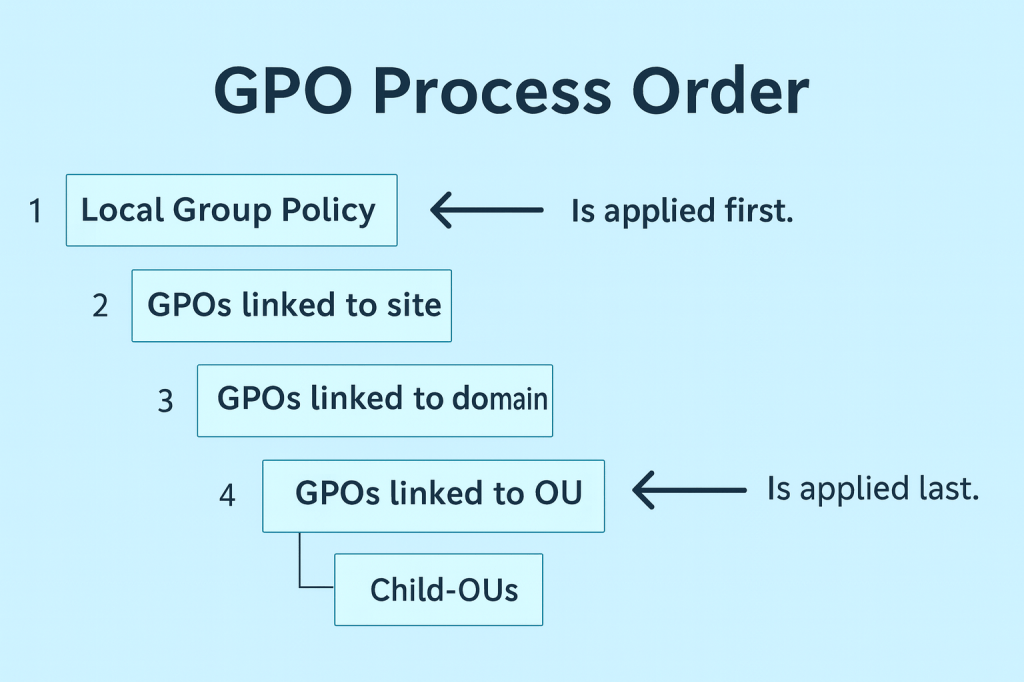
Order of Application (L-S-D-OU):
- Local policies are applied first
- Site policies are applied next
- Domain policies follow
- OU policies are applied last, starting from the top-level OU down to the most specific OU containing the user or computer
Because OU-level policies are applied last, they have the highest precedence and can override settings applied at higher levels in the hierarchy.
Inheritance Modifiers
Active Directory provides several mechanisms to control how Group Policy Objects (GPOs) are inherited and applied.
- Block Inheritance:
Inheritance can be blocked at a specific Organizational Unit (OU), preventing GPOs linked at higher levels (site or domain) from applying to that OU.
- How to enable: In the Group Policy Management Console (GPMC), select the target OU, right-click it, and choose Block Inheritance.
2. Enforced:
A GPO can be marked as Enforced, ensuring that its settings cannot be overridden or blocked by child OUs.
- How to enable: In GPMC, right-click the GPO link and select Enforced.
3. Security Filtering:
GPOs can be restricted to apply only to specific users or computers by using security groups.
- How to configure: In GPMC, select the GPO, go to the Scope tab, and modify the Security Filtering permissions.
With these core concepts covered, the next step is to demonstrate the process of applying and configuring Group Policies in practice.
Steps to configure and apply a GPO
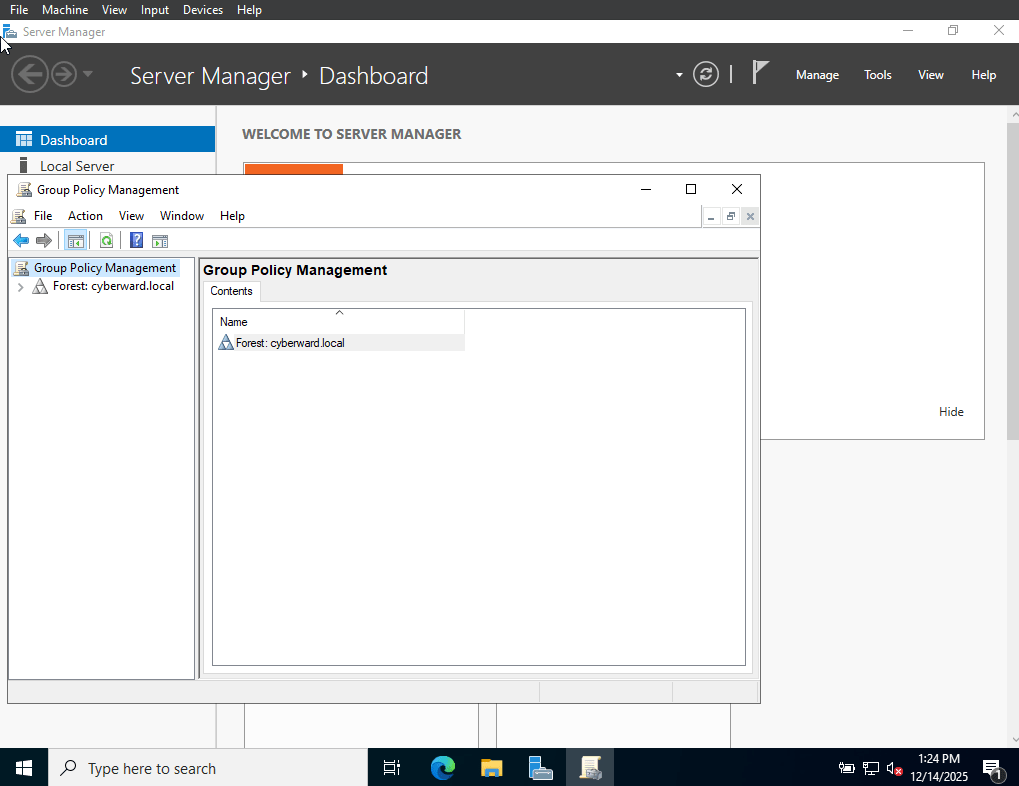
1. Open the Group Policy Management Console (GPMC):
Log in to a domain controller or a workstation with RSAT installed. Launch the Group Policy Management Console by searching for gpmc.msc in the Start menu or by navigating to Administrative Tools → Group Policy Management.
2.Create a New GPO:
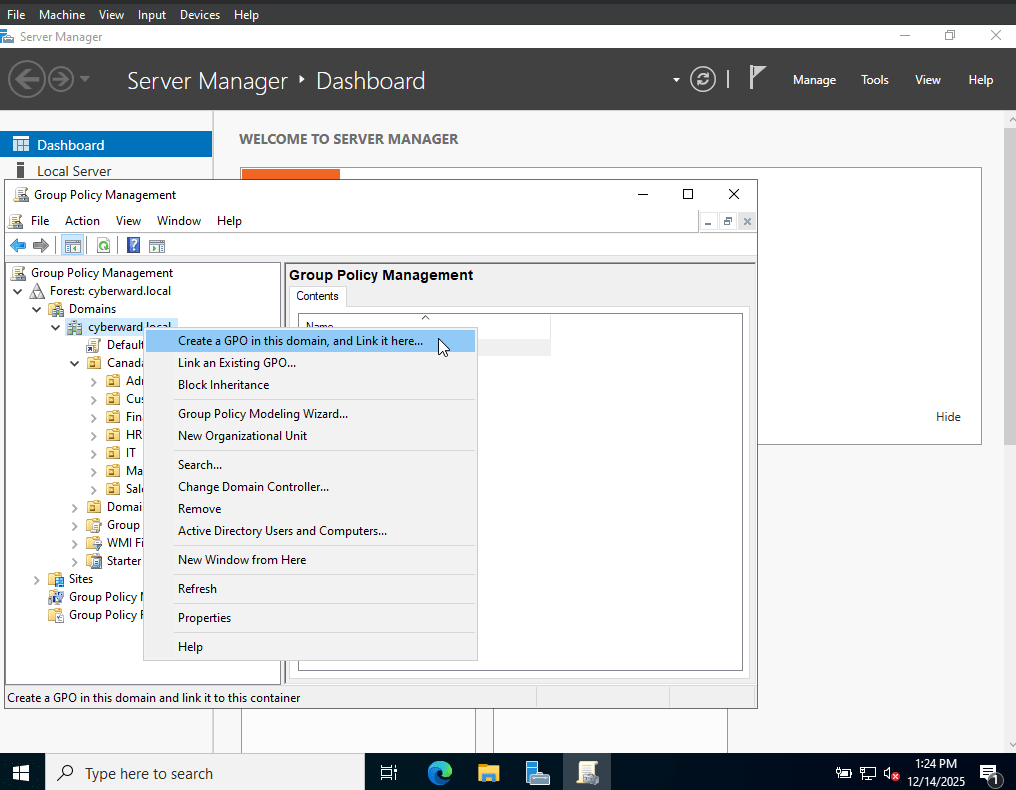
In the Group Policy Management Console (GPMC), navigate to the location where you want the policy to apply, such as a domain, site, or organizational unit (OU). Right-click the selected container and choose “Create a GPO in this domain, and link it here…”.
In this case, the GPO will be created and linked at the domain level, ensuring it applies across the entire domain.
3. Name the GPO:
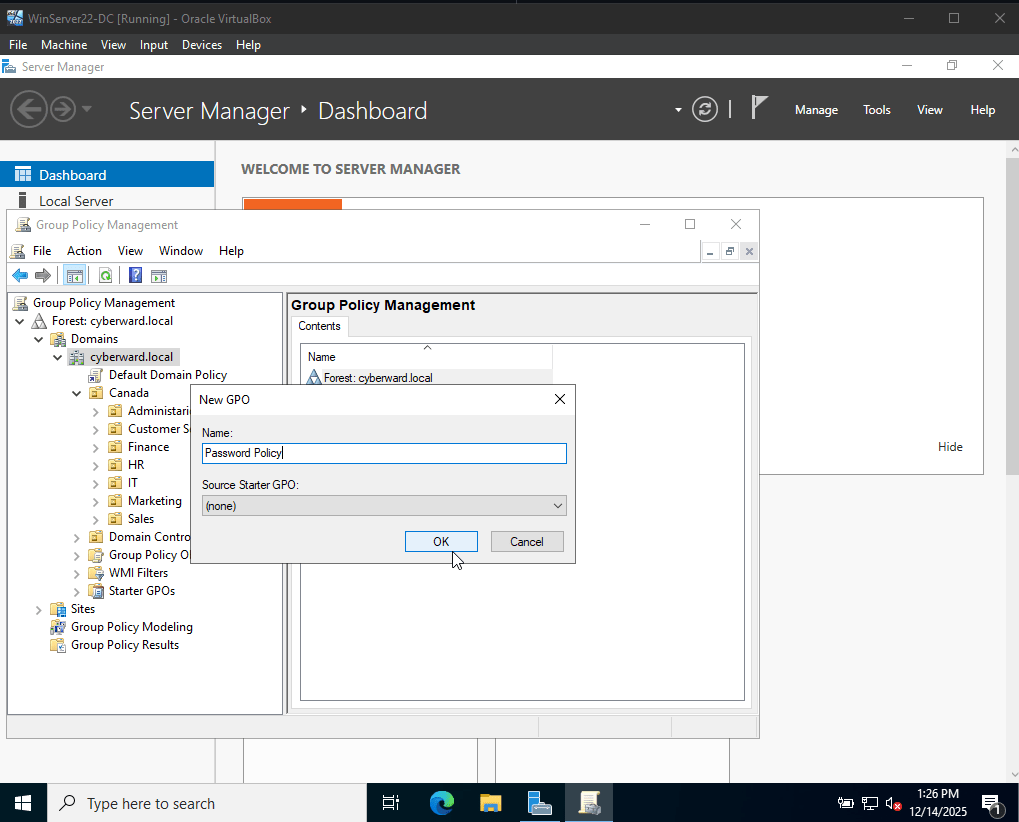
Assign a clear and descriptive name to the new GPO, such as “Password Policy” or “Desktop Wallpaper.”
In this case, the GPO will be named to reflect its purpose, as it will be used to configure and enforce a secure password policy.
4. Edit the GPO:
After the GPO is created, it will appear in the list of policies linked to the selected domain, site, or OU. Right-click the GPO and choose “Edit” to open the Group Policy Management Editor, where you can configure the required policy settings.
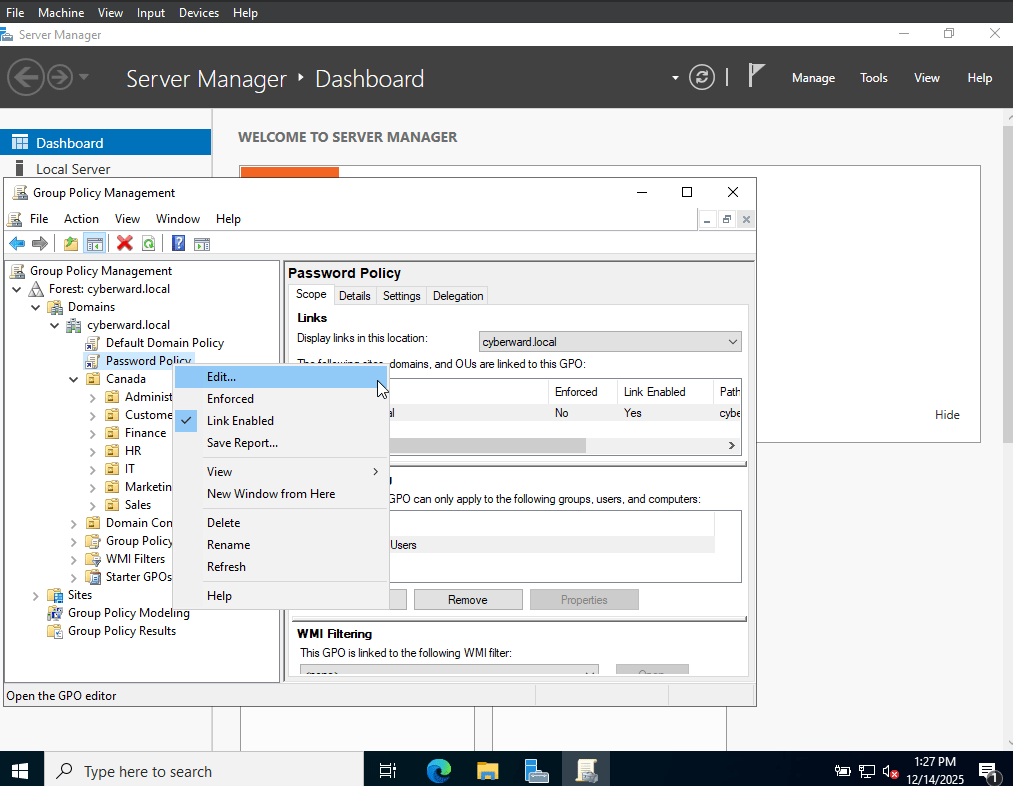
Once this is done, the Group Policy Management Editor will open.
5. Configure Desired Policies:
In the Group Policy Management Editor, configure the required settings under one of the two main policy categories:
User Configuration:
These policies apply to users when they sign in. Typical settings include desktop customization, folder redirection, user environment controls, and software restrictions.
Computer Configuration:
These policies apply to computers regardless of the user who logs in. Common examples include security settings, software deployment, system services, and network configurations.
In this case, I go to:
Computer Configuration > Windows Settings > Security Settings > Account Policies > Password Policy.
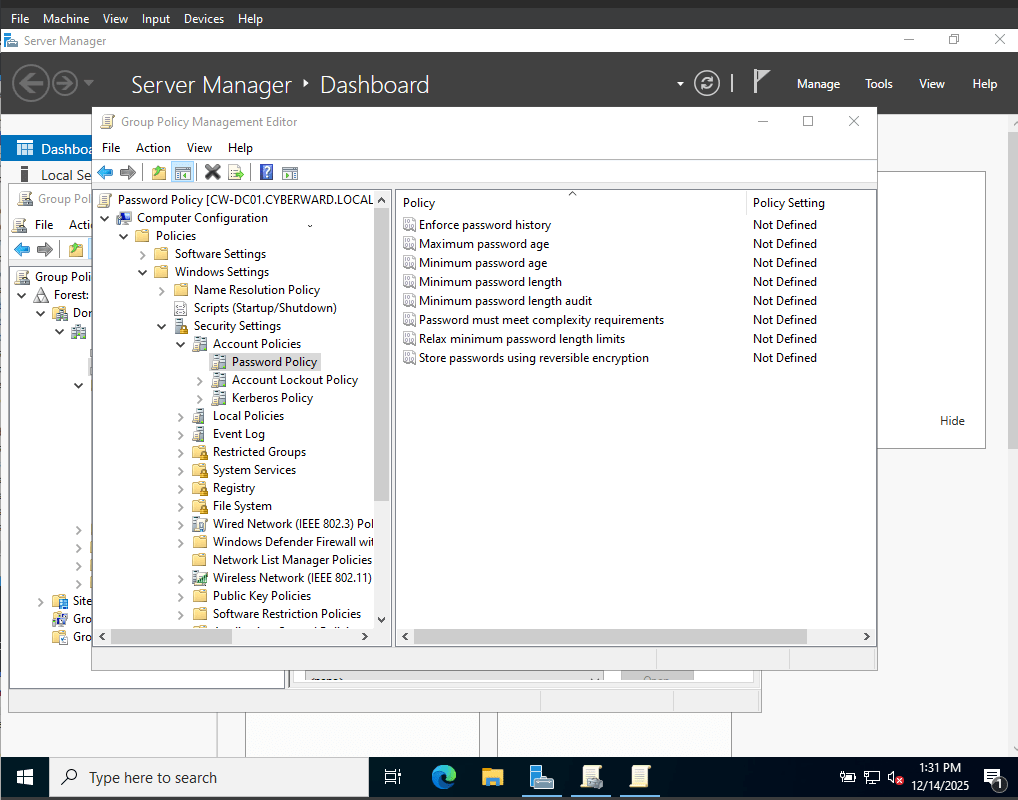
Now, double-click the policy you want to modify. This will open a configuration window where you can enable or disable the policy and adjust its settings and values as required.
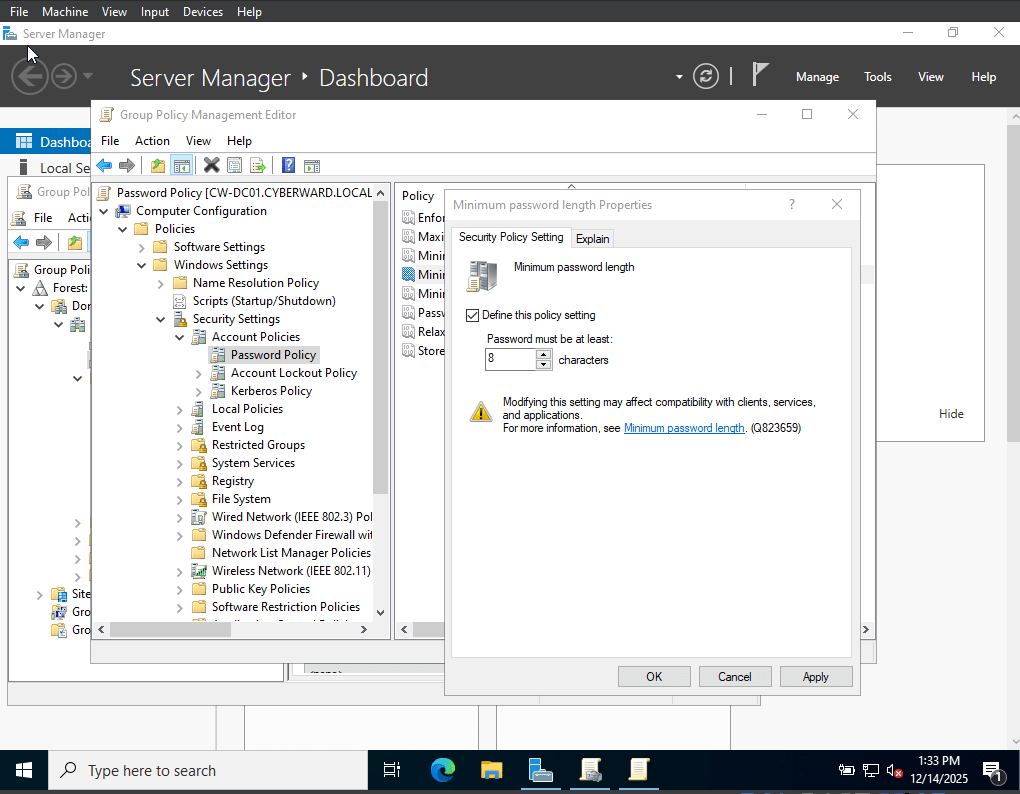
inally, I click on “Apply” and the password length policy is set to 8 characters long.
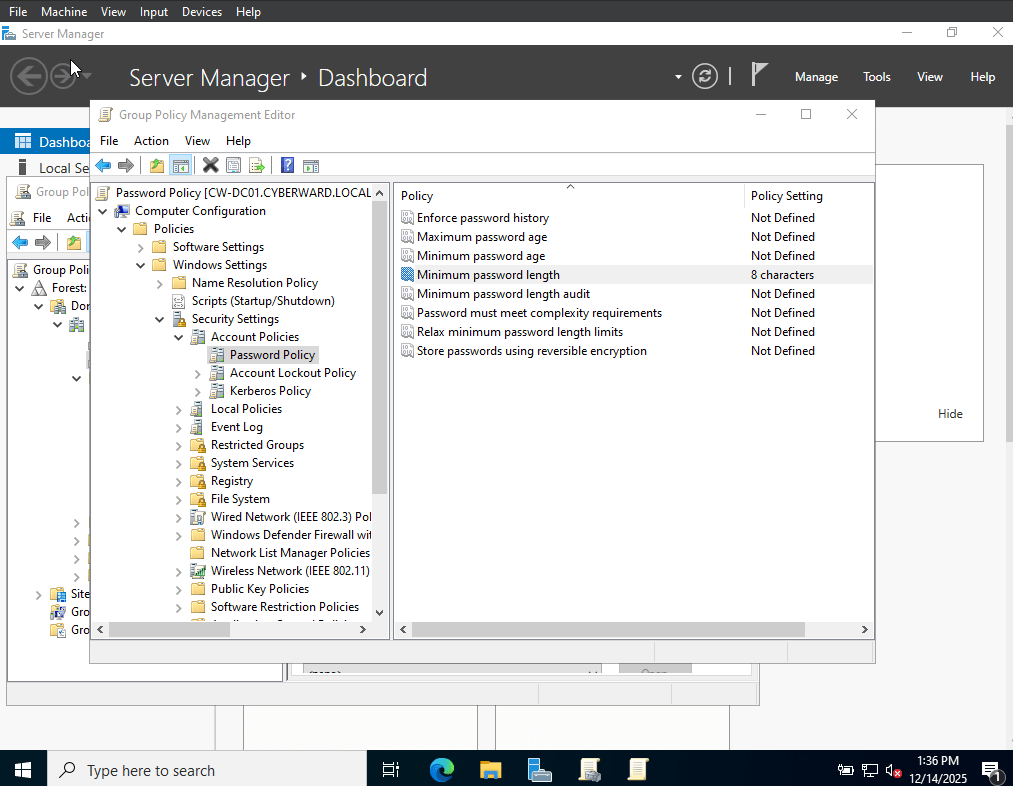
6. Apply the GPO:
Once linked, the GPO is automatically applied to the selected domain, site, or OU, and its settings will affect all objects within that scope. By default, the policy is processed during the next Group Policy refresh cycle (approximately every 90 minutes for computers and at user logon).
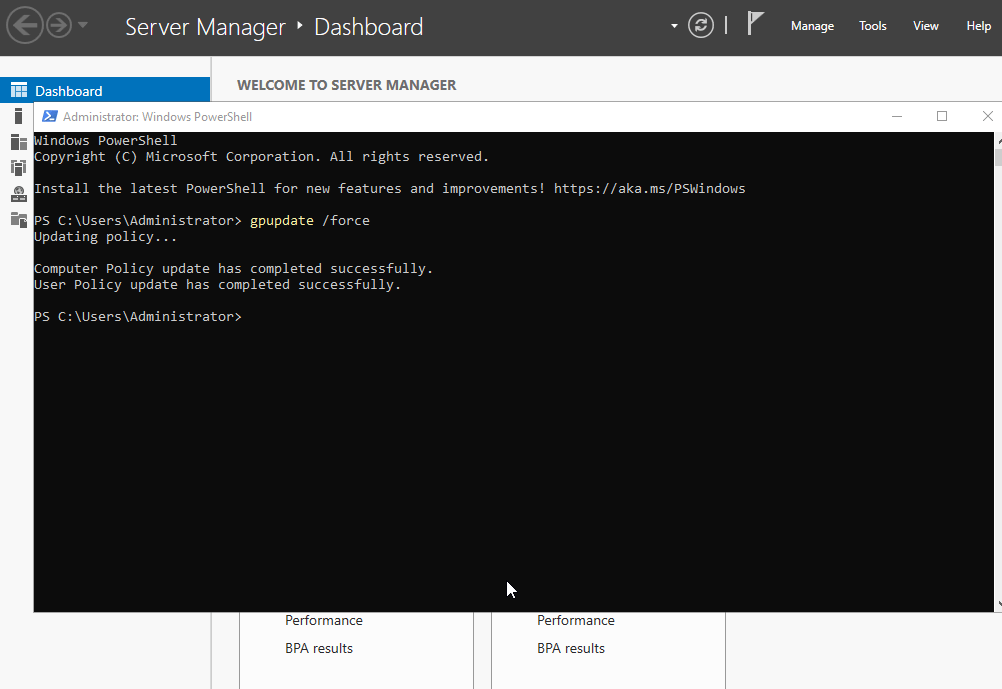
7. Force Policy Update:
To apply the policy immediately, you can manually trigger an update:
- On the Domain Controller:
Rungpupdate /forcein Command Prompt to refresh policies on the domain controller. - On Client Computers:
Rungpupdate /forcein Command Prompt on each client machine to apply the new policies without waiting for the next scheduled update.
Other Recommended Group Policies:
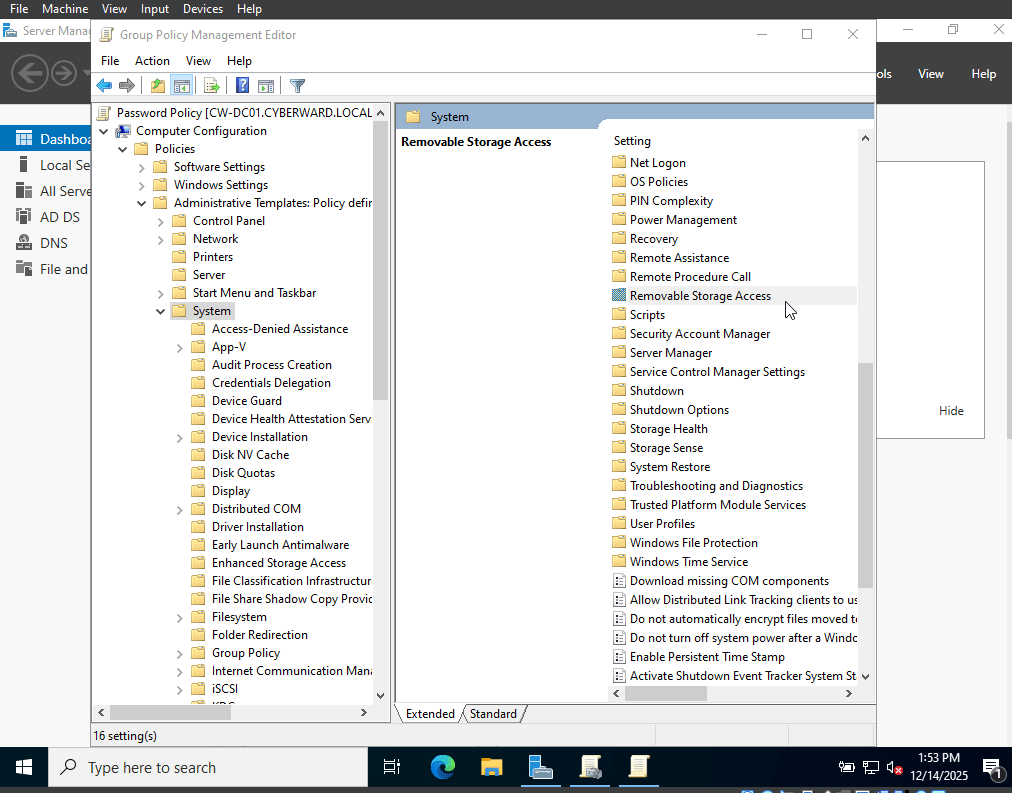
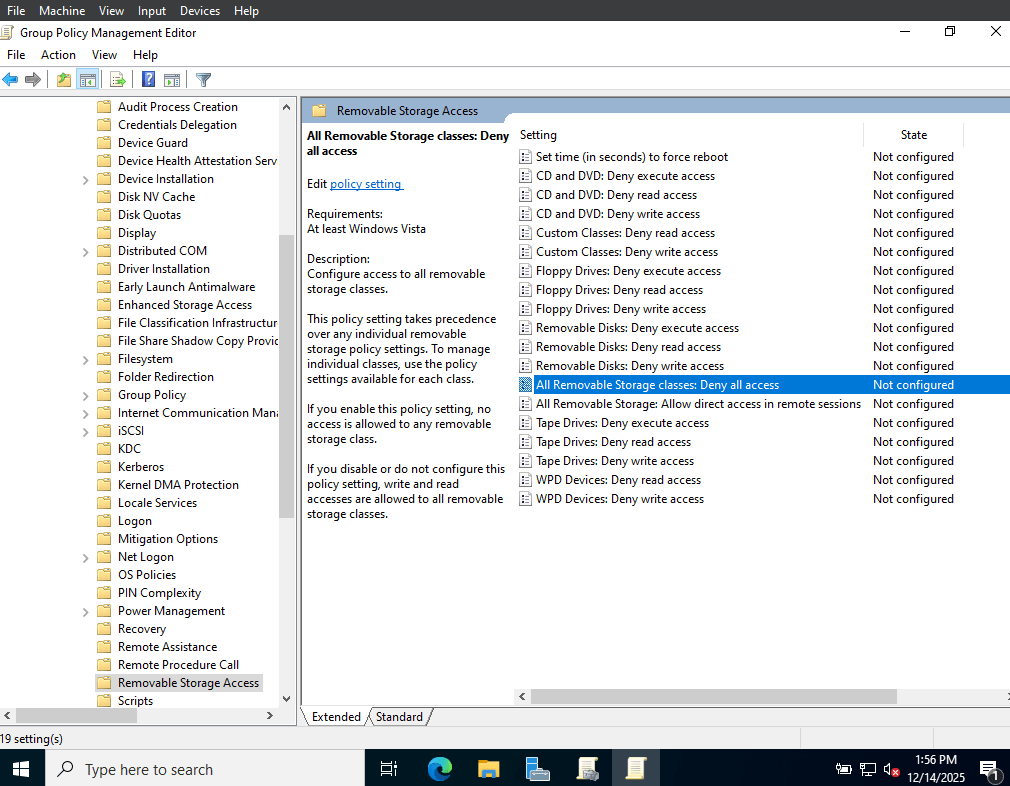
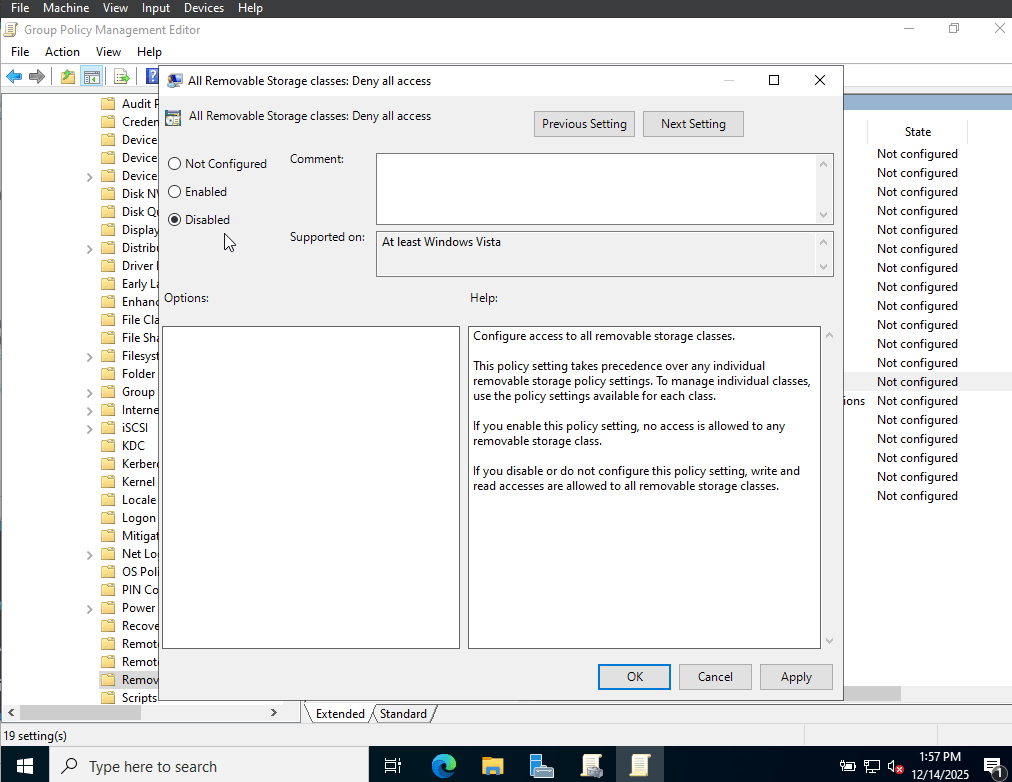
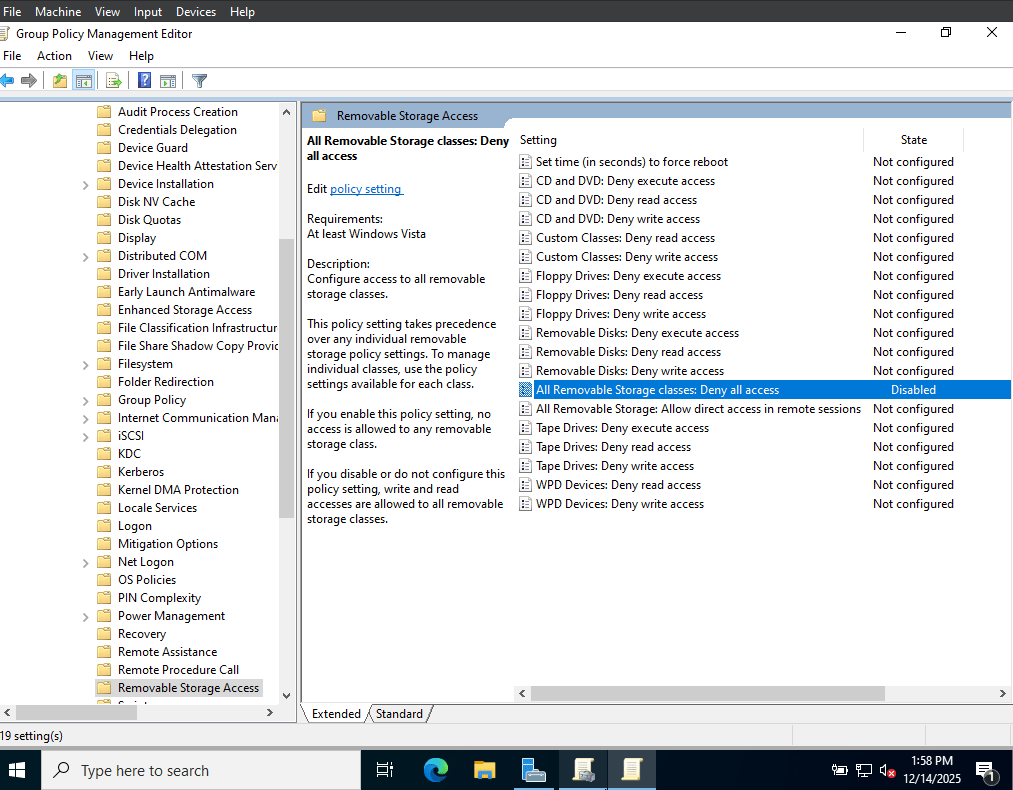
Beyond enforcing a strong password policy, there are additional Group Policies that are highly beneficial in a business environment. One important example is restricting the use of USB devices.
- Policy: Disable read and write access to removable storage devices.
- Benefit: Reduces the risk of data leakage and prevents malware infections introduced through unauthorized USB drives.
- Policy Location:
Computer Configuration → Policies → Administrative Templates → System → Removable Storage Access
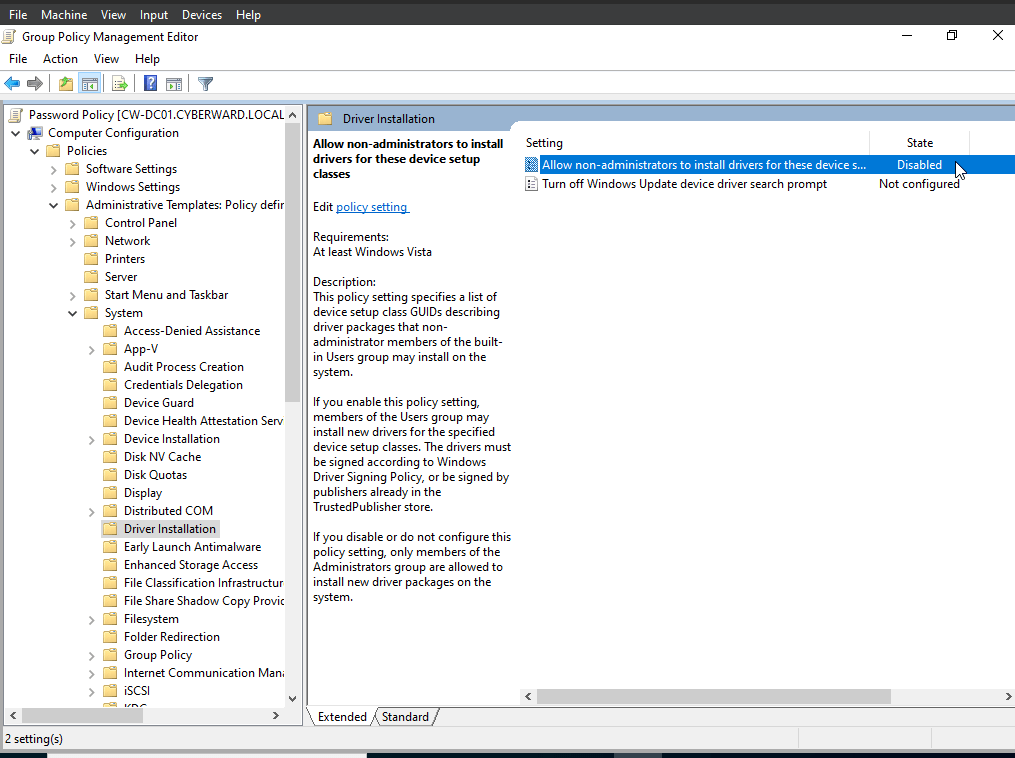
2. Disable the Installation of Unauthorized Software:
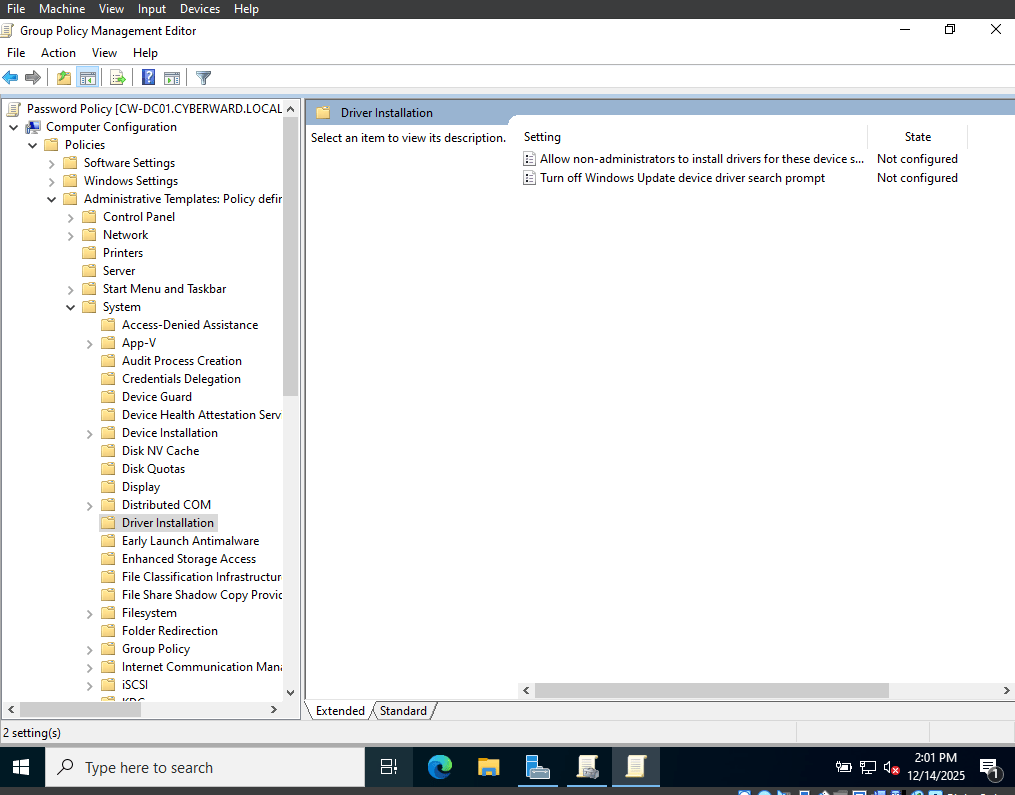
Policy Location:
Computer Configuration → Policies → Administrative Templates → System → Driver Installation
Policy: Disable the installation of devices that match specified device IDs.
Benefit: Ensures that only approved and trusted software and drivers are installed, reducing the risk of security vulnerabilities, system instability, and configuration conflicts.
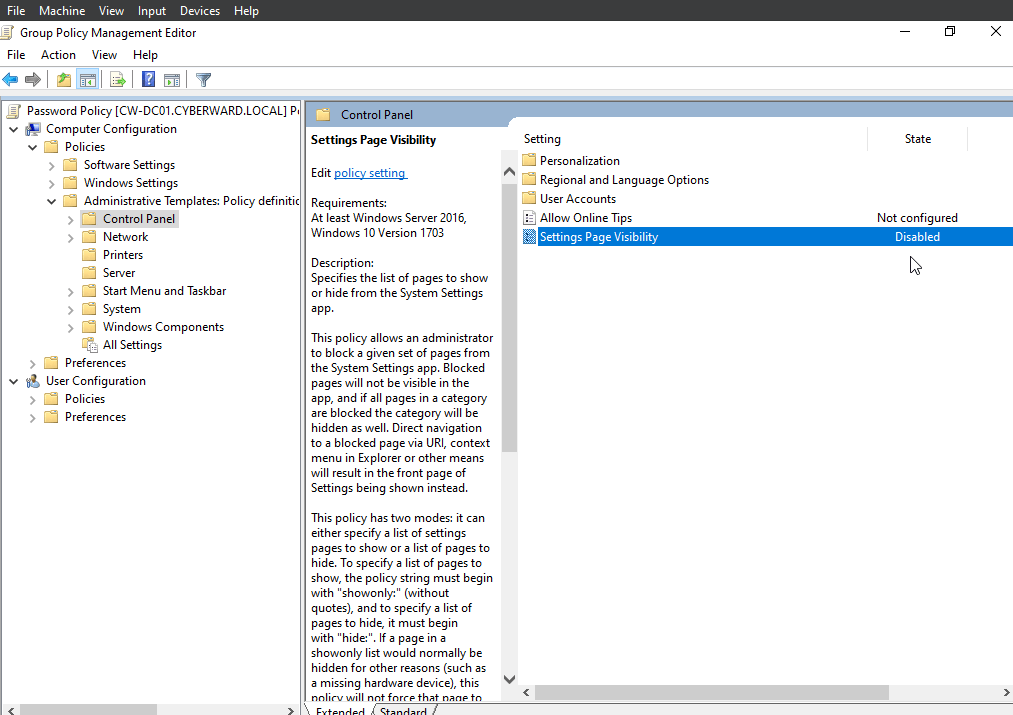
3. Disable Access to the Control Panel and Settings:
Policy Location:
User Configuration → Policies → Administrative Templates → Control Panel
Policy: Prohibit access to the Control Panel and Settings.
Benefit: Prevents users from making unauthorized system changes and helps reduce support requests caused by accidental misconfiguration.
Example of what happens if I try to perform an action blocked by a group policy
If I try, for example, to access the control panel after it has been locked by group policy and group policies have been updated, I get the following message:




 CYBERWARD
Leave a comment